Voicemail in the Webphone
Listen to, search, transcribe and delete voicemail, and change your voicemail greeting, in the browser and desktop Webphone.
Listen to your voicemail, call people back and change your greeting from Services › Voicemail in the browser and desktop Webphone.
Before you start
Section titled “Before you start”The Webphone shows the Voicemail mailboxes you have access to. Your PBX administrator gives access in the mailbox’s settings, with All Webphone users have access to this object or by adding you under Users. If you have no access, the page shows At the moment you don’t have access to any of the voicemail objects.
Listen to your messages
Section titled “Listen to your messages”- Open Services, then Voicemail. A red dot on Voicemail means you have unread messages, and Services opens there automatically.
- Find the mailbox. If you have access to several, they’re listed in alphabetical order.
- Click the play icon next to a message. The Voicemail player opens and the message starts playing. It’s marked Read as soon as you start playing it.
Each message shows its status (Read or Unread), the caller, the number it was received on, its length and when it arrived. The icons at the end of a message’s row block the number, send an SMS, call back, add the caller to your contacts, open the caller in your CRM (Integrations), play the message and download it.
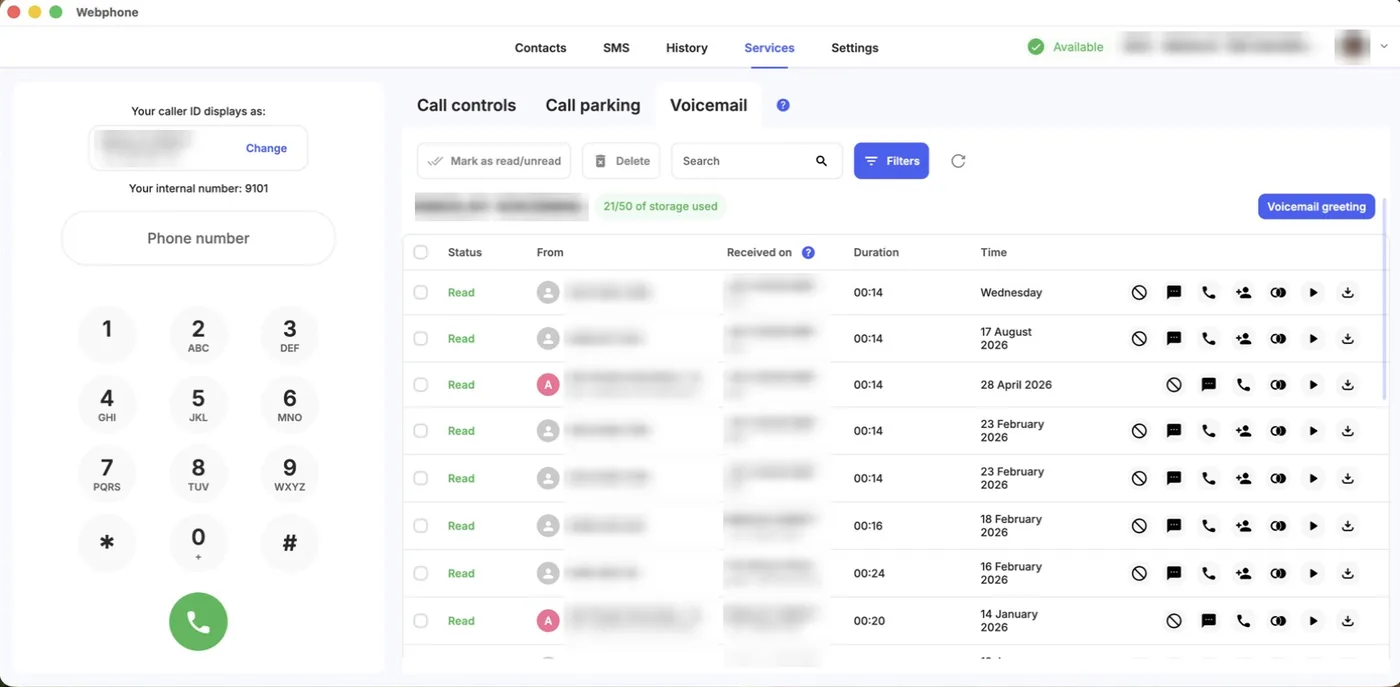
When you call back from a message, the Webphone uses the number shown under Received on as your caller ID, if you’re allowed to use it. If you’ve chosen Confirm for each call, you’re asked which caller ID to use.
Find a message
Section titled “Find a message”- Search: type a phone number, contact name or caller ID prefix.
- Filters: choose a date range or a single Voicemail mailbox, or turn on Show unread messages only. Click Apply. Reset clears the filters.
Mark as read or unread, and delete
Section titled “Mark as read or unread, and delete”- Tick the messages.
- Click Mark as read/unread to change their status, or Delete to remove them.
Deleting asks you to confirm. It can’t be undone.
The voicemail player and transcript
Section titled “The voicemail player and transcript”The Voicemail player shows the message’s status, the number it was received on, the caller and the time, then a waveform of the message:
- Click play or pause, or press the Space bar. Click anywhere on the waveform to jump there, and click the download icon to save the message.
- With Speech-to-text, the transcript appears under the player, split into turns with the speaker and their start and end times. The current turn and word are highlighted as the message plays. Click a turn to play from there; scrolling the transcript pauses playback.
- No transcript yet: click Transcribe voicemail. Transcription is charged under your speech-to-text plan; if your balance is too low, you’re asked to top up first. The button doesn’t appear if speech-to-text isn’t on for your account.
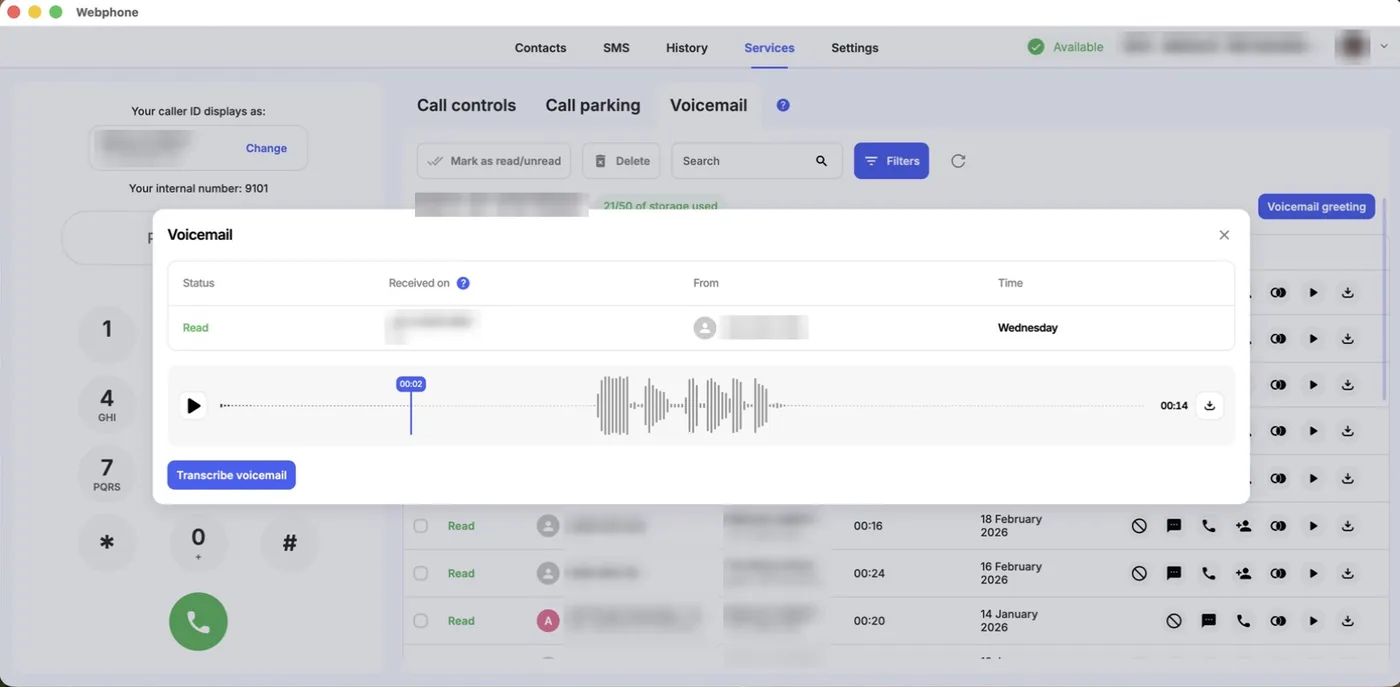
Transcripts can contain mistakes, so check important details against the message.
Change your greeting
Section titled “Change your greeting”- Next to the mailbox name, click Voicemail greeting.
- Choose the greeting:
- Default: the standard greeting. Click play to hear it.
- Custom: your own recording. Click Upload file to upload a .wav file, or Record your voice to record one with your microphone. Click Start recording, speak, then click the red timer button to stop. Click Proceed to use the recording, or Re-record to try again.
- Disabled: no greeting.
- Click Save.
The Webphone applies the change for you, so no one needs to click Apply configuration in the PBX. The greeting belongs to the whole mailbox, so it changes for everyone who shares it.
Next steps
Section titled “Next steps”- Voicemail object settings, for administrators
- Webphone notifications and ringtone
- Voicemail in the Webphone mobile app