API
Fetch user, queue and ring group calls and start calls from your own software with the API.
The API lets your own software read call data and start calls. Use it to pull call logs into a CRM or database, or to add click-to-call to your own app. It supports four requests: three that list calls and one that makes a call.
| Request | Method | What it does |
|---|---|---|
| Get user calls | GET | Lists calls made and received by users. |
| Get queue calls | GET | Lists calls that went through your queues. |
| Get ring group calls | GET | Lists calls that went through your ring groups. |
| Call to number | POST | Rings a user, then connects them to the number you give. |
Not sure which to use? The API answers when your software asks. Webhooks push events to your server as they happen. The API request object is different again: the PBX asks your server where to send a call while it’s in progress.
Before you start
Section titled “Before you start”- The API needs the Integrations licence: Services › PBX licences › Advanced features. See Integrations overview. This applies to every request, including Test API request in the portal. Without the licence, requests are refused with “You do not have an Integrations licence”.
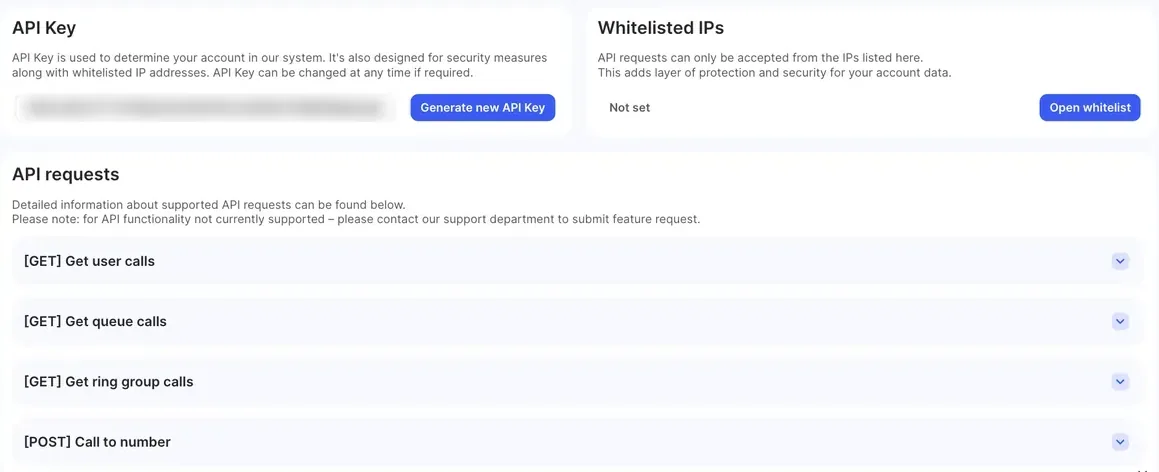
- Go to Integrations › API. Everything you need is on this page.
Set up access
Section titled “Set up access”API key
Section titled “API key”Every request must carry your API key in an HTTP header named token. The key identifies your account.
- Copy the key from the API Key box.
- Store it in your software’s configuration, not in code you share.
To replace the key, click Generate new API Key. The old key stops working at once, so update your software straight away.
Whitelisted IPs
Section titled “Whitelisted IPs”The API only accepts requests from the public IP addresses in your whitelist.
- Click Open whitelist. The IP Whitelist window opens.
- Enter the public IP address of each server that will call the API, one per line. To allow a range, use a subnet mask, for example
203.0.113.0/24. - Click Add IP.
To remove an address, click the cross on it in the IP Whitelist window.
While the whitelist shows Not set, every request is refused. A request from an address that isn’t on the list gets an error response with code 401 and a message that your IP address is not in the white list.
Base URL
Section titled “Base URL”Expand any request on the page. The Endpoint field shows the base URL for your account, and Full request URL: shows the complete URL with the parameters you’ve chosen. Copy it from there. The examples below use https://<api-host> in its place.
Requests
Section titled “Requests”All four requests use the same header:
| Header | Header value |
|---|---|
token |
<your-api-key> |
Get user calls
Section titled “Get user calls”GET https://<api-host>/api/integration/v2/get-user-calls
Lists calls made and received by your users.
Get queue calls
Section titled “Get queue calls”GET https://<api-host>/api/integration/v2/get-queue-calls
Lists calls that went through your Queues, including abandoned calls.
Get ring group calls
Section titled “Get ring group calls”GET https://<api-host>/api/integration/v2/get-ringgroup-calls
Lists calls that went through your Ring groups.
Parameters for the GET requests
Section titled “Parameters for the GET requests”Add these to the URL as query parameters. All are optional.
| Portal label | Parameter | What it does |
|---|---|---|
| Sort by | sort_by |
Order of the results: newest_first (From newest to oldest, the default) or oldest_first (From oldest to newest). |
| From date | from_date |
First day to include, as year-month-day, for example 2026-10-01. You can add a time: 2026-10-01T09:00:00. |
| To date | to_date |
Last day to include, as year-month-day. A date without a time includes the whole day. |
| Users | users_names |
Get user calls only. The names of the users to include, separated by commas. Default: all users. |
| Queues | queues_names |
Get queue calls only. The names of the queues to include, separated by commas. Default: all queues. |
| Ring groups | ringgroups_names |
Get ring group calls only. The names of the ring groups to include, separated by commas. Default: all ring groups. |
| Offset (element number to get data from) | offset |
How many results to skip. Default 0; from 0 to 9999. |
| Limit (how many calls to be shown) | limit |
How many results to return. Default 100; from 1 to 10000. |
| Unique call ID | unique_call_id |
Returns one call only. |
Dates and times are in your PBX’s time zone.
Use Offset and Limit to page through results. For example, to get calls 450 to 500 out of 1000, set offset=450 and limit=50.
Example:
curl -H "token: <your-api-key>" \ "https://<api-host>/api/integration/v2/get-user-calls?sort_by=newest_first&from_date=2026-10-01&to_date=2026-10-31&offset=0&limit=100"Call to number
Section titled “Call to number”POST https://<api-host>/api/integration/v2/call-to-number
Rings the user’s devices first. The user sees the number being called as the caller ID. When the user answers, the PBX calls the destination number through the user’s dial plan and connects them. The user’s devices ring for up to 45 seconds.
Send the request body as multipart/form-data:
| Portal label | Field | Required | What it is |
|---|---|---|---|
| User number | user_number |
Yes | The internal number of the user who makes the call. |
| Destination number | number_to_call |
Yes | The number to call, in E.164 format, for example 61255501234. A leading + is removed. |
| Caller ID | caller_id |
No | The number to show to the person you call, in E.164 format. Use one of your own numbers. If you leave it out, the user’s own caller ID is used. |
Example:
curl -X POST -H "token: <your-api-key>" \ -F "user_number=1001" \ -F "number_to_call=61255501234" \ "https://<api-host>/api/integration/v2/call-to-number"Responses
Section titled “Responses”Every response has the same wrapper. For the GET requests, data holds a list of calls. For Call to number, it holds one result.
{ "status": "success", "message": "", "code": 200, "data": [ ]}Get user calls
Section titled “Get user calls”| Field | Type | What it is |
|---|---|---|
unique_call_id |
string | Unique ID of the call. Matches the ID in webhooks. |
type |
string | Direction and result: user_inbound_answered, user_inbound_missed, user_outbound_answered or user_outbound_not_answered. |
caller_id |
string | The caller’s number. |
caller_name |
string | The caller’s name, if known. |
dest_number |
string | The number that was called. |
user_name |
string | Name of the User object. |
user_number |
string | Internal number of the User object. |
call_start_at |
string | When the call started (ISO 8601). |
connected_at |
string or null | When the call was answered (ISO 8601). Null if it wasn’t answered. |
call_duration |
integer | Total length of the call, in seconds. |
conversation_duration |
integer | Length of the conversation after answering, in seconds. |
Get queue calls
Section titled “Get queue calls”| Field | Type | What it is |
|---|---|---|
unique_call_id |
string | Unique ID of the call. |
queue_name |
string | Name of the Queue object. |
queue_number |
string | Internal number of the Queue object. |
callerid |
string | The caller’s number. |
caller_name |
string | The caller’s name, if known. |
dest_number |
string | The number that was called. |
call_start_at |
string | When the call reached the queue (ISO 8601). |
connected_at |
string or null | When a user answered (ISO 8601). Null if nobody answered. |
call_duration |
integer | Total length of the call, in seconds. |
conversation_duration |
integer | Length of the conversation, in seconds. 0 if nobody answered. |
user_name |
string | The user who answered. Empty if nobody answered. |
user_number |
string | That user’s internal number. |
status |
string | answered, abandoned or timedout. |
The queue and ring group responses name the caller’s number callerid, not caller_id.
Get ring group calls
Section titled “Get ring group calls”| Field | Type | What it is |
|---|---|---|
unique_call_id |
string | Unique ID of the call. |
ring_group_name |
string | Name of the Ring group object. |
ring_group_number |
string | Internal number of the Ring group object. |
callerid |
string | The caller’s number. |
caller_name |
string | The caller’s name, if known. |
dest_number |
string | The number that was called. |
call_start_at |
string | When the call reached the ring group (ISO 8601). |
connected_at |
string or null | When a user answered (ISO 8601). Null if nobody answered. |
call_duration |
integer | Total length of the call, in seconds. |
conversation_duration |
integer | Length of the conversation, in seconds. 0 if nobody answered. |
user_name |
string | The user who answered. Empty if nobody answered. |
user_number |
string | That user’s internal number. |
status |
string | answered, abandoned or timedout. |
Call to number
Section titled “Call to number”| Field | Type | What it is |
|---|---|---|
user_name |
string | Name of the user who makes the call. |
user_number |
string | Their internal number. |
caller_id |
string | The caller ID used. |
dest_number |
string | The number being called. |
Test a request in the portal
Section titled “Test a request in the portal”- Go to Integrations › API and expand a request, for example [GET] Get user calls.
- Fill in the parameters. The Full request URL: updates as you go.
- Click Test API request to see the response.
The Example and Description tabs next to each request show a sample response and what each field means.
Tips and limits
Section titled “Tips and limits”- Each API key can make up to 500 requests in 15 minutes. After that, requests are refused until the 15 minutes are up.
- Only these four requests are available. To ask for more, use Feature requests.
- Use
unique_call_idto match API results with webhook events and Call history. - Keep the API key secret. If it leaks, generate a new one and check your whitelist.