Reports overview
Last updated View as Markdown (opens in a new tab)
Find the right report for calls, SMS, recordings and team performance, and learn the controls they share.
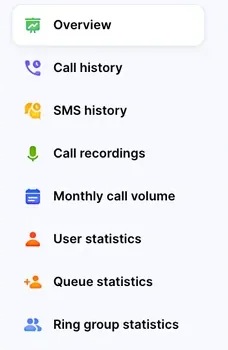
The Reports tab in the portal shows what happened on your phone system: every call and SMS, call recordings, and how your users, queues and ring groups are performing. Pick a report from the menu on the left.
Which report to use
Section titled “Which report to use”| Report | Use it to |
|---|---|
| Overview | See call totals by day, by hour and by day of the week. Find your busiest times. |
| Call history | Find a specific call, or list every call in a period with full details. |
| SMS history | List every SMS sent and received in a period. |
| Call recordings | Find recordings saved to cloud storage. |
| Monthly call volume | Compare inbound and outbound calls over the last six months. |
| User statistics | Compare how many calls each user made, answered and missed. |
| Queue statistics | Check answered, abandoned and timed-out calls, and wait times, for your queues. |
| Ring group statistics | The same statistics for your ring groups. |
Controls most reports share
Section titled “Controls most reports share”| Control | What it does |
|---|---|
| Date range (calendar button) | The period the report covers. You can choose dates within the last six months. For older data, contact the support team. |
| Time range: | A slider from 00:00 to 24:00. Limits the report to calls at certain times of day, for example business hours only. |
| Filter | Narrows the report, for example to certain users, queues or phone numbers. The options depend on the report. |
| Total calls / Inbound / Outbound | Shows all calls, or one direction only. |
| Save report | Downloads the report with your filters applied, as a PDF. |
| Email report | Emails the report with your filters applied, as a CSV file (User statistics sends CSV and PDF). Shown instead of Save report on some reports. |
| Daily reporting | Emails a report every day to the administrators you choose. |
| Columns | Chooses which columns the table shows. |
Email report opens a window where you choose the recipients: pick administrators under Administrators, add any other address under Email, or both, then click Send. You can send one request every ten minutes.
Get a report emailed every day
Section titled “Get a report emailed every day”- Open a report that has Daily reporting: Overview, Call history, User statistics, Queue statistics or Ring group statistics.
- Click Daily reporting.
- Daily reports are set up for each administrator separately. In Select an administrator, choose the administrator.
- Tick the reports they should get: Call history, Queue statistics, Ring group statistics or User statistics.
- Click Apply. Repeat for other administrators.
Reports go to administrators on your account. To add one, see Administrators and access.
Where to go next
Section titled “Where to go next”- Record calls and keep them in the cloud: Call recording storage.
- Show live queue activity on a screen: Queue wallboard.
- Get call data into your own systems: API and Webhooks.