Website widget
Last updated View as Markdown (opens in a new tab)
Add a call button to your website so visitors can call you from the browser or request a callback.
Website widget puts a call button on your website. Visitors can call you straight from their browser, ask for a callback, or both. Their call then enters your call flow like any other incoming call.
Add it to your call flow
Section titled “Add it to your call flow”- Drag Website widget from the Receive calls group onto the canvas and click the gear icon.
- Enter a Name and choose the Operation mode.
- Set the Number of channels. For Callback or Combined mode, also choose a SIP trunk call plan and a Callback caller ID.
- Adjust Appearance and Operating hours if needed, then click Save.
- Connect the widget to where calls should go, for example a Queue.
- Click Apply configuration.
- Open the widget settings again, click Copy JavaScript and add the code to your website.
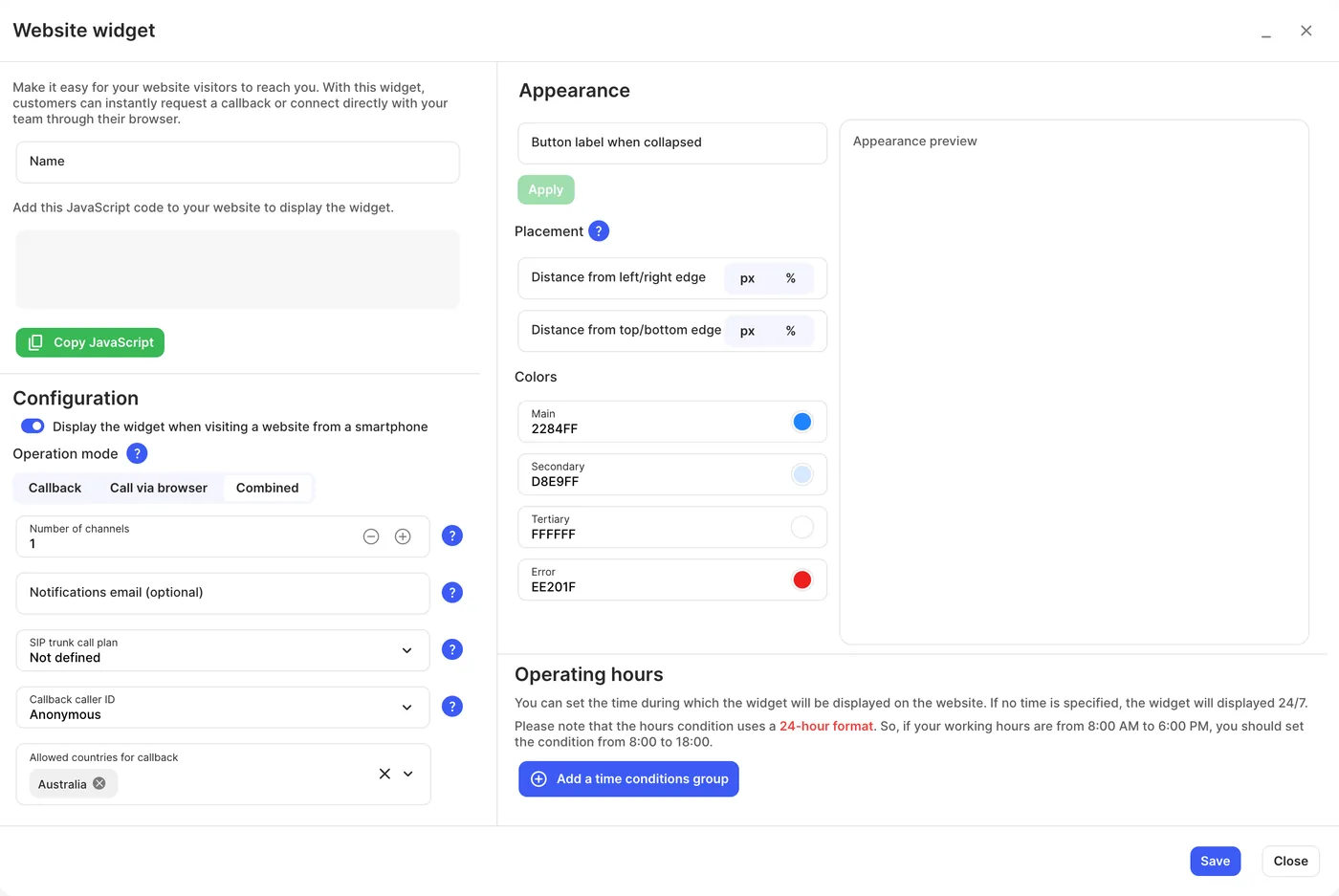
Operation modes
Section titled “Operation modes”| Mode | What the visitor does |
|---|---|
| Callback | Enters their phone number. The system calls them straight away, and when they answer the call continues through your call flow as an incoming call. |
| Call via browser | Starts a call directly from the widget using their computer or phone’s microphone. |
| Combined | Can choose either of the above. |
Settings
Section titled “Settings”| Setting | What it does |
|---|---|
| Name | Label on the canvas. |
| Copy JavaScript | Copies the code to paste into your website. |
| Display the widget when visiting a website from a smartphone | Shows the widget on mobile browsers too. |
| Operation mode | Callback, Call via browser or Combined (see above). |
| Number of channels | How many widget calls can be connected at the same time. |
| Notifications email (optional) | Gets an email when the channel limit is reached. |
| SIP trunk call plan | The call plan used to call visitors back. Required for Callback and Combined modes. |
| Callback caller ID | The number visitors see when you call them back. Must be one of your purchased numbers (not toll-free or shared cost). If none is selected, callbacks are anonymous. |
| Allowed countries for callback | Only visitors with phone numbers in these countries can request a callback. |
| Appearance | Button label when collapsed, Placement, distance from the edges, and colours. The preview doesn’t show distance settings; test them on your website. |
| Operating hours | When the widget is shown, in the Time zone you choose. Uses 24-hour time, for example 8:00 to 18:00. Add more groups for different hours; the widget shows if any group matches. With no hours set, the widget shows 24/7. |