Devices
Last updated View as Markdown (opens in a new tab)
See and manage every phone and app that makes and receives calls on your PBX.
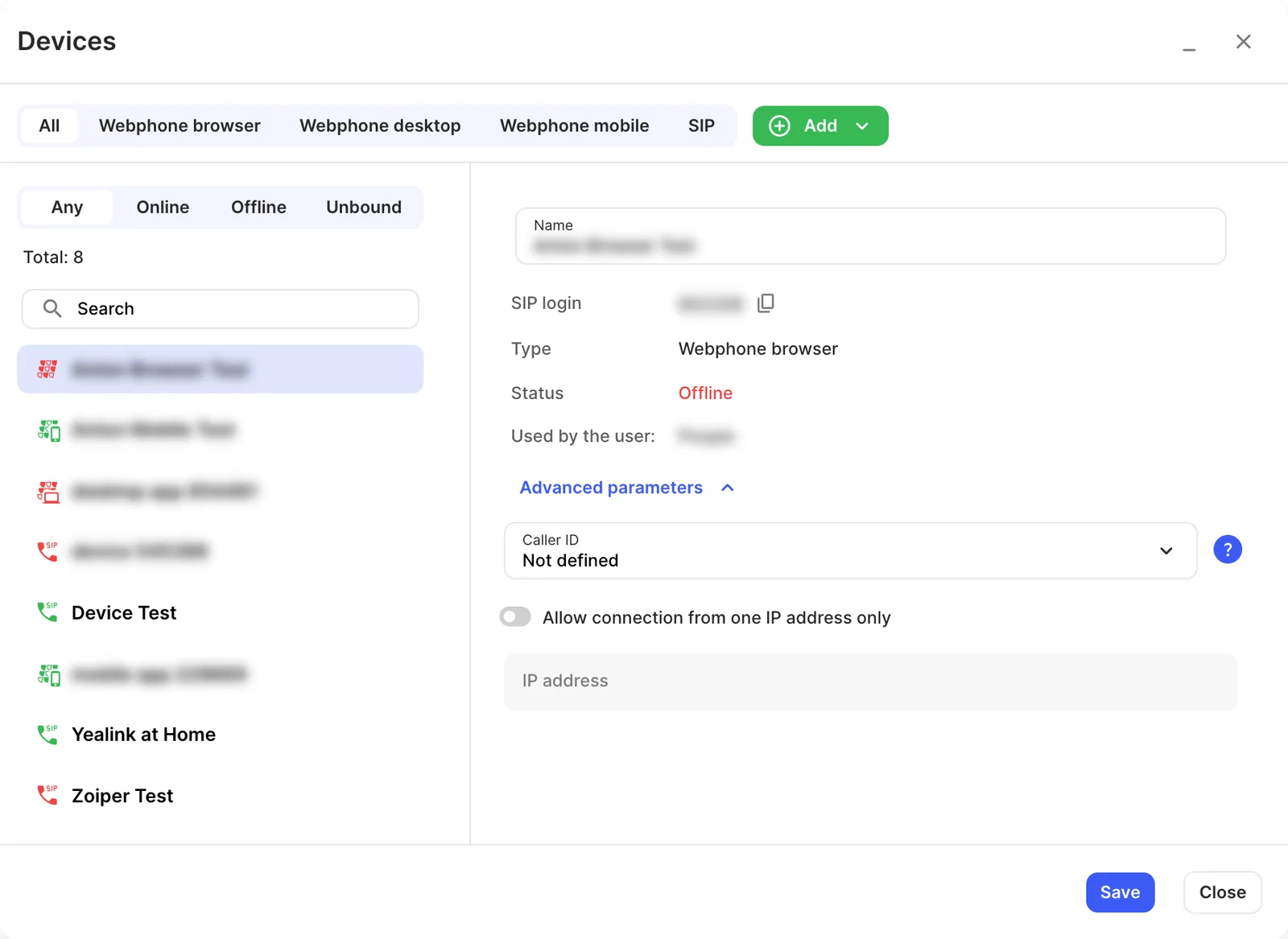
The Devices window lists every phone and app on your PBX, whether it’s online, and which user it belongs to. Open it from Devices at the top of the PBX tab.
Device types
Section titled “Device types”| Type | What it is |
|---|---|
| Webphone browser | The Webphone in a web browser. |
| Webphone desktop | The Webphone app for computers. |
| Webphone mobile | The Webphone app for iOS or Android. It’s always treated as online, because the PBX can’t tell when a phone is unreachable. |
| SIP device | A desk phone, DECT phone, adapter or third-party softphone that signs in with SIP credentials. |
Each device needs a device licence, ordered in Services › PBX licences.
Add a device
Section titled “Add a device”- Click Add and choose the device type.
- Enter a Name and click Save.
- Add the device to a User under Device configuration.
- Click Apply configuration.
You can also add devices directly from the User settings.
Find and filter
Section titled “Find and filter”Use the tabs (All, Webphone browser, Webphone desktop, Webphone mobile, SIP) and the status filter (Any, Online, Offline, Unbound) to find a device. Unbound devices aren’t assigned to any user.
Device settings
Section titled “Device settings”| Setting | What it does |
|---|---|
| Name | Shown in the user’s device list. |
| SIP login | The username for a SIP device. Click the copy icon to copy it. |
| Type / Status | The device type, and whether it’s online. |
| Used by the user | The user this device belongs to. |
| SIP credentials | SIP devices only. The Domain, Username and Password to enter in the phone or softphone. Generate a new password creates a new one; save and apply the configuration for it to take effect. |
| Transport protocol | TCP, or TLS with Media encryption SRTP when TLS encryption is on in General settings. |
| Connection information | For an online device: its IP address, user agent and the transport protocol in use. |
| Check IP address for blocking | A SIP device that registers with wrong credentials is blocked, and the block lifts after 5 minutes. Enter an IP address to check whether it’s blocked. |
| Yealink settings | SIP devices only. Sets up automatic provisioning with the Yealink device model and Yealink MAC address. See Set up a Yealink phone automatically. Some accounts also see Zoiper settings. |
| Caller ID | Under Advanced parameters. Used for calls from this device when its user’s caller ID is set to Anonymous. |
| Allow connection from one IP address only | Under Advanced parameters. Locks a SIP device to one public IP address, for extra security. |
Related
Section titled “Related”- User
- General settings (TLS encryption for SIP devices)