Queue statistics
Last updated View as Markdown (opens in a new tab)
Check answered, abandoned and timed-out calls, wait times and user performance for your call queues.
Queue statistics shows how your Queues are performing: how many callers were answered, gave up or timed out, how long they waited, and how each user did. Use it to check whether you have enough people answering at busy times.
Run the report
Section titled “Run the report”- Go to Reports › Queue statistics.
- Choose the dates in the date range picker. To include only certain hours, drag the Time range: slider.
- Click Filter to choose queues, users, inbound phone numbers, Caller ID prefix or Caller ID, then click Apply.
You can choose dates within the last six months.
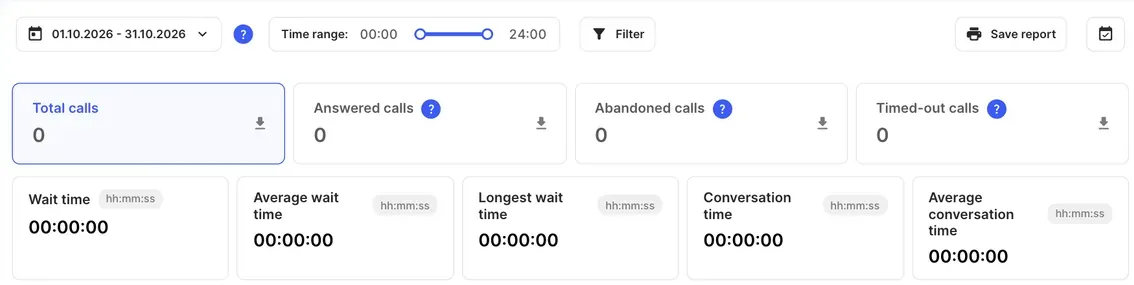
What it shows
Section titled “What it shows”| Item | What it shows |
|---|---|
| Total calls | All calls that entered your queues. |
| Answered calls | Calls a user answered. For a Queue callback: the user answered the callback and the person who asked for it answered too. |
| Abandoned calls | Callers who hung up while waiting. For a queue callback: the user answered, but the person who asked for the callback didn’t answer, or the user declined the call. |
| Timed-out calls | Callers who reached the queue’s Maximum waiting time and left the queue. For a queue callback: no user answered before the retries ran out. |
| Wait time | Total time callers spent waiting. |
| Average wait time | Average time a caller waited. |
| Longest wait time | The longest any caller waited. |
| Conversation time | Total time users spent talking to queue callers. |
| Average conversation time | Average length of an answered queue call. |
| Chart | Calls over time. Switch between Hour, Day, Week and Month. |
| Calls by queue | Total calls, Answered calls, Abandoned calls and Timed-out calls for each queue. |
| Calls by user | Number of calls, Conversation time and Average conversation time for each user. |
| How quickly the calls were answered | A chart of answered calls by how long callers waited: within 15, 30, 60, 90 or 120 seconds, or longer. Each part shows the share of calls, for example Answer within 30 sec, 25.0%. |
Save and download
Section titled “Save and download”- Click Save report to save the whole report, with your filters applied, as a PDF.
- Click the download icon on the Total calls, Answered calls, Abandoned calls or Timed-out calls box to download those calls as a CSV file, with full call details.
- Click the Daily reporting button (calendar icon) to email the report to chosen administrators every day. See Reports overview.
- Many abandoned calls at the same hours means callers wait too long. Add users at those times, or offer a Queue callback.
- To be emailed about each abandoned or timed-out call as it happens, turn on Receive notifications of abandoned and timed-out calls in the Queue settings.
- For live figures on a screen, use a Queue wallboard.