Set up a Yealink phone automatically
Enter the phone's model and MAC address in the PBX so it configures itself when you plug it in.
Auto-provisioning is the easiest way to set up a Yealink desk phone. You tell the PBX the phone’s model and MAC address, plug the phone in, and it downloads its SIP account and settings by itself. You don’t need to type any SIP details into the phone.
Only Yealink phones can be auto-provisioned from the PBX. For other brands, see Set up any SIP phone.
Before you start
Section titled “Before you start”- A free device licence, ordered in Services › PBX licences.
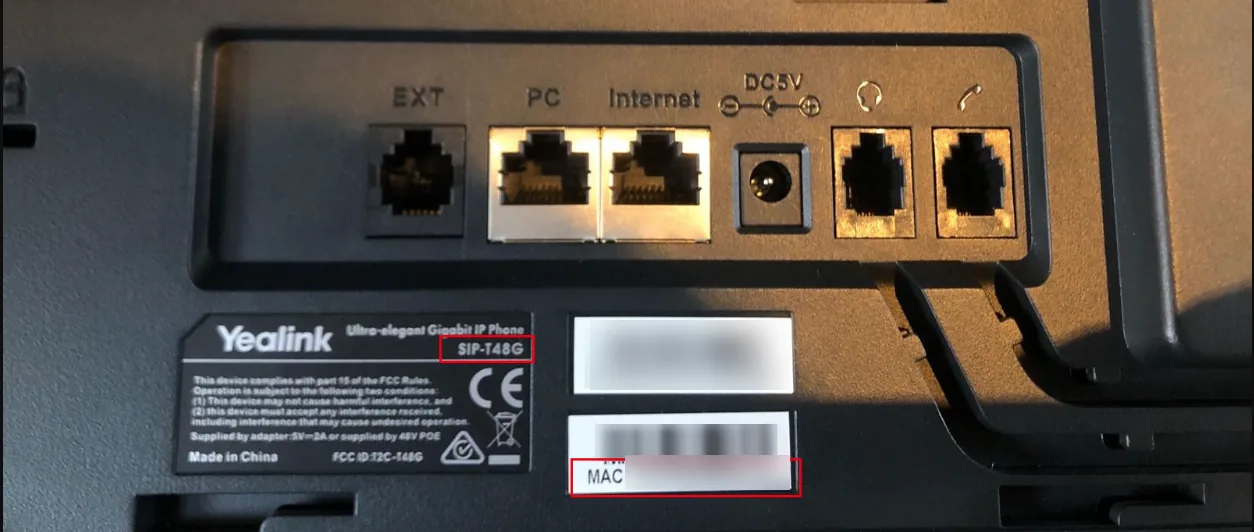
- The phone’s model and MAC address. Both are printed on the label on the back of the phone. The MAC address is also shown on the phone under Status.
- An internet connection for the phone (an Ethernet cable to your router or switch).
- If the phone has been used before, reset it to factory settings first. A phone that has already been set up won’t fetch the new settings.
1. Add a SIP device
Section titled “1. Add a SIP device”- Go to the PBX tab and click Devices at the top.
- Click Add, choose SIP device, enter a Name and click Save.
- Add the device to the person’s User under Device configuration.
If the phone already has a SIP device, skip this step and open that device instead.
2. Enter the phone’s details
Section titled “2. Enter the phone’s details”- In Devices, select the SIP device and expand Yealink settings.
- Choose the model in Yealink device model.
- Enter the MAC address in Yealink MAC address. Type the 12 characters only (digits and the letters a–f), without colons, dashes or spaces.
- Optional but recommended: turn on Replace default Yealink web portal passwords (recommended) and enter a strong User password and Admin password. These replace the phone’s default web interface passwords, so nobody on your network can sign in with the defaults. Keep them somewhere safe. If you leave this off, the PBX sends the default passwords each time the phone downloads its settings, so a password you change on the phone itself doesn’t last.
- Optional: add extra phone settings in Advanced CFG configuration. See Advanced auto-provisioning settings.
- Click Save.
3. Apply and plug in the phone
Section titled “3. Apply and plug in the phone”- Click Apply configuration.
- Connect the phone to your network and power it on.
- Wait for the phone to restart and download its settings. The first time usually takes a few minutes.
Check it works
Section titled “Check it works”- In PBX › Devices, the device shows Online.
- The phone’s screen shows the line, and you can call another user’s internal number.
If it doesn’t work
Section titled “If it doesn’t work”| Problem | What to do |
|---|---|
| The entered MAC address is not valid | Remove any colons, dashes or spaces. The address must be 12 characters: digits and the letters a–f. |
| The MAC address is already in use | The phone is already registered with Yealink’s provisioning service by someone else, for example a previous provider. Check the MAC address, or contact the support team if you didn’t provision it before. |
| Yealink API returned error while updating | The PBX couldn’t reach Yealink’s provisioning service. Try again later. |
| Phone doesn’t come online | Make sure you clicked Apply configuration. Reset the phone to factory settings and power it on again. Check the firmware below. |
| Phone is end of life | Set it up manually. See Set up a Yealink desk phone manually. |
Firmware that can’t be auto-provisioned
Section titled “Firmware that can’t be auto-provisioned”Auto-provisioning uses Yealink’s redirection service, which no longer works with older firmware. If your phone runs firmware lower than the version below, update the firmware first. Yealink’s statement on its RPS service has the latest list.
| Model | Minimum firmware |
|---|---|
| SIP-CP920 | 78.84.0.121 |
| SIP-CP960 | 73.84.0.37 |
| SIP-T40G | 76.84.0.121 |
| SIP-T41S, T42S, T46S, T46U, T48S, T48U | 66.84.0.121 |
| SIP-T53W, T54W, T57W | 96.84.0.12 |
| SIP-T58 | 58.84.0.37 |
| SIP-W60B | 77.83.0.83 |
End-of-life phones
Section titled “End-of-life phones”When Yealink declares a model end of life, auto-provisioning may stop working for it. Set these phones up manually. Common end-of-life models include:
- Desk phones: SIP-T19P, T20P, T21P, T22P, T23P, T26P, T27P, T28P, T32G, T38G, T41P, T42G, T46G, T48G, T52S, T54S, T56A, T58V.
- DECT: SIP-W52P, SIP-W56P.
- Conference phones and accessories: CP860, CPE80, EXP38, EXP39.
Check Yealink’s end-of-life products page for the current list.