Paging on Yealink phones
Last updated View as Markdown (opens in a new tab)
Broadcast your voice to a group of Yealink phones on your office network with one key.
Paging lets you speak through the speaker of a group of Yealink phones at once, for example to announce a visitor in reception. It uses multicast on your local network, so it doesn’t go through the PBX and doesn’t use a call.
How it works
Section titled “How it works”- Phones that should hear pages listen on a multicast address and channel. Set this on every receiving phone.
- Phones that send pages have a Paging key for one group, or a Paging List key to choose from several groups.
- A group is a multicast address, port and channel. The sending phone and the listening phones must use the same three values.
Before you start
Section titled “Before you start”- The IP address of each phone (press OK on the phone) and its web interface password. The default username and password are both
admin. - A multicast address and port for paging. On a simple network you can try
224.0.1.75:10008. - A channel number for each group, from 0 to 30. For example, channel 1 for everyone and channel 5 for Sales.
1. Set up the listening phones
Section titled “1. Set up the listening phones”On every phone that should hear pages:
- Sign in to the phone’s web interface and go to Directory › Multicast IP.
- Under Multicast Listening, fill in a row for each group the phone should hear:
- Listening Address: the multicast address and port, for example
224.0.1.75:10008 - Label: the group name, for example
All - Channel: the group’s channel
- Listening Address: the multicast address and port, for example
- Click Confirm.
2. Add a paging key to a sending phone
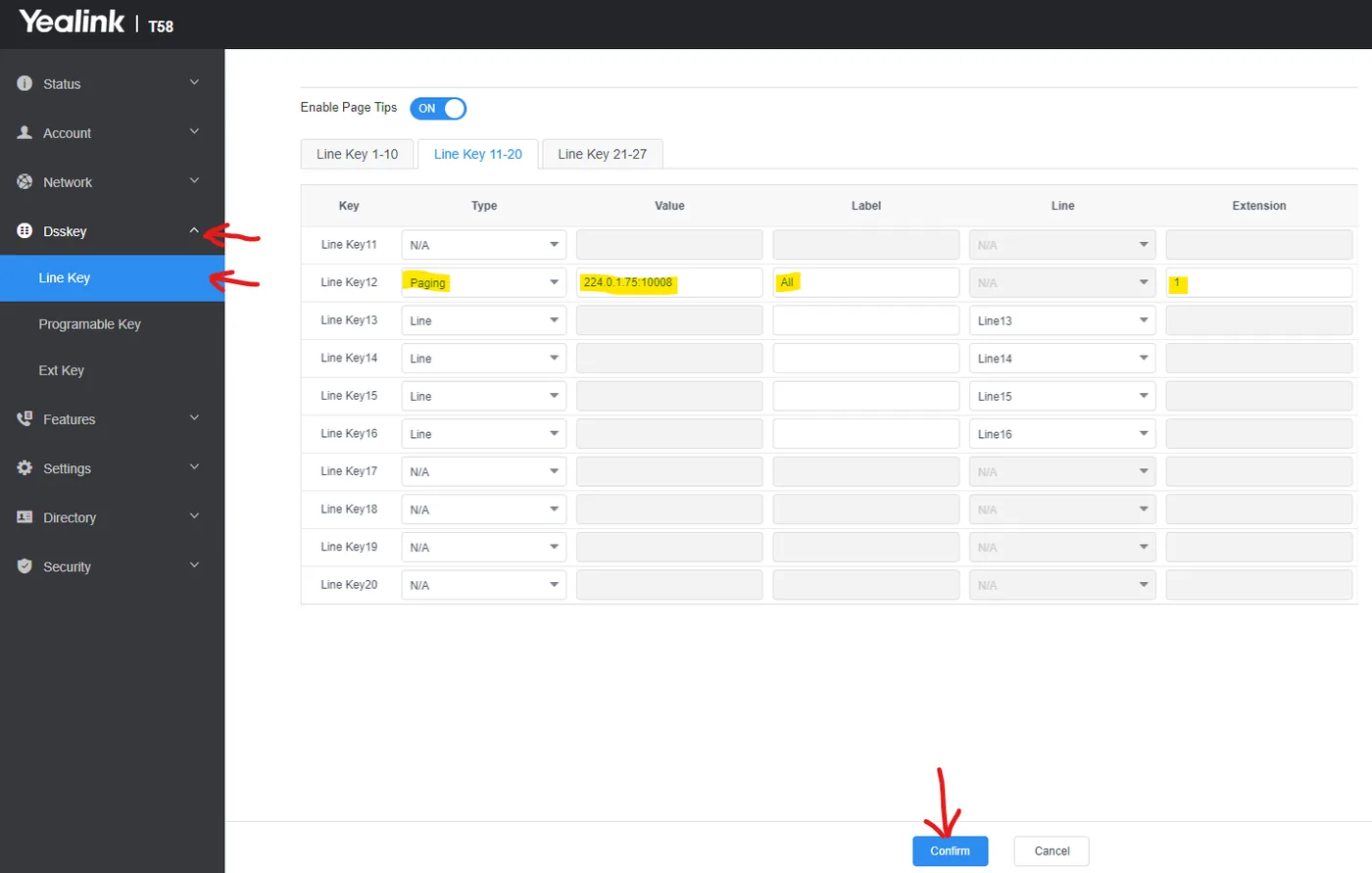
Section titled “2. Add a paging key to a sending phone”For a key that pages one group:
- Go to Dsskey › Line Key and choose a free key.
- Set Type to Paging.
- Enter the multicast address and port in Value, a Label, and the channel in Extension.
- Click Confirm.
3. Or add a paging list (several groups)
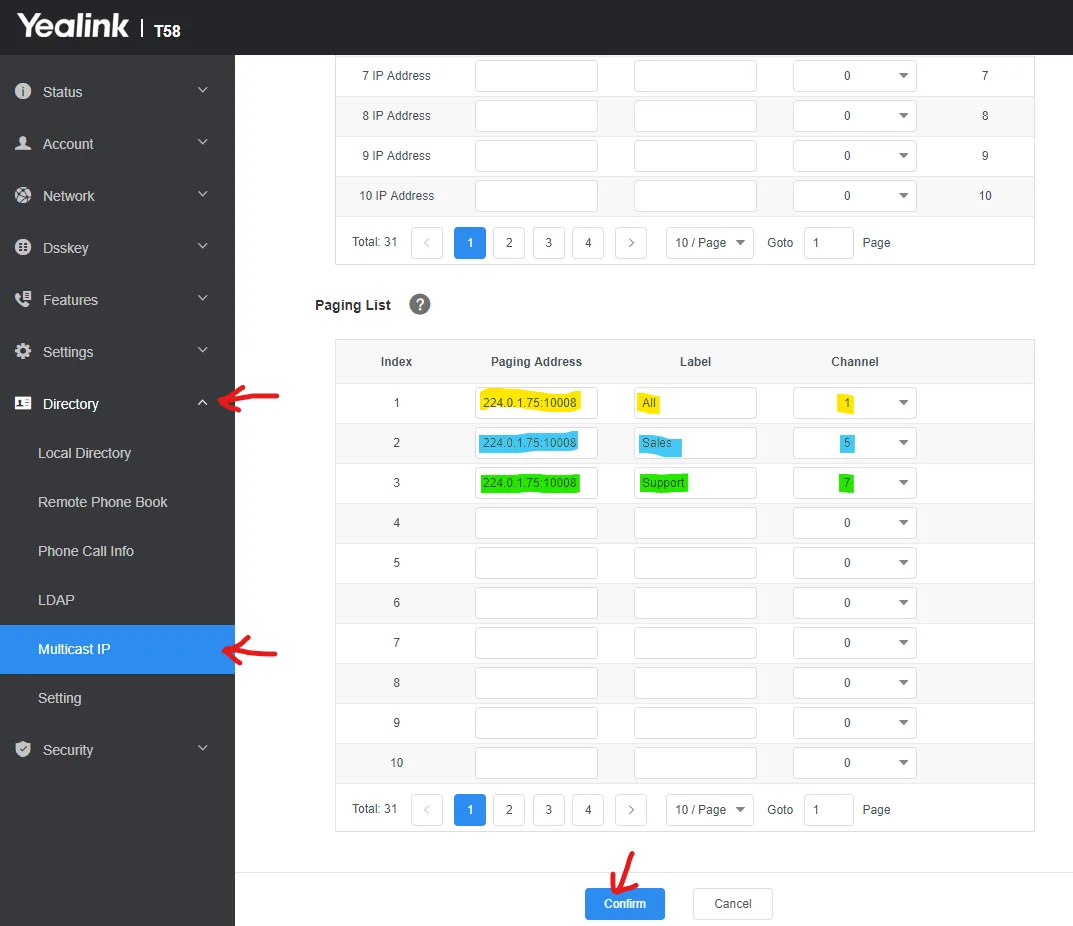
Section titled “3. Or add a paging list (several groups)”A paging list suits a reception phone that pages different groups.
- Go to Dsskey › Line Key, choose a free key, set Type to Paging List, enter a Label and click Confirm.
- Go to Directory › Multicast IP and scroll to Paging List.
- For each group, enter the Paging Address (address and port), a Label and the Channel.
- Click Confirm.
Make a page
Section titled “Make a page”- Press the Paging key, or press the Paging List key and choose a group.
- After the short tone, speak. Every phone listening to that group plays your voice.
- Hang up, or press End Call, to finish.
Check it works
Section titled “Check it works”Page a group and check that each listening phone plays it. If a phone stays silent, check that its listening address, port and channel exactly match the sending key.