Payment methods and top-ups
Add a card or PayPal, top up your balance, or pay by PayID from your banking app.
Add a payment method and make one-off payments in Billing › Bills and payments. You can pay by card, PayPal or PayID.
Accepted payment methods
Section titled “Accepted payment methods”The methods offered depend on your account and country. The portal can offer:
- Credit card (Visa and Mastercard credit or debit cards)
- PayPal
- Direct Debit or PayTo (from your bank account)
- PayID (bank transfer from your banking app)
- Direct bank deposit
If a method isn’t listed on your Bills and payments page, it isn’t offered for your account. A surcharge may apply to some payment methods: select a saved method on the One-off payment tab to see whether one applies.
Australia only
Australian customers can pay by:
- Visa or Mastercard
- PayPal
- direct debit
- PayID, PayTo or bank deposit
American Express isn’t accepted.
The Payments panel
Section titled “The Payments panel”Go to Billing › Bills and payments. The Payments panel shows your Current balance and Credit limit, with these tabs:
- One-off payment: top up your balance or pay an invoice now.
- Payment methods: under Manage payment methods, add or delete saved payment methods. Payment methods priority sets the order in which they’re charged for automatic payments.
- Automatic payments: see Automatic payments.
You need to verify your account before you can manage payments.
Make a one-off payment
Section titled “Make a one-off payment”- Go to Billing › Bills and payments, or click Top up in the Balance box on Billing › Home.
- On the One-off payment tab, under Select a payment method, choose a saved method.
- Under Select a payment purpose, choose Top up the account balance, or an unpaid invoice.
- Under Enter the amount to pay now, enter the Payment amount.
- Click Pay followed by the amount.
You can’t top up while you have unpaid invoices: pay the invoice first.
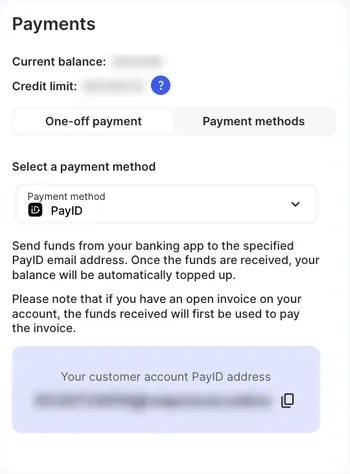
Pay by PayID
Section titled “Pay by PayID”PayID lets you send money from your banking app without saving a card.
- On the One-off payment tab, choose PayID under Payment method.
- Copy Your customer account PayID address with the copy icon.
- In your banking app, pay to that PayID address.
Once the funds arrive, your balance is topped up automatically. If you have an open invoice, the money pays the invoice first.
Add a card
Section titled “Add a card”- Go to Billing › Bills and payments and open the Payment methods tab.
- Under Manage payment methods, click Add a credit card and enter the card details.
- Complete the verification prompt from your bank if one appears. See Payment verification.
The number of cards you can add, and how many can be added in a day or in 30 days, is limited. If the portal says a security limitation applies, contact the support team to add the card.
If the card is declined, check the code against Card declined codes.
Add PayPal
Section titled “Add PayPal”- Go to Billing › Bills and payments, open the Payment methods tab and click Add PayPal. Only one PayPal account can be added.
- You’re sent to PayPal. Sign in, or create a PayPal account.
- Complete any verification PayPal asks for.
- Choose your billing address and how PayPal should pay, then click Agree and Continue.
- You’re returned to the portal, where PayPal now appears as a payment method.
PayPal can then be used for one-off payments, automatic top-ups and automatic invoice payments.
If PayPal won’t connect
Section titled “If PayPal won’t connect”- Sign out of both PayPal and the portal, and close all PayPal tabs.
- Clear your browser’s cache and cookies.
- Open a new tab, sign in to the portal and add PayPal again.
If it still fails, turn off any VPN (it can reset the PayPal session), or try a private window or another browser. If none of this helps, contact PayPal support.
Check it works
Section titled “Check it works”- After a top-up, your new balance shows in the Balance box on Billing › Home and as Current balance in the Payments panel.
- The payment appears in Account balance under Payments, and the receipt in Invoices.
Next steps
Section titled “Next steps”- Set up automatic payments so your service isn’t interrupted.
- Get low balance notifications.