Voicemail
Last updated View as Markdown (opens in a new tab)
Let callers leave a message, kept in a mailbox, sent to email, or both.
Voicemail plays a greeting and records a message. Messages can be kept in the mailbox (local storage), sent to email, or both. It’s usually connected to the No answer path of a User or Ring group, or to the after-hours path of Time conditions.
Add it to your call flow
Section titled “Add it to your call flow”- Drag Voicemail from the Accept, make and divert calls group onto the canvas and click the gear icon.
- Enter a Name and choose a Greeting.
- Turn on Local storage, Voicemail to email, or both, and fill in their settings.
- Click Save, connect the object that should send callers here, and click Apply configuration.
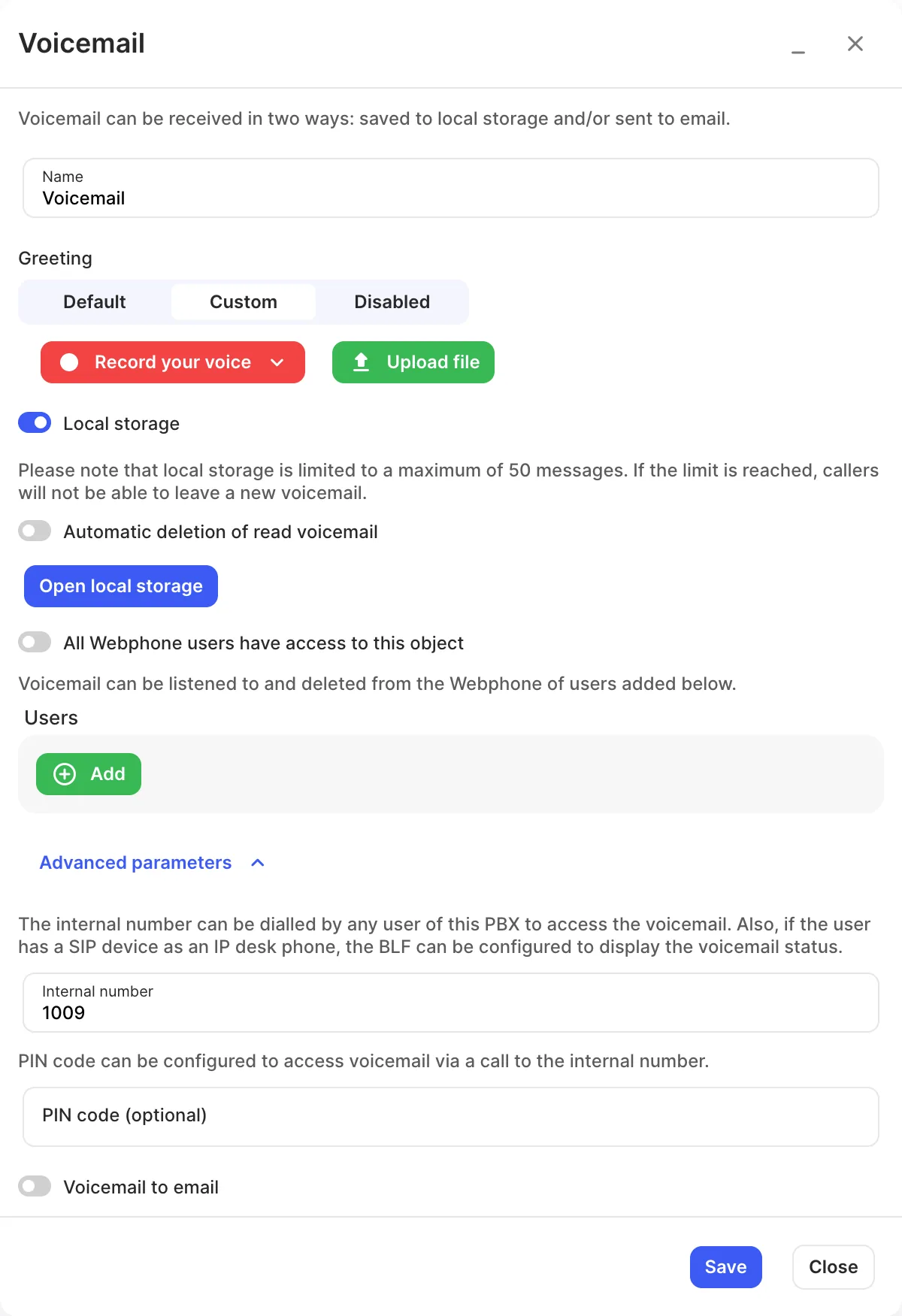
Settings
Section titled “Settings”| Setting | What it does |
|---|---|
| Name | Label on the canvas. |
| Greeting | Default, Custom (record with Record your voice or Upload file) or Disabled. |
| Transcribe audio to text | Turns each voicemail message into a text transcript. Needs the Speech-to-text service. |
| Local storage | Keeps messages in the mailbox. It holds up to 50 messages by default; the settings show your limit. When it’s full, callers can’t leave new messages, and Voicemail to email stops working too. |
| Automatic deletion of read voicemail | Deletes messages that have been listened to and are older than the number of days in Older than, days. |
| Open local storage | Opens the messages stored in the mailbox. |
| All Webphone users have access to this object | Lets every Webphone user listen to this mailbox. Turn it off and add specific Users instead. |
| Internal number | Under Advanced parameters. Users dial it to reach the mailbox. On desk phones you can set a BLF key to show when there are new messages. |
| PIN code (optional) | Under Advanced parameters. Protects the mailbox when it’s accessed by calling the internal number. |
| Voicemail to email | Sends each message to one or more email addresses. |
- One mailbox can serve a whole team: connect several users’ No answer paths to the same Voicemail.