Set up Yealink DECT cordless phones
Connect a Yealink DECT base station and handsets, or turn a T5 desk phone into a DECT base.
Yealink DECT phones have a base station that connects to your network, and cordless handsets that pair with it. You register a SIP account on the base, then choose which handsets use it. A T5 series desk phone can also act as a small DECT base with a USB dongle.
Before you start
Section titled “Before you start”- One SIP device in PBX › Devices for each line you need, each added to a User, with the configuration applied. Each SIP device needs a device licence.
- The SIP details of each device: select it in PBX › Devices and note the Domain (shown as
server:port), Username and Password. - A computer on the same network as the base.
If your base is in the Yealink device model list in the SIP device’s Yealink settings (for example the SIP-W60B), you can auto-provision it instead of step 2. Enter the base’s MAC address on each SIP device to give it several lines, then assign the lines to handsets in step 3.
1. Connect the base station
Section titled “1. Connect the base station”- Plug the base’s Internet port into your network with an Ethernet cable, and connect the power supply.
- Pair the handsets with the base, following the instructions in the box.
- Find the base’s IP address on a handset: press OK, select Status, then Base, and note the IPv4 address. These menu names are from a W53H.
2. Register the SIP account
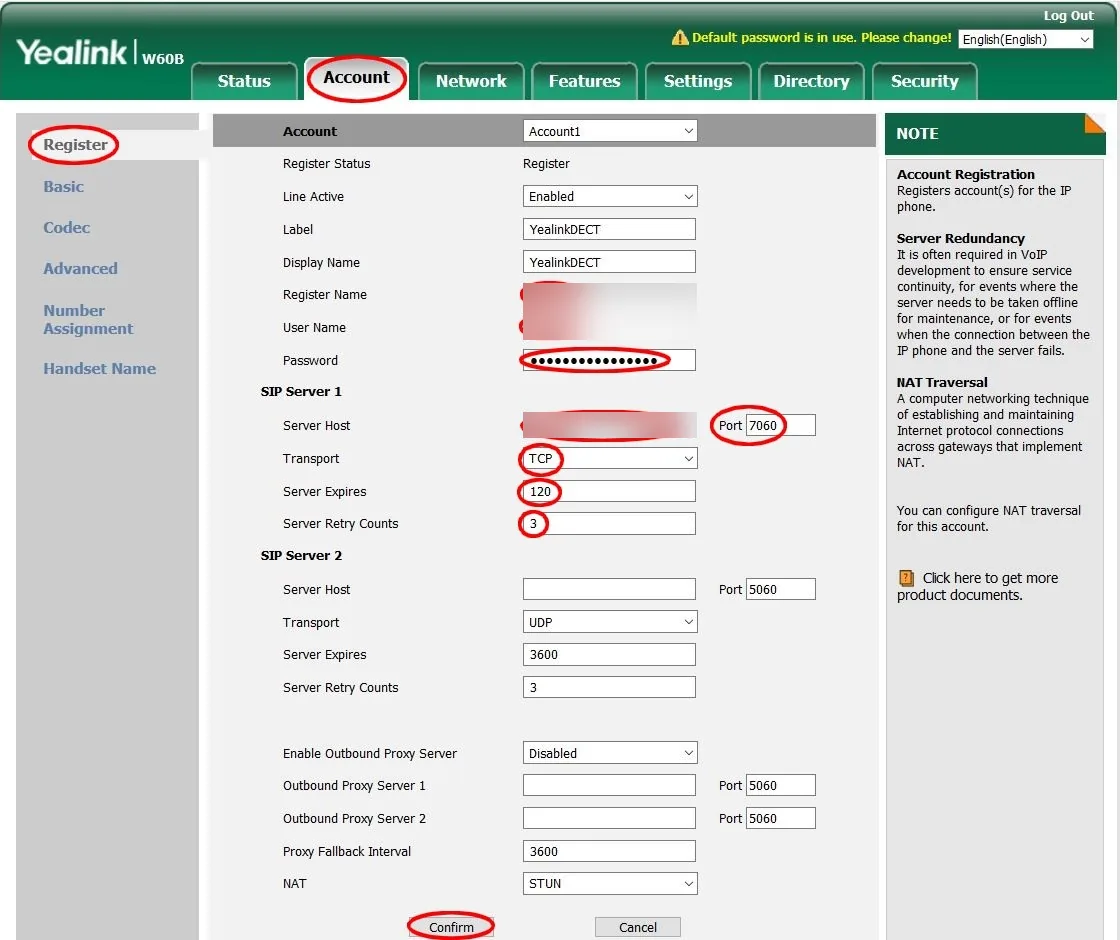
Section titled “2. Register the SIP account”- On the computer, type the base’s IP address into a web browser and sign in. The default username and password are both
admin. - Go to Account › Register and choose the Account to set up, for example Account1.
- Set Line Active to Enabled, and enter a Label and Display Name.
- Enter the Username from the PBX in Register Name and User Name, and the Password in Password.
- Under SIP Server 1, enter the Domain from the PBX: the part before the colon in Server Host, and the part after it in Port.
- Set Transport to TCP and Server Expires to 120.
- Click Confirm.
For more handsets with their own numbers, repeat these steps with Account2, Account3 and so on, using a different SIP device for each.
3. Choose which handsets use each line
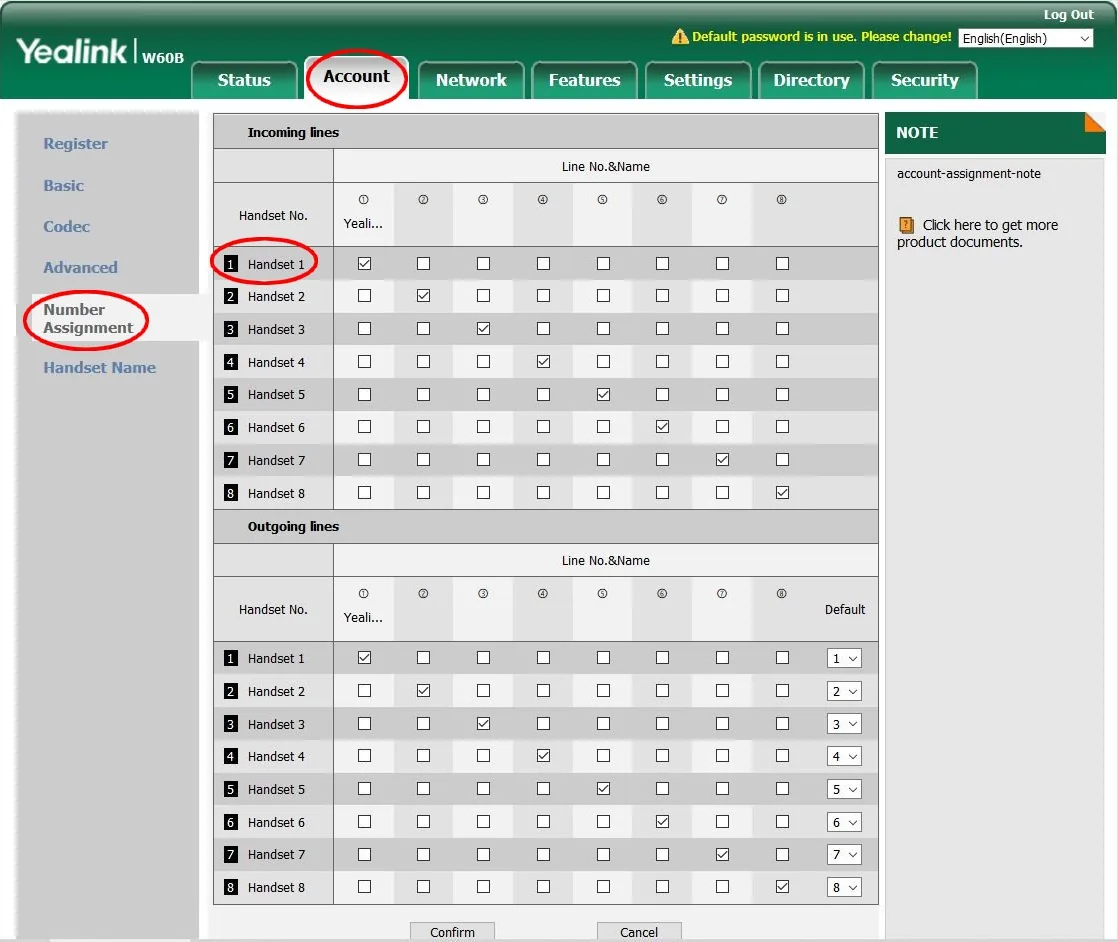
Section titled “3. Choose which handsets use each line”- Go to Account › Number Assignment.
- Under Incoming lines, tick the lines each handset should ring for.
- Under Outgoing lines, tick the lines each handset can call out on, and choose its Default line.
- Click Confirm.
Check it works
Section titled “Check it works”- Register Status shows the account as registered.
- In PBX › Devices, the device shows Online.
- Call the handset from another user. It should ring on the handsets you ticked.
If the device stays Offline, check the details and that the configuration was applied. A device that signs in with wrong details is blocked for 5 minutes. See Device offline.
Use a T5 desk phone as a DECT base
Section titled “Use a T5 desk phone as a DECT base”Yealink T5 desk phones such as the T53W, T54W, T57W and T58A can act as a DECT base when you plug in a Yealink DD10K DECT USB dongle (sold separately). The desk phone still works as normal, and up to four cordless handsets (such as the W52H, W53H and W56H) can pair with it.
Register handsets
Section titled “Register handsets”- Plug the DD10K into the desk phone’s USB port.
- Pair each handset in one of these ways:
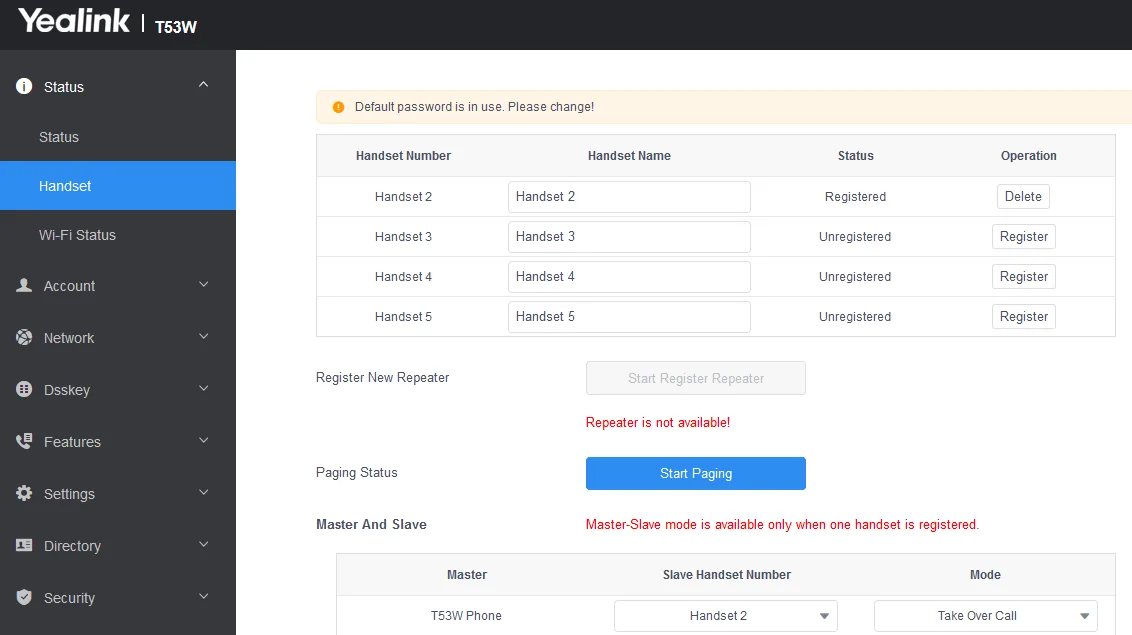
- In the desk phone’s web interface, go to Status › Handset and click Register next to a handset number.
- On the desk phone, go to Menu › Settings › DECT Settings › Handsets.
- Choose which lines each handset uses in Account › Number Assignment, as above.
Master and slave mode
Section titled “Master and slave mode”With exactly one handset registered, you can pair it with the desk phone as a master and slave. The handset then rings with the desk phone and uses the same number and caller ID.
- Turn it on in the web interface under Master And Slave on the Status › Handset page, or on the desk phone in Menu › Settings › DECT Settings › Select Slave.
- To move a call answered on the desk phone to the handset, press the More soft key, then Call Shift. On a T58A or T58V, swipe right on the call to show Call Shift.
- Depending on the mode you choose, calls may not be movable between the two.
Next steps
Section titled “Next steps”- Transfer calls on a Yealink phone, including DECT handsets
- Reset a Yealink phone