Call parking wallboard
Last updated View as Markdown (opens in a new tab)
Show which parking slots are busy on a live web page.
Call parking wallboard shows your Call parking slots on a password-protected web page: which slots are busy, how long each call has left, and who parked it.
The Webphone has a built-in version of this on its Services page.
Set it up
Section titled “Set it up”- Drag Call parking wallboard from the Monitoring group onto the canvas and click the gear icon.
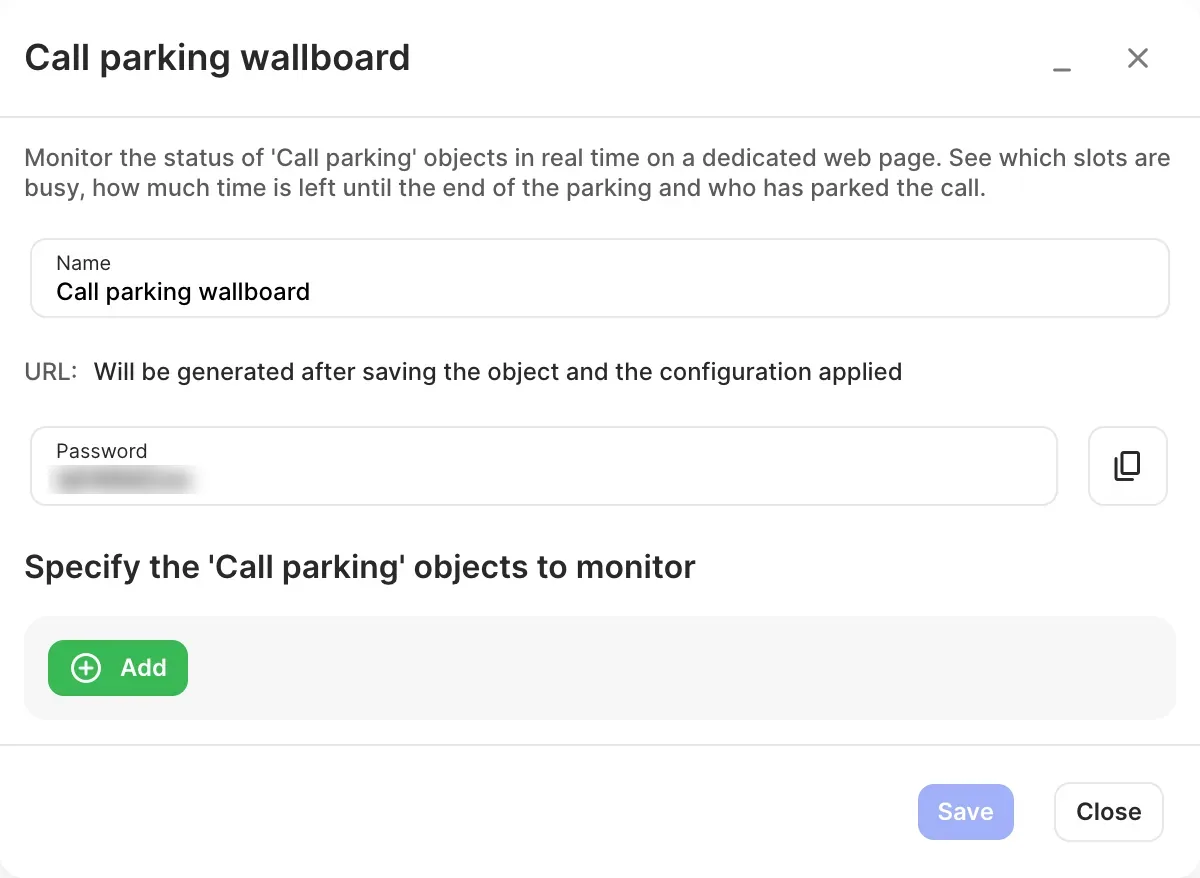
- Enter a Name and set or note the Password.
- Under Specify the ‘Call parking’ objects to monitor, click Add and choose your call parking objects.
- Click Save and Apply configuration.
- Open the settings again to copy the URL, then open it on your screen and enter the password.
Settings
Section titled “Settings”| Setting | What it does |
|---|---|
| Name | Label on the canvas. |
| URL | The wallboard’s web address. Appears once the object is saved and the configuration applied. |
| Password | Needed to open the wallboard. |
| Objects to monitor | The call parking objects shown on the wallboard. |