Reset a Yealink phone to factory settings
Last updated View as Markdown (opens in a new tab)
Wipe a Yealink desk, DECT or Teams phone back to its factory settings from the web interface or the phone.
A factory reset erases every setting on the phone, including its SIP account. Use it when:
- the phone isn’t working properly and nothing else has helped;
- you’re setting up a used or second-hand phone, or one you’ve unboxed and started before;
- you’re giving away or selling the phone, and want to remove your details.
An auto-provisioned phone downloads its settings again after the reset. A manually set up phone needs its SIP details entered again.
From the web interface
Section titled “From the web interface”- Sign in to the phone’s web interface (press OK on the phone to see its IP address).
- Go to Settings › Upgrade.
- Click Reset to Factory Settings and confirm.
- Wait a few minutes while the phone resets and restarts.
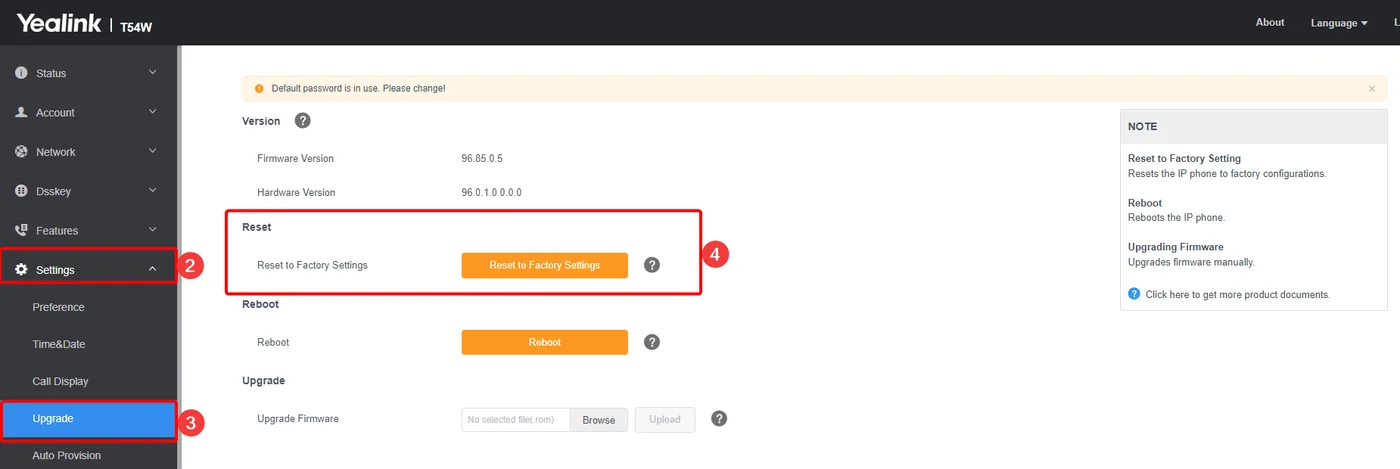
The page looks different on some models.
From the phone
Section titled “From the phone”Desk phones (T31, T33, T43, T46, T53, T54, T57)
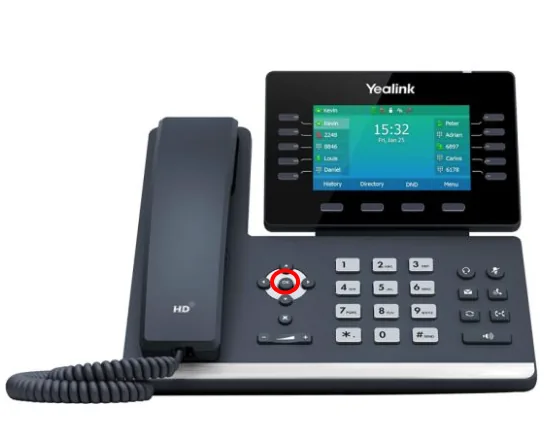
Section titled “Desk phones (T31, T33, T43, T46, T53, T54, T57)”- Press and hold the OK key until the phone asks whether to reset to factory settings. This takes a few seconds.
- Follow the prompts on the screen.
DECT handsets and bases (W56H, W59R, W73H)
Section titled “DECT handsets and bases (W56H, W59R, W73H)”From the handset:
- Reset the handset (to pair it with a different base): press OK, then go to Settings › System Settings › Handset Reset.
- Reset the base (to start a new setup): press OK, then go to Settings › System Settings › Base Reset.
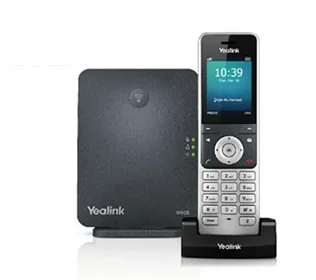
If the handset asks for a PIN, check Yealink’s help for your model.
Microsoft Teams phones (MP54, MP56, MP58, VP59)
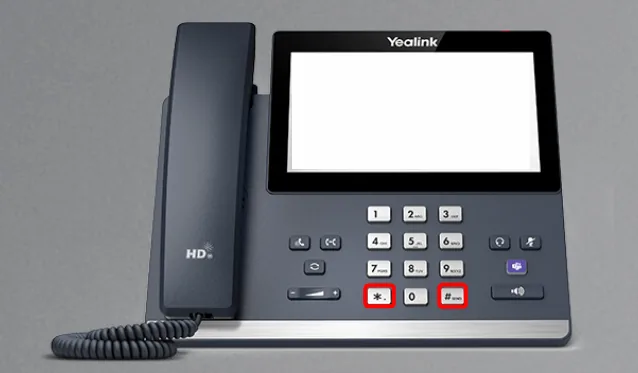
Section titled “Microsoft Teams phones (MP54, MP56, MP58, VP59)”- Press and hold the * and # keys together for a few seconds.
- Follow the prompts on the screen.
After the reset
Section titled “After the reset”- Auto-provisioned phones: keep the phone connected to the network and wait for it to come online in PBX › Devices.
- Manually set up phones: enter the SIP details again. See Set up a Yealink desk phone manually.
- The web interface password goes back to the default (
admin). On a manually set up phone, change it again. An auto-provisioned phone gets the passwords set in its SIP device’s Yealink settings again.