Caller ID on transferred calls
Show the original caller's number, not your colleague's, when a call is transferred or picked up from parking.
By default, when a colleague transfers or parks a call, your Yealink phone shows the colleague who passed it on. You can change this so the phone shows the original caller’s number instead.
When it works
Section titled “When it works”This is supported on Yealink phones only. It may not work as expected on other phones. The caller’s number is usually passed on for:
- attended transfers of incoming and outgoing calls;
- blind transfers of incoming calls;
- answering a call that’s ringing on another phone;
- picking up a parked call, when an incoming call was parked by attended or blind transfer;
- picking up a parked call, when an outgoing call was parked by attended transfer.
Before you start
Section titled “Before you start”Open a support ticket and ask the support team to turn on external caller ID for transferred and parked calls. It’s an account setting that only the support team can change, and it’s off by default. Your phones need this as well as the phone setting below.
- Type the phone’s IP address into a web browser (press OK on the phone to see it) and sign in. The default username and password are both
admin. - Go to Account › Advanced.
- Set Caller ID Source to RPID-PAI-FROM.
- Click Confirm.
- If the phone has more than one account, repeat for each one.
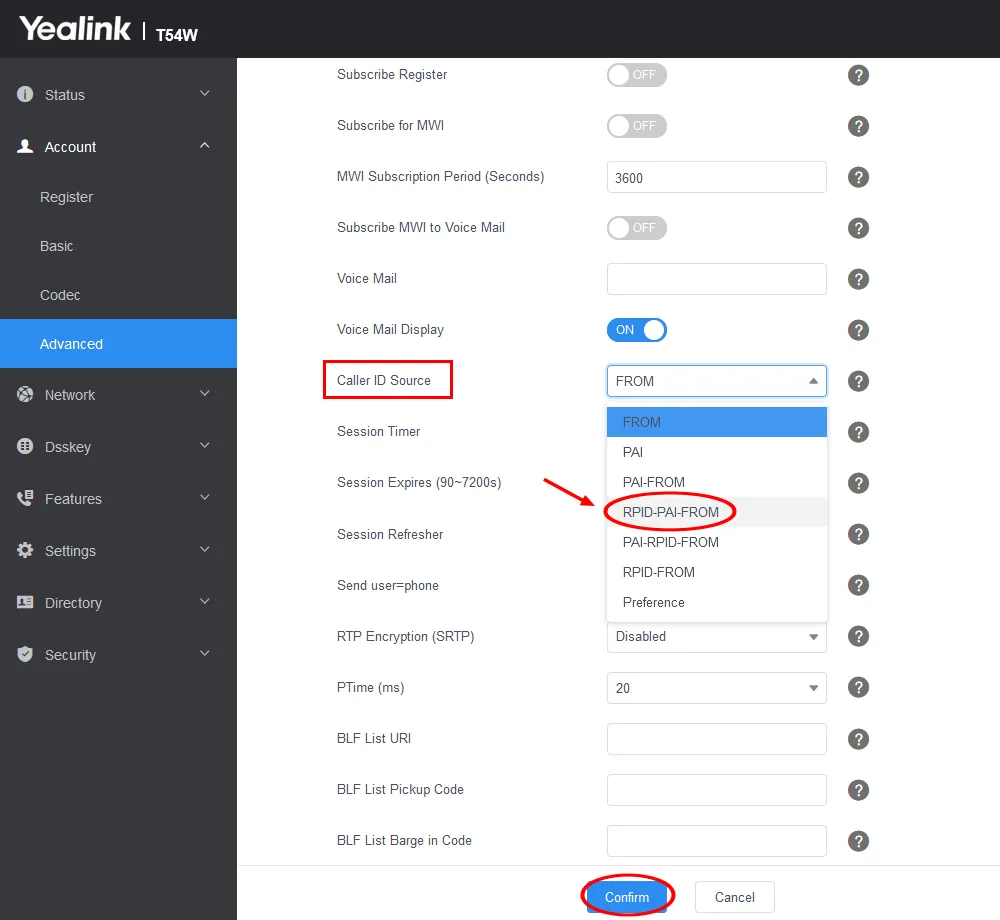
For auto-provisioned phones, you can set this from the PBX instead with account.1.cid_source = 3. See Advanced auto-provisioning settings.
Check it works
Section titled “Check it works”Ask a colleague to transfer an outside call to you. Your phone should show the caller’s number while it rings.