Transfer calls on a Yealink phone
Blind, semi-attended and attended transfers on Yealink desk phones and DECT handsets, with the exact keys to press.
You can pass a call to a colleague, a team or an outside number in three ways. Pick the one that suits the call:
| Type | What happens | Use it when |
|---|---|---|
| Blind | The call goes straight to the other person. You don’t speak to them first. | The caller just needs to reach someone, such as a team or a queue. |
| Semi-attended | You dial, hear it ringing, then hand the call over before they answer. | You want to check the number is right, but don’t need to brief them. |
| Attended (warm) | You speak to the other person first, then hand the call over. | You want to introduce the caller or check the person can take the call. |
While you set up a transfer, the caller is on hold.
What you can transfer to
Section titled “What you can transfer to”- A colleague: dial their internal number.
- A team, queue, menu or voicemail: dial the internal number of the Ring group, Queue, Voicemail or Internal number object. A blind transfer works best here.
- Call parking: transfer to the Call parking internal number. The PBX puts the call in a free slot, and anyone can pick it up by dialling the slot number.
- An outside number, such as a mobile: dial the full number, as you would for a normal call. The call to the outside number is charged at the outbound rate on the call plan of the user who transferred it.
Desk phones (T3, T4, T5 series)
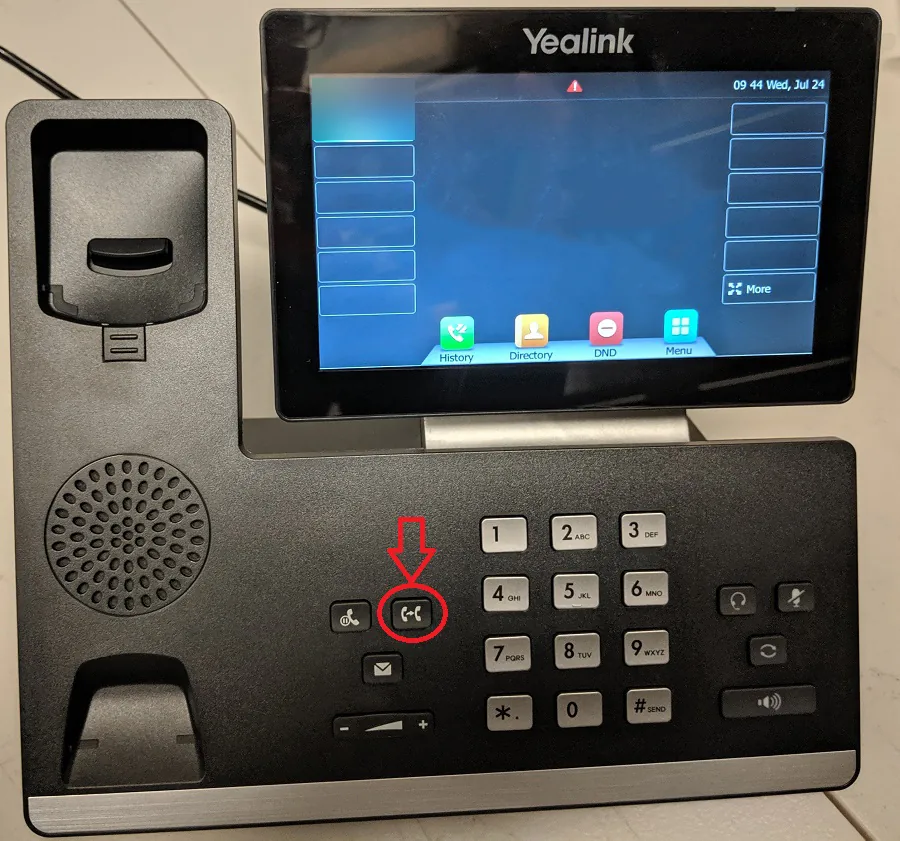
Section titled “Desk phones (T3, T4, T5 series)”Desk phones have a TRANSFER key on the keypad, and a Transfer soft key on the screen during a call. Either one works.
Blind transfer
Section titled “Blind transfer”- During the call, press the TRANSFER key or the Transfer soft key. The caller is put on hold.
- Enter the number to transfer to. You can also choose it from the placed calls list, press a Speed Dial key, or press Directory and pick a contact.
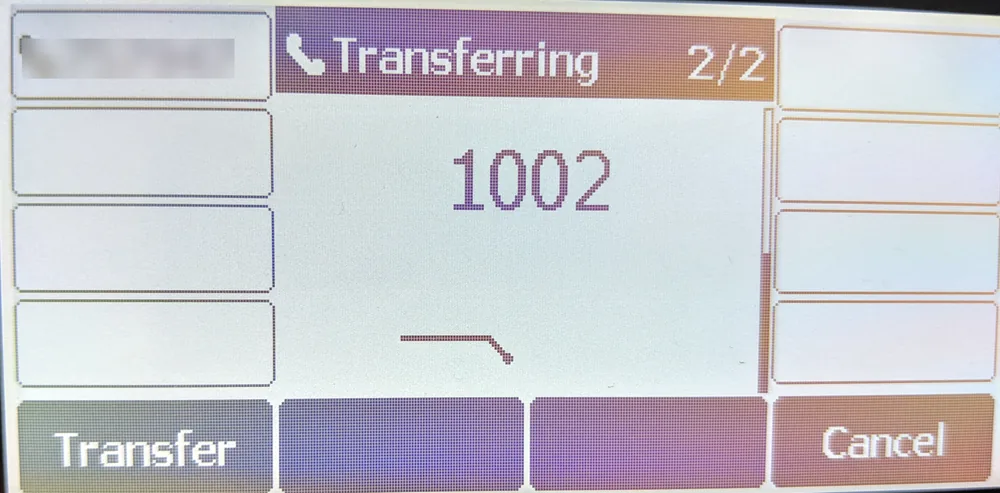
- Press the B Transfer soft key or the TRANSFER key.
The call goes to the other person and your phone is free.
Semi-attended transfer
Section titled “Semi-attended transfer”- During the call, press the TRANSFER key or the Transfer soft key. The caller is put on hold.
- Enter the number to transfer to.
- Press Send to dial it.
- When you hear it ringing, press the TRANSFER key or the Transfer soft key (Tran on some models).
Attended transfer
Section titled “Attended transfer”- During the call, press the TRANSFER key or the Transfer soft key. The caller is put on hold.
- Enter the number to transfer to.
- Press Send to dial it.
- When the other person answers, tell them about the caller.
- Press the TRANSFER key or the Transfer soft key to connect them.
If the other person can’t take the call, press the Cancel soft key to stop the transfer and go back to the caller.
Transfer with a BLF or speed dial key
Section titled “Transfer with a BLF or speed dial key”If you have BLF or speed dial keys, on most firmware you can press the key during a call to start a transfer to that person. Then finish it with the TRANSFER key or the Transfer soft key, as above.
On auto-provisioned phones, pressing the key starts an attended transfer by default. To make it blind instead, see Make transfers blind instead of attended.
DECT cordless handsets (W53H, W56H)
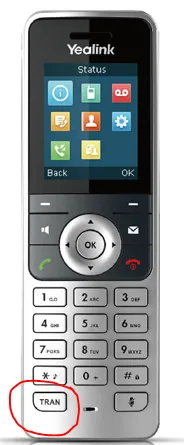
Section titled “DECT cordless handsets (W53H, W56H)”DECT handsets have a TRAN key at the bottom left of the keypad. You can also use Options › Transfer on the screen.
Blind transfer
Section titled “Blind transfer”- During the call, press the TRAN key, or press Options and select Transfer.
- Enter the number to transfer to.
- Press TRAN or Transfer.
Semi-attended transfer
Section titled “Semi-attended transfer”- During the call, press the TRAN key, or press Options and select Transfer.
- Enter the number to transfer to.
- Dial it with the OK key, the green call key or the speakerphone key.
- When you hear it ringing, press TRAN or Transfer.
Attended transfer
Section titled “Attended transfer”- During the call, press the TRAN key, or press Options and select Transfer.
- Enter the number to transfer to.
- Dial it with the OK key, the green call key or the speakerphone key.
- When the other person answers, tell them about the caller.
- Press TRAN or Transfer to connect them.
If the other person can’t take the call, don’t press TRAN. On most handsets you can end the call with them and go back to the caller, so you can take a message.
Transfer to another handset on the same base
Section titled “Transfer to another handset on the same base”Handsets registered to the same base station can pass calls to each other directly (an intercom transfer):
- During the call, press Options and select Transfer.
- Select the handset to transfer to from the list.
- Press Transfer.
On some firmware, the handset list is under an intercom option instead.
T5 desk phone with DECT handsets
Section titled “T5 desk phone with DECT handsets”When cordless handsets are paired to a T5 desk phone with a DD10K dongle, transfer between them with Transfer, then Intercom, and choose the handset. In master and slave mode, move a call from the desk phone to its handset with More › Call Shift. See Set up Yealink DECT cordless phones.
- Keep the caller’s number on screen. By default, the person who receives the transfer sees your number, not the caller’s. See Caller ID on transferred calls.
- Hanging up mid-transfer. Depending on the phone’s settings, hanging up while the transfer target is ringing or talking to you can complete the transfer. To back out, use Cancel instead.
Related
Section titled “Related”- Transfer a call (Webphone and other phones)
- Call parking
- BLF and speed dial keys