PBX licences
Order, change and cancel user and device licences, call plans, SMS plans and the Integrations service.
PBX licences is where you buy what each person needs to use the phone system. Open it from Services › PBX licences.
| Licence | What it’s for |
|---|---|
| User licence | One per person who makes or receives calls. Each user licence has its own subaccount. |
| Device licence | One per phone or app the user has. Someone with an office desk phone and a mobile app needs two device licences. |
| Call plan | Needed to make outgoing calls. Plans with a higher monthly fee have cheaper call rates. |
| SMS plan | Needed to send SMS. |
| Integrations | An account-wide service on the Advanced features tab. It turns on the API, webhooks, Zapier and CRM integrations. |
Users, devices and plans
Section titled “Users, devices and plans”The Users, devices and plans tab lists every user licence with its subaccount, device count, call plan and SMS plan.
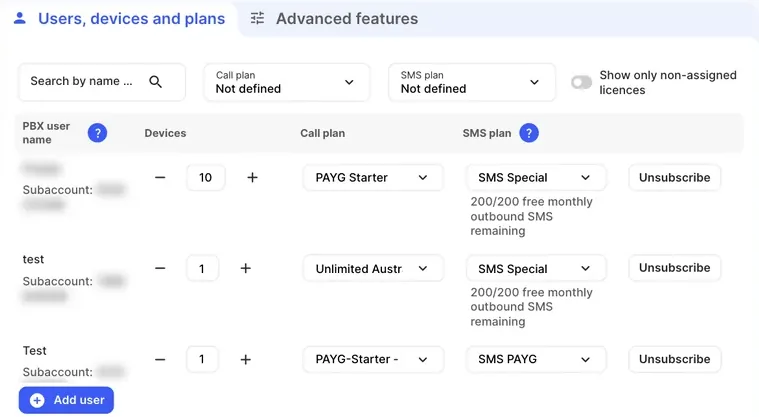
| Setting | What it does |
|---|---|
| Search by name or subaccount | Finds a user licence. |
| Call plan / SMS plan filters | Show only licences on a particular plan. |
| Show only non-assigned licences | Shows licences that aren’t linked to a User object in the PBX yet. |
| Devices | Click + or − to change how many device licences the user has. |
| Call plan | The call plan for this user. You can change it at any time. |
| SMS plan | The SMS plan for this user. Some plans show how many free monthly outbound SMS are left. |
| Unsubscribe | Cancels this user licence, with its devices and plans. |
| Add user | Adds a new user licence with one device. |
To compare call rates between plans, use Rates search on the Billing tab.
Add a user
Section titled “Add a user”- Go to Services › PBX licences › Users, devices and plans.
- Click Add user.
- Set the number of Devices, and choose a Call plan and SMS plan.
- Check the cost in Order summary on the right.
- Tick Agree to service terms and conditions and click Submit order.
Then set the person up in the PBX: drag a User onto the canvas, choose the new licence as its Licence subaccount, add their devices and click Apply configuration. See Set up your phone system for the full walkthrough.
Change devices or plans
Section titled “Change devices or plans”- Find the user in the list.
- Change the Devices count, Call plan or SMS plan.
- Tick Agree to service terms and conditions and click Submit order.
Remove a user
Section titled “Remove a user”Remove the person from the PBX first, then cancel the licence.
- On the PBX tab, delete the User object and remove the devices it used in Devices. Click Apply configuration.
- Go to Services › PBX licences and click Unsubscribe next to the user.
- Tick Agree to service terms and conditions and click Submit order.
The user licence, its devices and its plans are cancelled.
Advanced features
Section titled “Advanced features”The Advanced features tab lists account-wide services, each with a description.
Integrations connects your PBX to third-party services. Its monthly fee depends on the number of user licences, and you need at least one user licence to activate it. It’s needed for:
- the API request and Webhook objects in the PBX;
- the PBX API and webhooks on the Integrations tab;
- CRM integrations, which show the caller’s CRM details in the Webphone during a call and in the phonebook and call history;
- Zapier automations from the Webphone.
To turn it on, click Activate next to Integrations, tick Agree to service terms and conditions and click Submit order. The PBX licences menu item then shows Integrations enabled. To turn it off, click Deactivate.
Fax to email sends incoming faxes to email addresses as PDF files. Use + and − to set how many licences you need. One licence lets you create one Fax to email object in the PBX.
See Integrations overview for what you can connect.