Support tickets
Ask the support team for help by creating a ticket in the portal, then follow it up and close it.
To get help from the support team, create a ticket in the portal. The team replies within one business day, and you can follow the conversation and add details on the same ticket.
Before you start
Section titled “Before you start”Check Network status first. If there’s a known issue, the team is already working on it.
Gather the details the team will need:
- the phone numbers, users or devices involved;
- the date and time of an affected call, and the numbers it was from and to;
- what you expected to happen and what happened instead;
- screenshots or error messages.
Never send passwords in a ticket.
Create a ticket
Section titled “Create a ticket”- Go to Support › Support tickets.
- Click New ticket.
- In Subject, enter the main subject of the ticket.
- In Message, describe the issue.
- Under Attachments, add screenshots or documents if they help. Each file can be up to 50 MB.
- Click Create a new ticket, then Confirm.
Follow up a ticket
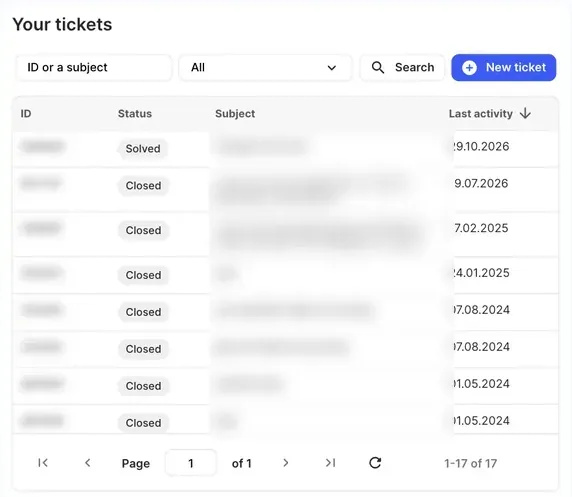
Section titled “Follow up a ticket”Your tickets are listed under Your tickets with their ID, Status, Subject and Last activity.
- To find a ticket, type its ID or subject in the search box, choose a status, and click Search.
- Click a ticket to read the replies.
- If the team asks for more information, type it under Comment message, add any Attachments, and click Send message.
- When the issue is fixed, click Close ticket, then Confirm.
A ticket’s status is New, Open, Pending, On-hold, Completed, Solved or Closed.
Urgent problems
Section titled “Urgent problems”For urgent problems, call the support team on the number shown at the top of the Support tickets page. Extra charges may apply for support outside business hours.
Ideas and feature requests
Section titled “Ideas and feature requests”To suggest a new feature or an improvement, use Feature requests instead of a ticket.