Administrators and access
Give colleagues their own portal sign-in, choose which tabs and emails each one gets, and see who has two-factor authentication on.
Account administrators are people who can sign in to the portal with their own email and password. You decide which parts of the portal, and which emails, each administrator gets. For example, your bookkeeper might only need the Billing tab and invoice emails.
Before you start
Section titled “Before you start”To add, edit or remove administrators, you need access to Account administrators and details. The primary administrator always has it. Give it only to people you trust to manage access.
Add an administrator
Section titled “Add an administrator”-
Go to Billing › Account details.
-
Under Account administrators, click Add.
-
Under Personal Information, enter their Email (they sign in with it), First Name, Last Name and phone number.
-
Under Access rights, tick the tabs and pages they can see (see the table below).
-
Under Email preferences, choose which emails they receive:
- Emails with invoices/receipts. When this is ticked, choose the format under Send reports in:.
- Emails with service status notifications and news.
- Send copies to additional email addresses, then add the addresses under Additional emails:. This is useful for people who only need the emails.
-
Click Save.
The new administrator gets an email to create their password.
At least one administrator must receive invoice and receipt emails. If no other administrator gets them, the primary administrator’s Emails with invoices/receipts can’t be turned off.
Access you can give
Section titled “Access you can give”Each area can be shown or hidden for each administrator.
| Access right | What they can do |
|---|---|
| Billing › Home | See the account summary, balance and call statistics. |
| Billing › Account administrators and details | See the primary account holder’s details and all active subscriptions, and add, change or remove administrators. |
| Billing › Account balance | See payments and charges for any period. |
| Billing › Bills and payments | Make payments, add or remove payment methods (including automatic payments), and view and download invoices. |
| Billing › Referrals | Refer new customers and see referral earnings. |
| Billing › Rates search | Search call and SMS rates. |
| Reports | Each report is ticked separately: Overview, Call history, SMS history, Call recordings (read), Call recordings (management), Monthly call volume, Queue statistics, User statistics and Ring group statistics. |
| Services | Order and cancel all services, including phone numbers, number porting, phones and internet. |
| PBX | View and change your call flow. |
| Integrations | Manage CRMs, Zapier, the API and webhooks. These need the Integrations licence. |
| Support | See network status, and raise and reply to support tickets. |
The primary administrator always has every access right, and their name and email can’t be changed here.
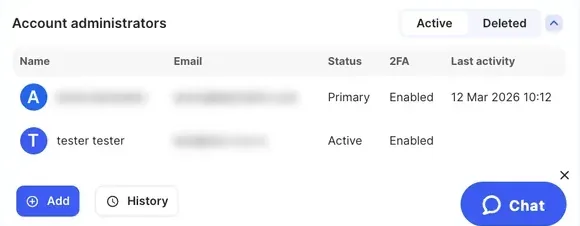
The administrators list
Section titled “The administrators list”| Column | What it shows |
|---|---|
| Name | The administrator’s name. |
| The email they sign in with, and their phone number. | |
| Status | Primary for the account owner, Active for other administrators, Deleted for removed ones. |
| 2FA | Whether two-factor authentication is on for their sign-in. See Two-factor authentication. |
| Last activity | When they last used the portal, and from which IP address. |
Use the Active and Deleted tabs to switch between current and removed administrators. History opens Authorised user history: the date, author and a note for each change to administrators. You can narrow it to one administrator.
Change or remove an administrator
Section titled “Change or remove an administrator”- Under Account administrators, select the administrator.
- Click Edit, change their access or emails, and click Update.
With an administrator selected, you can also:
- Reset password: emails them instructions to set a new password.
- Reset 2FA: shown when they have two-factor authentication on. They set it up again at their next sign-in.
- Delete: they can no longer sign in. The primary administrator can’t be deleted. A deleted administrator can be brought back with Restore on the Deleted tab.
Check it works
Section titled “Check it works”The new administrator appears in the list with the status Active. Ask them to sign in and check they see only the tabs you chose.