Account balance
See every payment and charge on your account for a period, check call and SMS costs, and email the report.
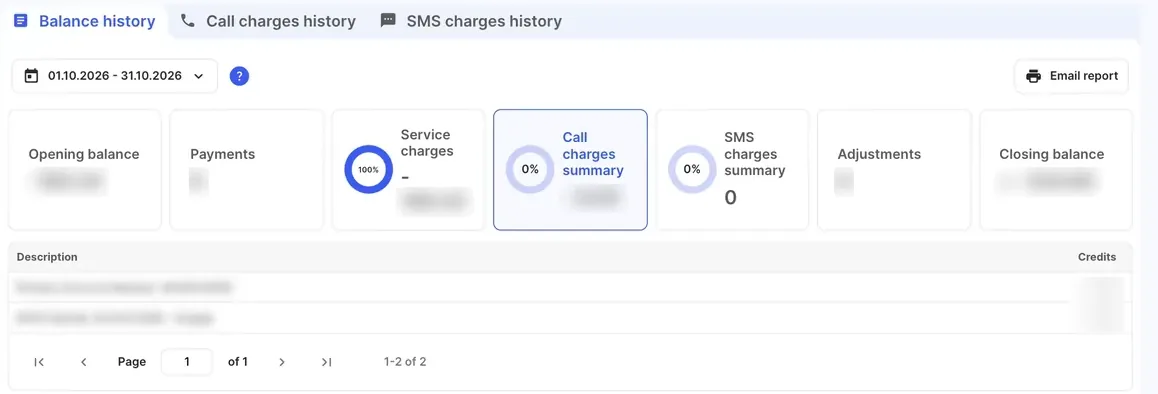
Billing › Account balance is your account statement. It shows every payment and charge for the dates you choose, the cost of each call and SMS, and lets you email the report as a PDF or CSV. It was called Usage history in older versions of the portal.
| Tab | What it shows |
|---|---|
| Balance history | Your opening and closing balance for the period, and the payments and charges in between. |
| Call charges history | Each call in the period, filtered as you need, with its cost. |
| SMS charges history | Each SMS in the period, with its cost. |
Choose the period with the date range at the top of each tab. You can only choose dates within the last six months. For older data, contact the support team.
Balance history
Section titled “Balance history”The summary boxes add up to your closing balance:
| Box | What it includes |
|---|---|
| Opening balance | Your balance at the start of the period. |
| Payments | Top-ups and invoice payments. |
| Service charges | Subscriptions, such as licences and phone number fees. |
| Call charges summary | The cost of calls. |
| SMS charges summary | The cost of SMS. |
| Adjustments | Adjustments made to your balance by the accounts team. |
| Closing balance | Your balance at the end of the period. |
Click a box (other than Opening balance and Closing balance) to list the items behind it in the table below, with the Date, Description and Credits (amount) of each.
Call and SMS charges
Section titled “Call and SMS charges”On Call charges history, the boxes at the top show Total calls, Total duration, Average call duration and Total call costs for the period. You can also set a time of day, and choose which table columns to show with Columns.
To narrow the list, click Filter, choose what you need and click Apply. The call filters are Time range, Subaccount, Call type, Phonebook contact, Caller ID, Dialed number, Terminate cause and IP. Click Reset to clear them. SMS charges history has its own Filter button.
For more detailed call reports, and daily emailed call reports, use the Reports tab. See Call history.
Email a report
Section titled “Email a report”- Choose the tab and the date range.
- Click Email report.
- Under Administrators, select the administrators to send it to. Under Email, you can add other email addresses.
- Under Format, choose PDF or CSV.
- Click Send.
The report covers the dates you chose and arrives by email shortly.
Balance notifications
Section titled “Balance notifications”Click Balance notifications at the top of the page to get an email when your balance falls below an amount you choose. See Low balance notifications.