TLS and SRTP encryption on Yealink phones
Encrypt calls between your Yealink phones and the PBX with TLS signalling and SRTP audio.
TLS encrypts the connection between your SIP devices and the PBX, and SRTP encrypts the audio. Together they protect calls from being intercepted. You turn TLS on for the whole PBX, then update each Yealink phone.
Before you start
Section titled “Before you start”- Turning TLS on affects every SIP device on your PBX, and every SIP trunk in SIP registration mode. Their SIP credentials change, so each one must be reconnected. Plan a time when you can update all of them.
- TLS encryption is free. There’s no extra charge for turning it on.
- Update each phone to the latest firmware first. Some older phones (from before 2022) may not support the security certificates needed. If a phone can’t register with TLS after updating, check Yealink’s advice for that model.
1. Turn on TLS in the PBX
Section titled “1. Turn on TLS in the PBX”- On the PBX tab, go to Settings › General.
- Under TLS encryption, click Enable.
- Click Apply configuration. The change doesn’t take effect until you apply it.
See General settings.
Each SIP device now shows Transport protocol TLS and Media encryption SRTP in PBX › Devices, with new SIP credentials.
2. Update the phone’s account
Section titled “2. Update the phone’s account”- In PBX › Devices, select the phone’s SIP device and copy the new Domain (shown as
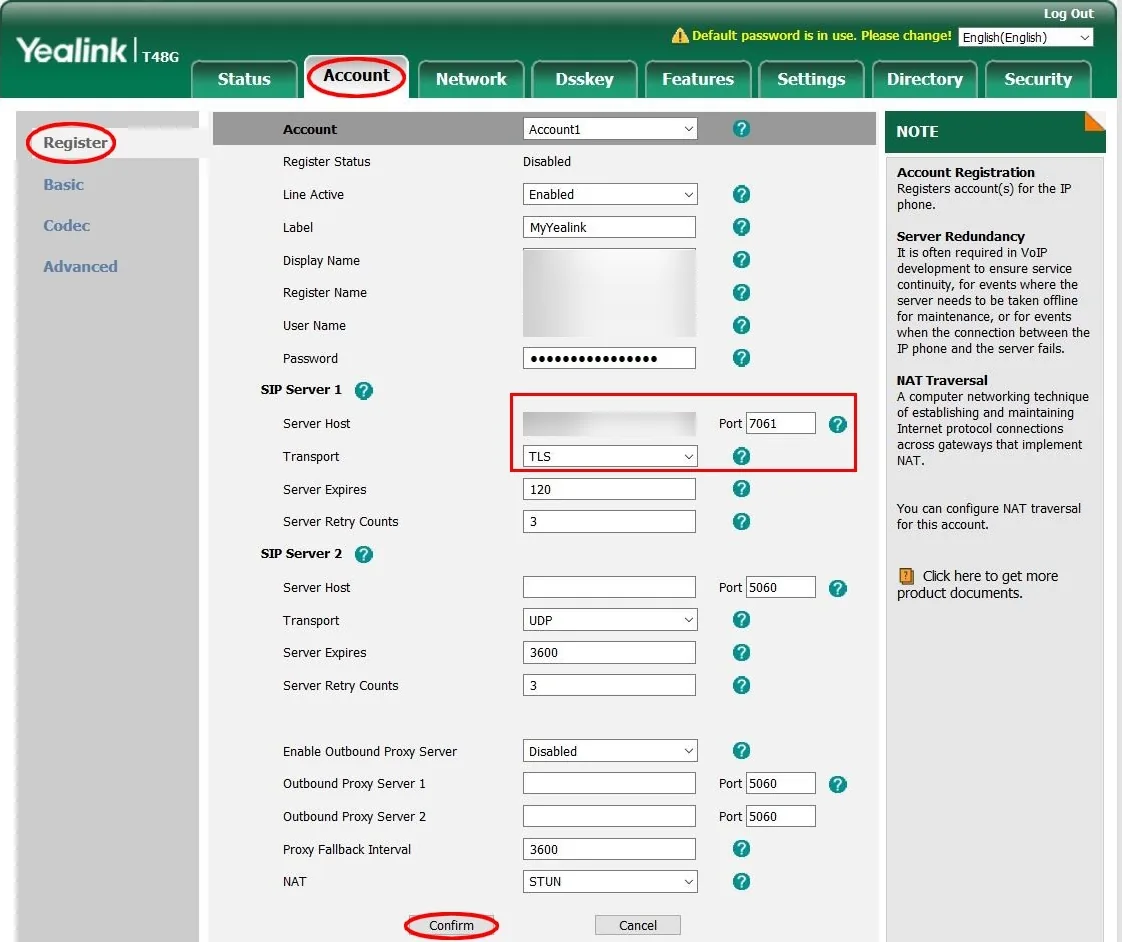
server:port), Username and Password. - Sign in to the phone’s web interface and go to Account › Register.
- Enter the new Register Name, User Name and Password.
- Under SIP Server 1, enter the Server Host and the new Port from the Domain.
- Set Transport to TLS and click Confirm.
3. Turn on SRTP
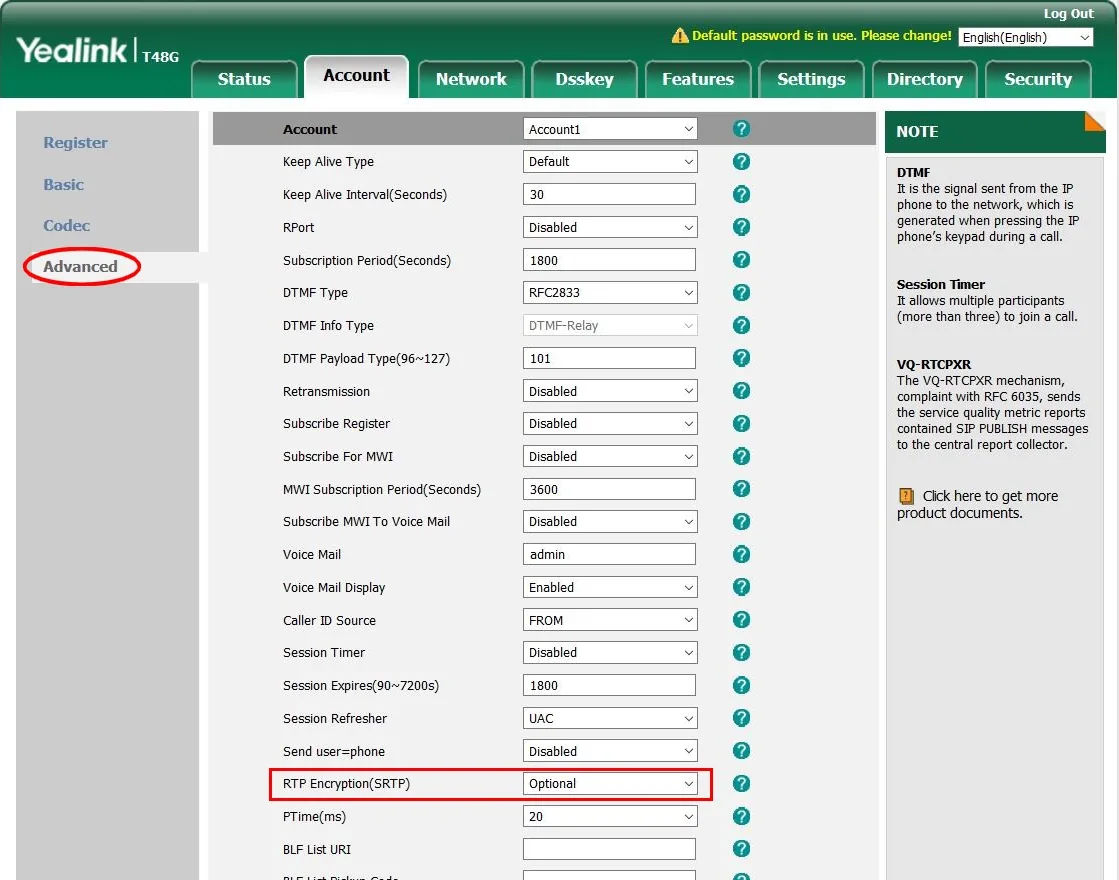
Section titled “3. Turn on SRTP”- Go to Account › Advanced.
- Set RTP Encryption (SRTP) to Optional and click Confirm.
4. Update the codecs
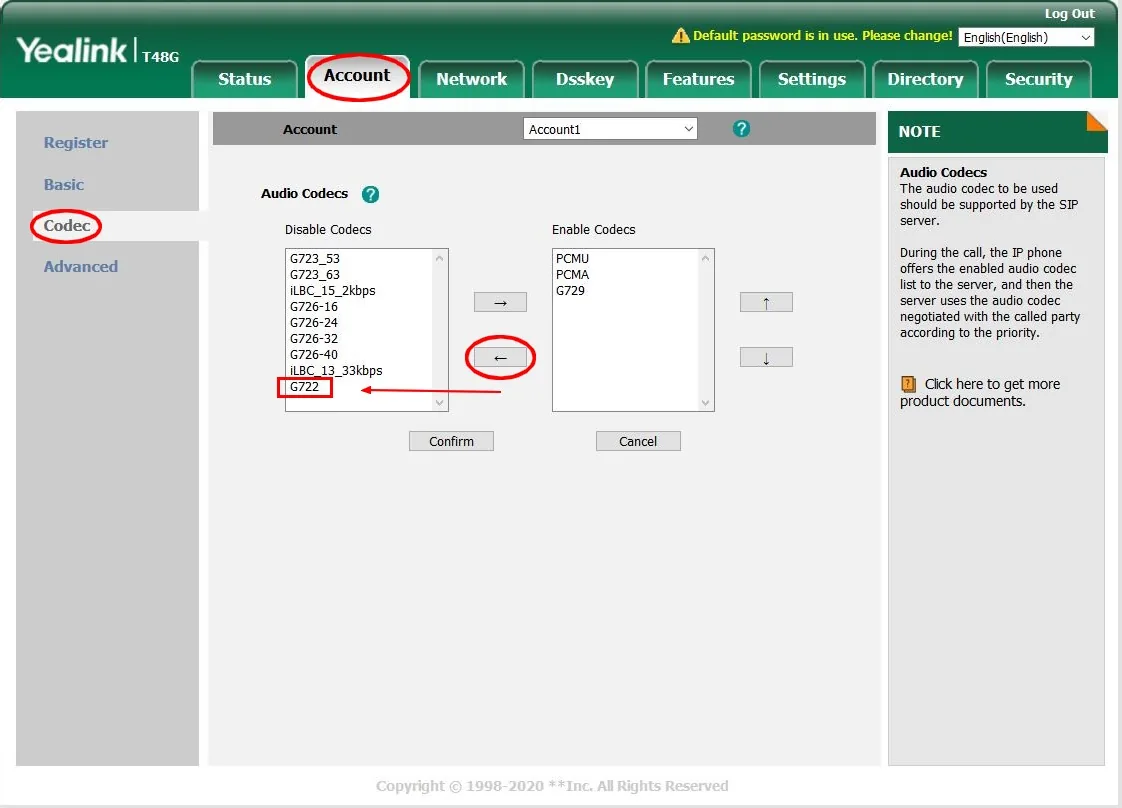
Section titled “4. Update the codecs”- Go to Account › Codec.
- Under Enable Codecs, select G722 and click the left arrow to move it to Disable Codecs.
- Click Confirm.
Check it works
Section titled “Check it works”- In PBX › Devices, the device shows Online, and Transport protocol used shows TLS.
- Make a test call to an outside number and check you can hear each other.
If calls fail with TLS on
Section titled “If calls fail with TLS on”If the phone registers but calls don’t connect, the phone’s firmware may not trust the PBX’s security certificate.
- Update the phone to the latest firmware, which includes newer trusted certificates. Try again.
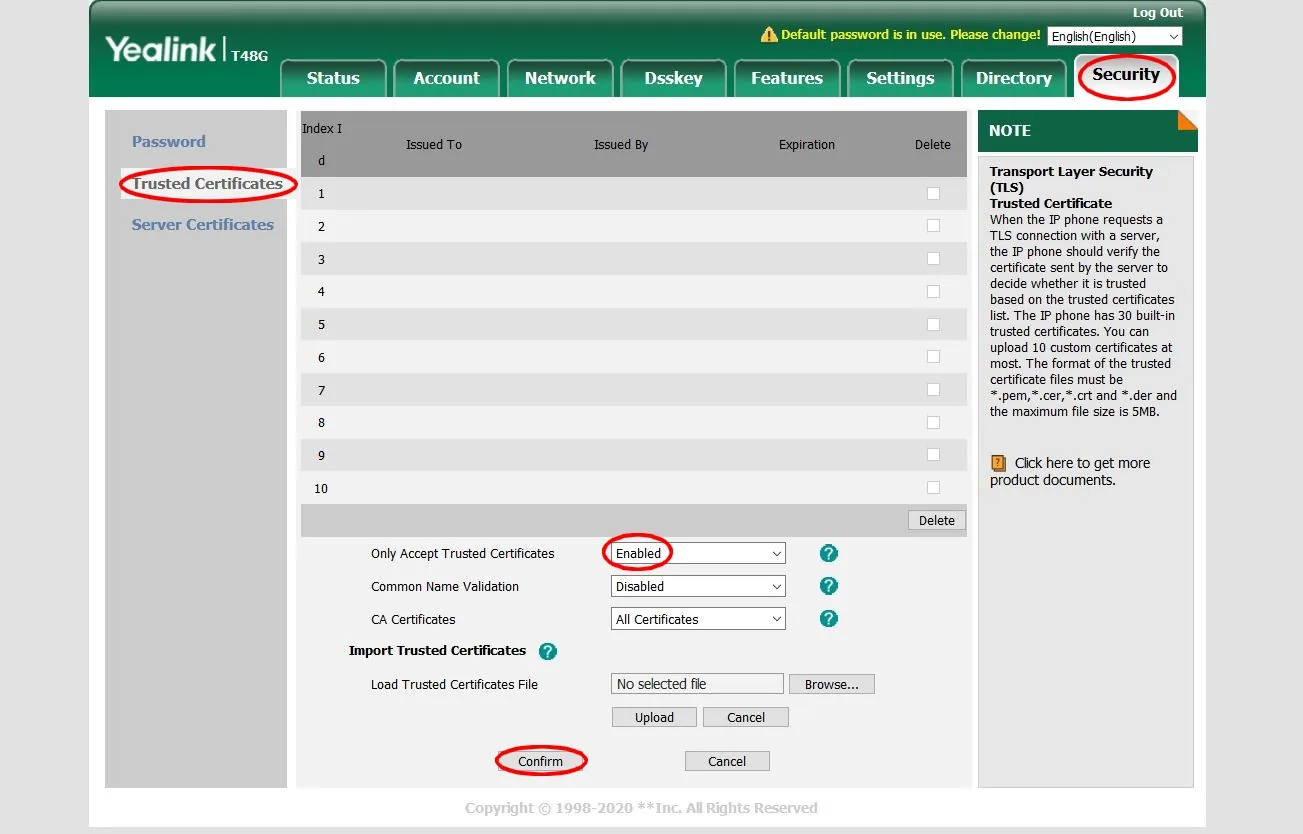
- If calls still fail, go to Security › Trusted Certificates and check Only Accept Trusted Certificates. Changing it to Disabled lets the phone accept the certificate, but is less secure. Click Confirm.
If it still doesn’t work, open a support ticket.
Turn TLS off again
Section titled “Turn TLS off again”Go to Settings › General › TLS encryption and click Disable, then apply the configuration. The SIP credentials change again, so update every phone with the new details and set Transport back to TCP.