User statistics
Compare how many calls each user made, answered and missed, and how long they spent on calls.
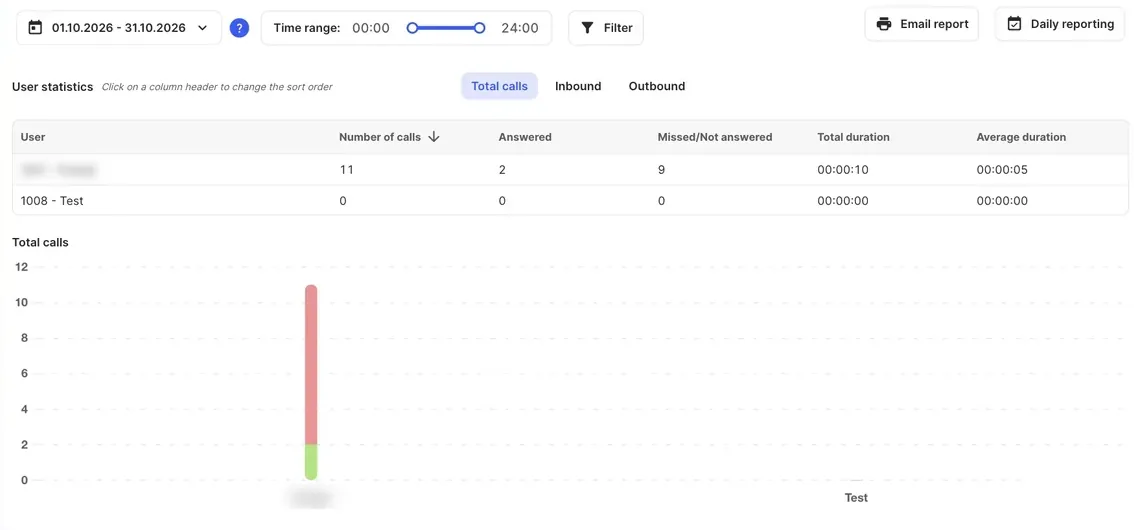
User statistics shows the calls of each user in the PBX side by side: how many they made and received, how many were answered or missed, and how long they spent on calls. Use it to compare workloads or follow up on missed calls.
Run the report
Section titled “Run the report”- Go to Reports › User statistics.
- Choose the dates in the date range picker. To include only certain hours, drag the Time range: slider.
- Click Filter to choose the users to include, then click Apply. You can also filter by Call type, Caller ID prefix, Caller ID and Dialed number.
- Choose Total calls, Inbound or Outbound.
What it shows
Section titled “What it shows”| Column | What it shows |
|---|---|
| User | The user’s internal number and name. |
| Number of calls | All calls for the user in the period. |
| Answered | Calls that were answered. |
| Missed/Not answered | Inbound calls the user didn’t answer, and outbound calls the other party didn’t answer. |
| Total duration | Time spent on calls. |
| Average duration | Average length of a call. |
Click a column header to change the sort order. Below the table, charts show Total calls, Total duration, Average duration, Daily call volume and Hourly call volume.
Calls from a Queue or Ring group that ring a user but are answered by someone else count as missed for that user only when Count each missed call in user statistics is turned on in that object. Leave it off if you don’t want those rings to inflate missed-call figures.
Export or schedule it
Section titled “Export or schedule it”- Click Email report to get the report with your filters applied. Choose the recipients under Administrators or Email, then click Send. The report arrives as both CSV and PDF. You can send one request every ten minutes.
- Click Daily reporting to email it to chosen administrators every day. See Reports overview.