Voiceover productions
Create professional greetings and menu prompts with the AI voice generator or a professional voice artist.
Many PBX objects play an audio file to callers, such as an Announcement, a Voice menu or Voicemail greeting. Services › Voiceover productions gives you two ways to get a professional-sounding file:
| Option | How it works | When you get it |
|---|---|---|
| Voice generator by AI | Type your text, choose a voice and generate the file yourself. | Straight away. |
| Professional recording | A professional voice artist records your script. | After some production time. The finished files are emailed to the account’s primary email address. |
Before you start
Section titled “Before you start”Write your script. Announcement scripts has examples for greetings, menus and queue messages you can adapt.
Generate a file with AI
Section titled “Generate a file with AI”- Go to Services › Voiceover productions and open the Voice generator by AI tab.
- Under Settings, choose the Language, AI algorithm and Voice.
- Adjust Speed and Pitch if needed. Click Listen to the example to hear the voice.
- Type your script in the Voice generator box.
- Check Cost to generate, then click Generate. The cost is taken from your account balance.
- Listen to the result and click Download. The file is a WAV file and is also kept in History.
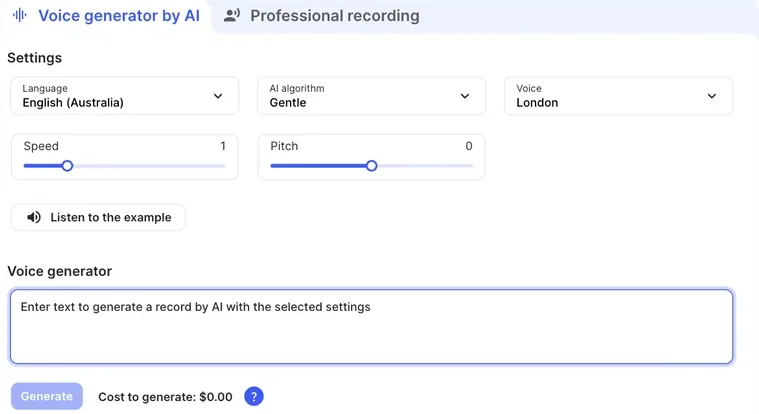
You can also generate a file without leaving the PBX: in the settings of an object that plays audio, such as Announcement or Voice menu, click Voice generator by AI. The file is saved straight into the object. The AI voice generator is only available for accounts with Active status.
Order a professional recording
Section titled “Order a professional recording”- Go to Services › Voiceover productions and open the Professional recording tab.
- Click Add recording.
- Under Select talent, choose a voice artist. Click the play icon to hear a sample.
- Under Enter recording script, type your script. About 70 words make a 30-second recording. Estimated duration (sec) shows the expected length.
- Repeat for each recording you need. Add any extra requirements under Comments.
- Tick Agree to service terms and conditions and click Submit order.
A recording fee is charged for every 30 seconds of each recording.
The voice artist’s recordings are sent to the account’s primary email address when they’re ready.
Check it works
Section titled “Check it works”Upload the file to the PBX object with Upload file, click Save, then Apply configuration. Call your number and listen to the message.