Click-to-call on Windows
Make the Webphone desktop app open when you click a phone number on your Windows computer.
Set the Webphone desktop app as the default app for phone links (tel: links) in Windows. Clicking a phone number on a web page, in an email or in another app then opens the Webphone with the number filled in, ready to call.
Before you start
Section titled “Before you start”Install the Webphone desktop app and sign in. See Sign in to the Webphone for the first time.
The app registers itself in Windows as Webphone for TEL, CALLTO, SIP and SMS links. You still choose it as the default in Windows settings.
- In the Webphone, go to Settings › General and turn on Set as a default system app for calls and SMS. The app shows where to go in Windows settings.
- Open the Windows default apps by link type:
- Windows 11: Settings › Apps › Default apps › Choose defaults by link type.
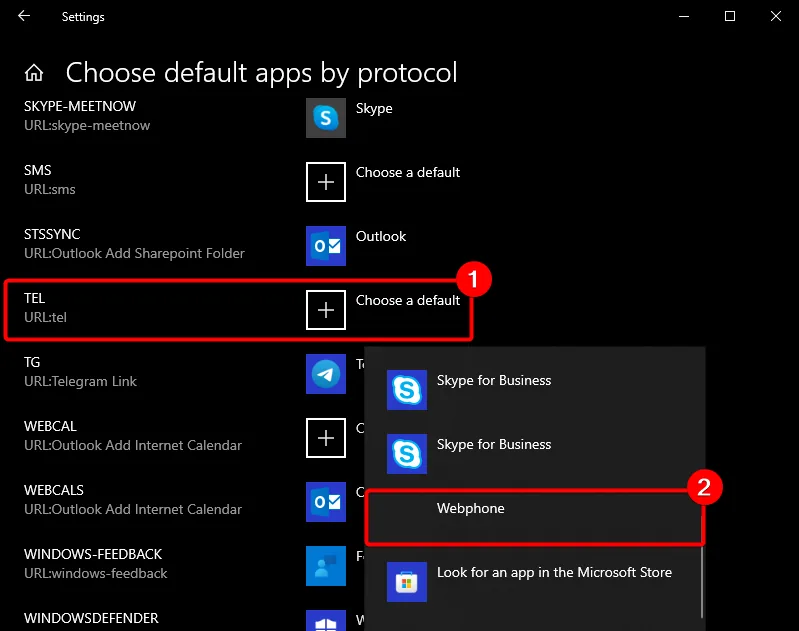
- Windows 10: Settings › Apps › Default apps › Choose default apps by protocol.
- Find TEL.
- Click the app shown next to it, or Choose a default if there is none.
- Choose Webphone.
- To open SMS and other call links in the Webphone too, repeat for CALLTO, SIP and SMS.
Check it works
Section titled “Check it works”Click a phone number on a web page or in an email. The Webphone should open with the number filled in, ready to call.
Other calling apps can take over this setting when you install them. If another app opens instead, repeat the steps and pick Webphone again.
To stop using the Webphone for phone links, turn off Set as a default system app for calls and SMS and choose another app for TEL in Windows settings.