HubSpot
See HubSpot contacts, deals and tickets in the Webphone during calls, and log calls and notes to HubSpot.
The HubSpot integration brings HubSpot into the Webphone. When a call comes in or goes out, the user sees who the contact is and what’s open for them, and can log the call to HubSpot without leaving the Webphone.
What users can do
Section titled “What users can do”Once HubSpot is activated and a user connects to it in the Webphone, they can:
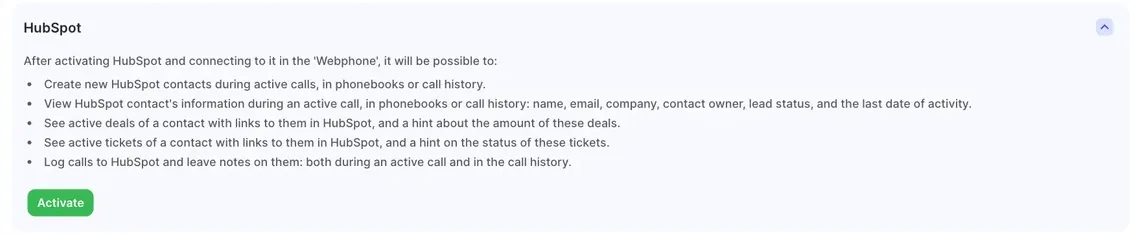
- view a contact’s name, email, company, contact owner, lead status and last activity date during a call, in phonebooks and in call history;
- see the contact’s active deals, with links to HubSpot and a hint about their amount;
- see the contact’s active tickets, with links to HubSpot and a hint about their status;
- create a HubSpot contact during a call, from a phonebook or from call history;
- log calls to HubSpot and add notes, during the call or later from call history.
Before you start
Section titled “Before you start”- The Integrations licence must be on: Services › PBX licences › Advanced features. See Integrations overview.
- Each user needs a Webphone account and their own HubSpot login.
1. Activate HubSpot in the portal
Section titled “1. Activate HubSpot in the portal”- Go to Integrations › CRMs.
- Under HubSpot, click Activate.
Every user with a Webphone account can now connect to HubSpot.
2. Each user connects in the Webphone
Section titled “2. Each user connects in the Webphone”- Sign in to HubSpot in the same browser first.
- Sign in to the Webphone and go to Settings › Integrations.
- Next to HubSpot, click Activate.
- Allow access in HubSpot when asked. The Webphone confirms with Activation was successful!
Optional: on the same page, turn on Automatically log all new calls. To stop using HubSpot, click Disconnect.
3. Log a call
Section titled “3. Log a call”- During a call with an external number, click CRM integrations in the Webphone. You can also open the CRM details from call history.
- For an existing contact, add your Notes and click Log the call. Once the call is completed, the call and notes are sent to the contact in HubSpot.
- For a new caller, click Create CRM contact, fill in the details and click Save. Then add notes and log the call.
Check it works
Section titled “Check it works”Call a number that belongs to a HubSpot contact from a connected Webphone. The contact’s details should appear during the call. Log the call, then check the contact’s activity in HubSpot.
Turn HubSpot off for one user
Section titled “Turn HubSpot off for one user”Open the user’s User object in the PBX and turn off HubSpot under Webphone › Integrations. See Integrations overview.