PortSIP
Connect the PortSIP softphone on Windows, iPhone or Android to a SIP device on your PBX.
PortSIP is a third-party softphone for Windows, iOS and Android. You connect it to a SIP device on your PBX.
Before you start
Section titled “Before you start”- Add a SIP device to the person’s User under Device configuration, and click Apply configuration.
- Open Devices at the top of the PBX tab and select the device. Keep its SIP credentials open: Domain, Username and Password.
- Download PortSIP for your device from the PortSIP website or your app store.
The Domain shows the server address, a colon and the port. Use each SIP device in one app or phone only.
If Transport protocol shows TLS, TLS encryption is on for your PBX. The port in the Domain is then different, and you must set the app to use TLS instead of TCP, with SRTP (shown as Media encryption).
1. Enter your SIP details
Section titled “1. Enter your SIP details”On the PortSIP sign-in screen, fill in:
| PortSIP field | What to enter |
|---|---|
| Username | The Username. |
| Password | The Password. |
| SIP Domain | The Domain, including the colon and port. |
Don’t sign in yet.
2. Set the advanced options
Section titled “2. Set the advanced options”- Tap Advanced.
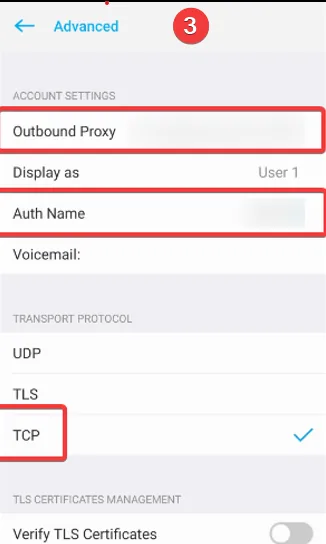
- Paste the Domain into Outbound Proxy.
- Under the transport settings, choose TCP.
- Optionally, set Display as to the name you want to see on your screen.
- Go back and tap Sign in.
On iPhone, also turn on Allow VoIP Calls under Mobile Data Network in Advanced, so calls work without Wi-Fi.
3. Let PortSIP take calls in the background
Section titled “3. Let PortSIP take calls in the background”Phones stop apps running in the background, which can make you miss calls.
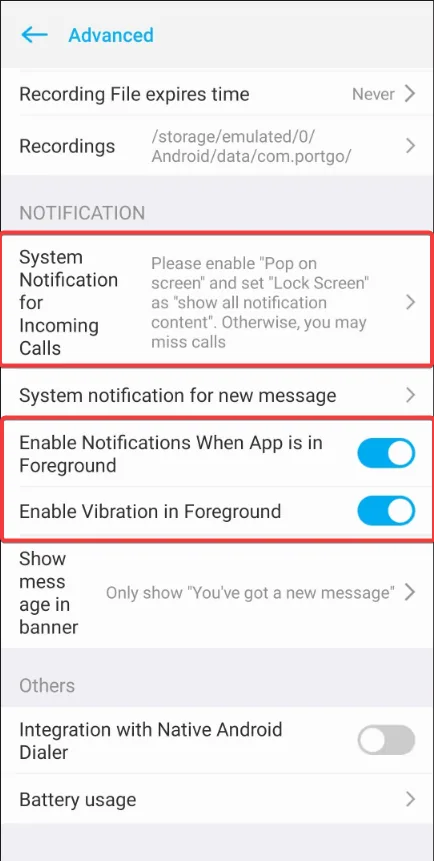
Android: go to Settings › Advanced and turn on the notification options, such as System Notification for Incoming Calls, Enable Notifications When App is in Foreground and Enable Vibration in Foreground.
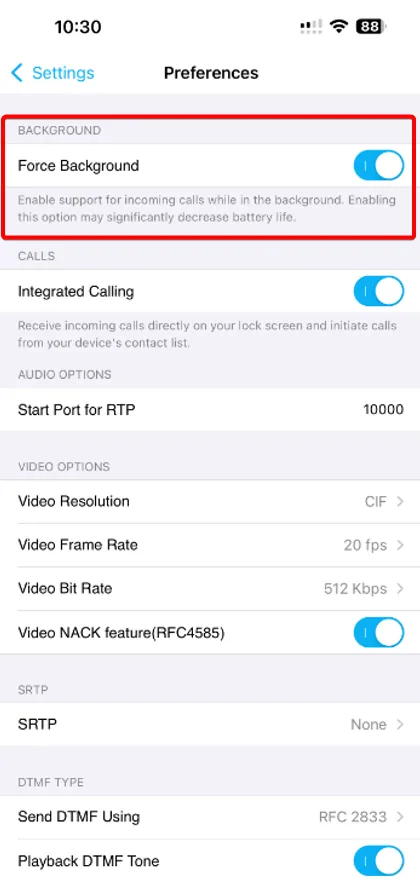
iPhone: go to Settings › Preferences and turn on Force Background. This can use more battery.
Check it works
Section titled “Check it works”- In PBX › Devices, the SIP device shows Online.
- Make a test call, then lock your phone and ask someone to call you.
If it stays offline, see Softphone errors. A device that tries to register with a wrong password is blocked, and the block lifts after 5 minutes.