Webphone troubleshooting
Fix common Webphone problems, such as no free Webphone devices, calls that end straight away, and calls that don't ring.
Find the symptom that matches what you see, then follow the fix.
“There are not enough device licences.” when adding a Webphone
Section titled ““There are not enough device licences.” when adding a Webphone”Cause: every device licence on the account is already used.
Fix: order more in Services › PBX licences, or click Order device licences if the warning offers it. You can also free a licence by deleting a device that’s no longer needed. See Set up the Webphone.
“Unfortunately, this user does not have any free Webphone devices”
Section titled ““Unfortunately, this user does not have any free Webphone devices””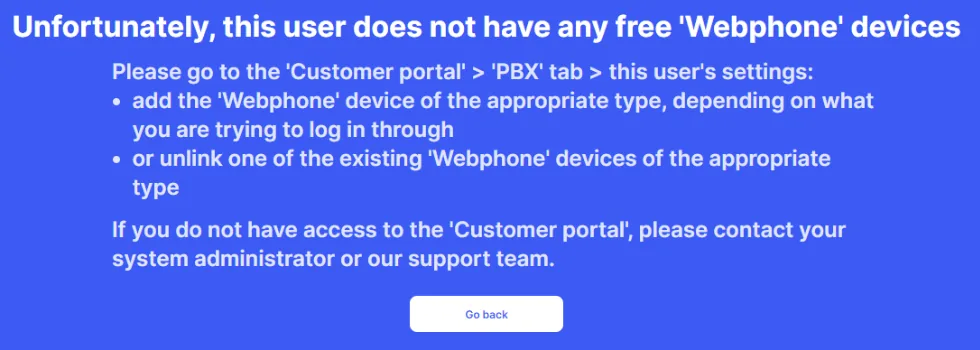
Likely causes:
- The user has no Webphone device of the type they’re signing in with. For example, they have Webphone browser but are signing in from the desktop app.
- Their Webphone desktop or Webphone mobile device is already linked to another computer or phone.
In a browser, a user with only desktop or mobile devices sees Seems like you’re trying to log in to the wrong place instead, with links to the apps.
Fix: a PBX administrator opens the user’s settings and either adds a Webphone device of the right type (Webphone browser, Webphone desktop or Webphone mobile), or clicks Unlink next to the desktop or mobile device that’s linked elsewhere. Then click Save and Apply configuration.
“No access to the microphone”, or the call ends when you dial out
Section titled ““No access to the microphone”, or the call ends when you dial out”Cause: the Webphone can’t use your microphone.
Fix:
- Click the padlock (or site information icon) in the address bar.
- Set Microphone to Allow and reload the page.
- If your browser asks for microphone access, click Allow.
In the desktop app, check your computer’s privacy settings allow the app to use the microphone.
No pop-up for incoming calls
Section titled “No pop-up for incoming calls”Cause: notifications are blocked by the browser or your computer, or turned off in the Webphone.
Fix: turn on Incoming calls in Webphone Settings › Notifications, and allow notifications for the Webphone in your browser and computer. See Webphone notifications and ringtone.
No ring sound (often in Safari)
Section titled “No ring sound (often in Safari)”Cause: the browser blocks sound that plays by itself.
Fix: allow auto-play or sound for the Webphone site. See Webphone notifications and ringtone.
Calls don’t reach the Webphone
Section titled “Calls don’t reach the Webphone”Likely causes and fixes:
- Do Not Disturb is on. The status in the top-right corner shows DND enabled. Click it to switch back to Available. In the mobile app, tap Available in Settings.
- The device is turned off for incoming calls. Check the device’s Incoming calls switch in Settings › Device management in the Webphone, or Device configuration in the user’s PBX settings.
- You’ve left the queue or ring group. Turn it back on under Services › Call controls.
- The call flow doesn’t reach you. Your administrator should check that the number is connected to your user and that the configuration was applied.
See Phone not ringing for more checks.
When to contact support
Section titled “When to contact support”If none of these fixes work, raise a support ticket. Say which Webphone version you use (browser, desktop or mobile), the time of a failed call, and the number you called or that called you.