Invoices and receipts
Last updated View as Markdown (opens in a new tab)
View, download and pay invoices, and find receipts for past payments.
All your invoices are in Billing › Bills and payments, under Invoices. From there you can pay open invoices, download PDFs and view receipts.
Which invoices you get
Section titled “Which invoices you get”- Prepaid accounts get a tax invoice and receipt for every top-up. There’s no monthly invoice.
- Postpaid accounts get an invoice on the 1st of each month for the previous month’s subscriptions and usage, with 14-day payment terms.
See Prepaid and postpaid accounts.
Find an invoice
Section titled “Find an invoice”- Go to Billing › Bills and payments.
- In Invoices, use Select date to narrow the list to a period.
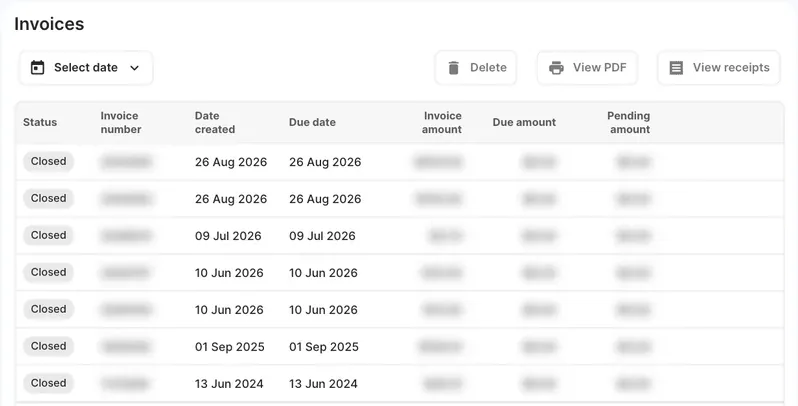
| Column | What it shows |
|---|---|
| Status | Open, Due today, Overdue (unpaid past its due date), Pending (a payment is being processed) or Closed (paid). |
| Invoice number | The invoice’s reference number. |
| Date created | When the invoice was issued. |
| Due date | When payment is due. |
| Invoice amount | The total of the invoice. |
| Due amount | What’s still to be paid. |
| Pending amount | Payments made against the invoice that are still being processed. |
Download an invoice or receipt
Section titled “Download an invoice or receipt”- Select the invoice in the list.
- Click View PDF to open or download the invoice.
- Click View receipts to see the receipts for payments made against it.
Pay an open invoice
Section titled “Pay an open invoice”- Click Pay now on the open invoice’s row.
- In the Pay invoice window, check the Amount to pay. You can pay part of the invoice.
- Choose your payment method and click Pay followed by the amount.
The invoice shows Pending while the payment is processed.
After the payment goes through, a receipt and payment confirmation are emailed to every administrator who has Emails with invoices/receipts turned on. See Administrators and access.
You can also pay by PayID: money you send first pays any open invoice. See Payment methods and top-ups.
Check it works
Section titled “Check it works”The paid invoice shows Closed with a Due amount of $0.00, and the receipt is under View receipts.
Next steps
Section titled “Next steps”- Send invoices to your accounts team by adding them as an administrator with billing access.
- See every charge in Account balance
- Financial hardship, if you’re having trouble paying.