Time conditions
Last updated View as Markdown (opens in a new tab)
Route calls differently depending on the time, day, date or month, such as business hours and holidays.
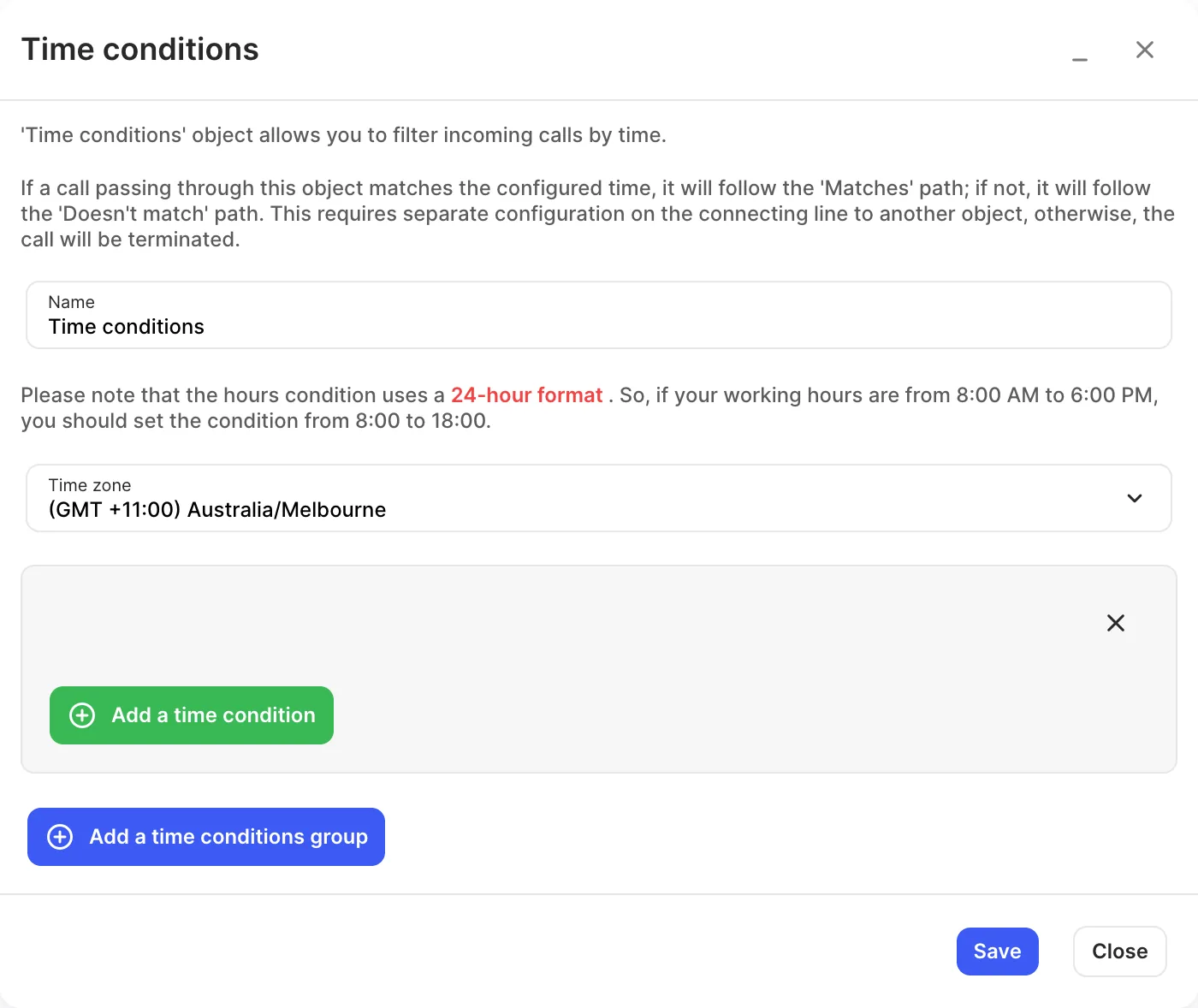
Time conditions checks the time a call arrives. Calls that match your times take the Matches path; all others take the Doesn’t match path. The most common use is sending calls to your team during business hours and to voicemail at other times.
Add it to your call flow
Section titled “Add it to your call flow”- Drag Time conditions from the Conditions group onto the canvas and click the gear icon.
- Enter a Name and check the Time zone.
- Click Add a time conditions group, then Add a time condition and choose the type (see below).
- Add more conditions to the group as needed, for example hours plus days of the week.
- Click Save.
- Connect Matches to where calls go during those times, and Doesn’t match to where they go otherwise.
- Click Apply configuration.
Condition types
Section titled “Condition types”| Type | Example |
|---|---|
| Hours | 8:00 to 18:00. Uses 24-hour time. |
| Days of the week | Monday to Friday. |
| Days of the month | The 1st to the 5th. |
| Months | June to August. |
| Years | 2026. |
All conditions in one group must match together. Add another group for a different set of times; a call matches if it matches any group. The settings show OR between groups.
For example, a business open 8:30 to 17:30 Monday to Friday and 9:00 to 12:00 on Saturday needs two groups:
- Hours 8:30–17:30 and Days of the week Monday–Friday.
- Hours 9:00–12:00 and Days of the week Saturday.
Settings
Section titled “Settings”| Setting | What it does |
|---|---|
| Name | Label on the canvas. |
| Time zone | The time zone the conditions use. |
| Time conditions groups | One or more sets of conditions. |
Call paths
Section titled “Call paths”| Path | When it’s used |
|---|---|
| Matches | The call arrived during one of your groups. |
| Doesn’t match | The call arrived at any other time. |
If a path isn’t connected, the call ends.
- For public holidays, put a second Time conditions object first, with the holiday dates, and send its Matches path to your holiday message.
- To switch to after-hours handling manually, for example when the office closes early, use Call flow control.