Phonebooks
Last updated View as Markdown (opens in a new tab)
Share contact lists with your users in the Webphone and on desk phones.
Phonebooks are contact lists your users can call from the Webphone and desk phones. When a contact calls, their name is shown instead of just the number. Open them from Phonebooks at the top of the PBX tab.
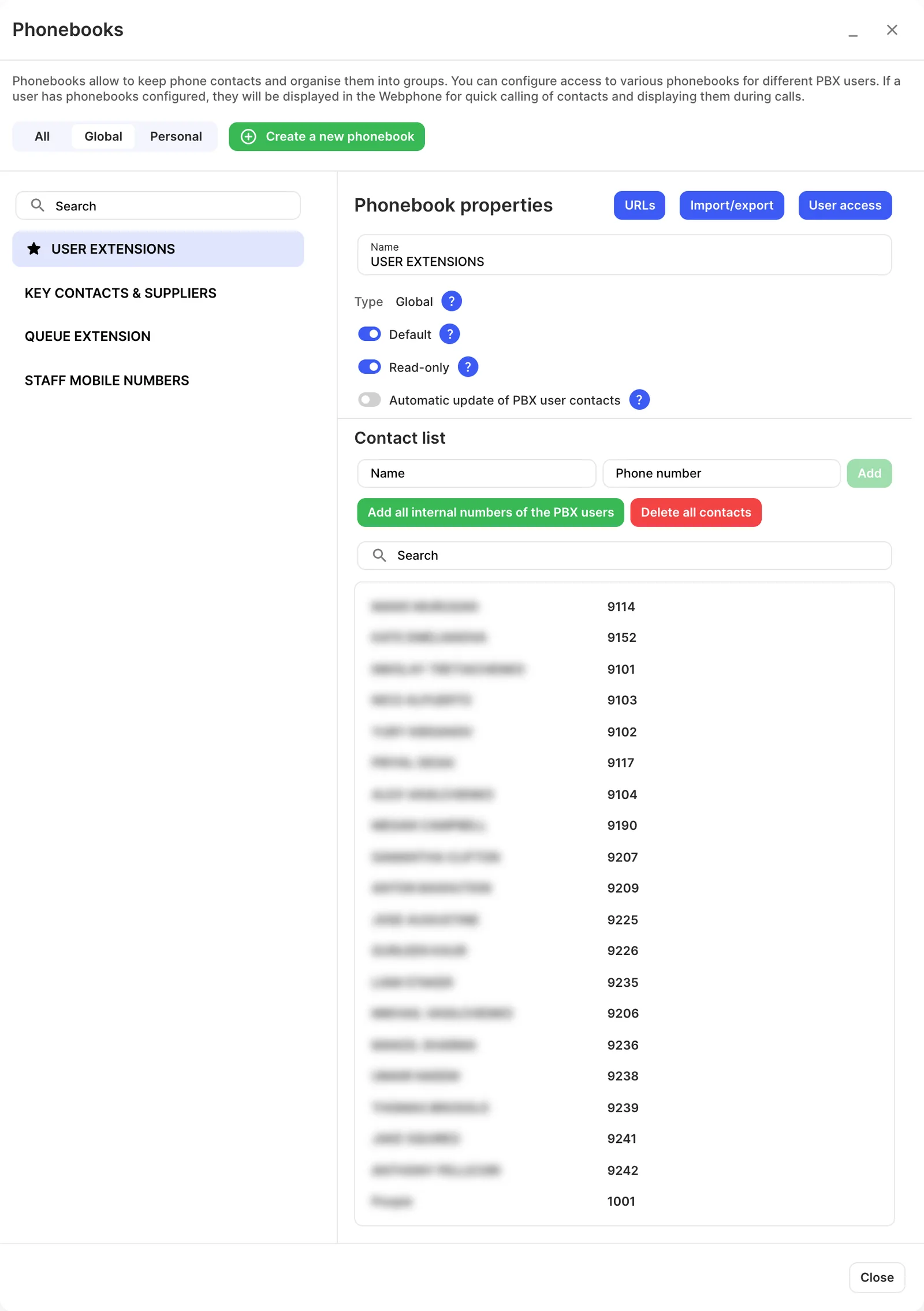
Create a phonebook
Section titled “Create a phonebook”- Click Create a new phonebook, enter the Phonebook’s name and click Create.
- Add contacts by entering a Name and Phone number and clicking Add, or use Import/export.
- Click User access and choose Add to all PBX users, or add it to individual users in their User settings.
Settings
Section titled “Settings”| Setting | What it does |
|---|---|
| Type | Global phonebooks can be given to any user. Personal phonebooks belong to one user. |
| Default | Added automatically to every new user. You can have several default phonebooks. |
| Read-only | Users can’t change contacts in the Webphone. Only a PBX admin can. |
| Automatic update of PBX user contacts | Keeps users’ names and internal numbers up to date in this phonebook as your PBX changes. |
| Add all internal numbers of the PBX users | Adds every user’s extension in one click. |
| Delete all contacts | Empties the phonebook. |
| URLs | Links for loading the phonebook on Yealink phones and in Zoiper. |
| Import/export | Download contacts as an XML Yealink file, XML Zoiper file or CSV, or upload a file in one of those formats. |
| User access | Add to all PBX users or Remove from all PBX users in one step. |
Related
Section titled “Related”- User
- Contact match — route calls from saved contacts differently