Notification
Last updated View as Markdown (opens in a new tab)
Send an SMS or email alert whenever a call passes a point in the call flow.
Notification sends a message by SMS, email or both every time a call passes through it. The call carries on as normal. For example, alert a manager by SMS when a call reaches your after-hours path.
Add it to your call flow
Section titled “Add it to your call flow”- Drag Notification from the Different group onto the canvas and click the gear icon.
- Enter a Name.
- For SMS, turn on SMS, choose the SMS plan and Send from number, click Add number for each recipient, and write the Message.
- For email, turn on Email, enter the addresses, and write the Subject and Message.
- Click Save, connect it into the call flow, and click Apply configuration.
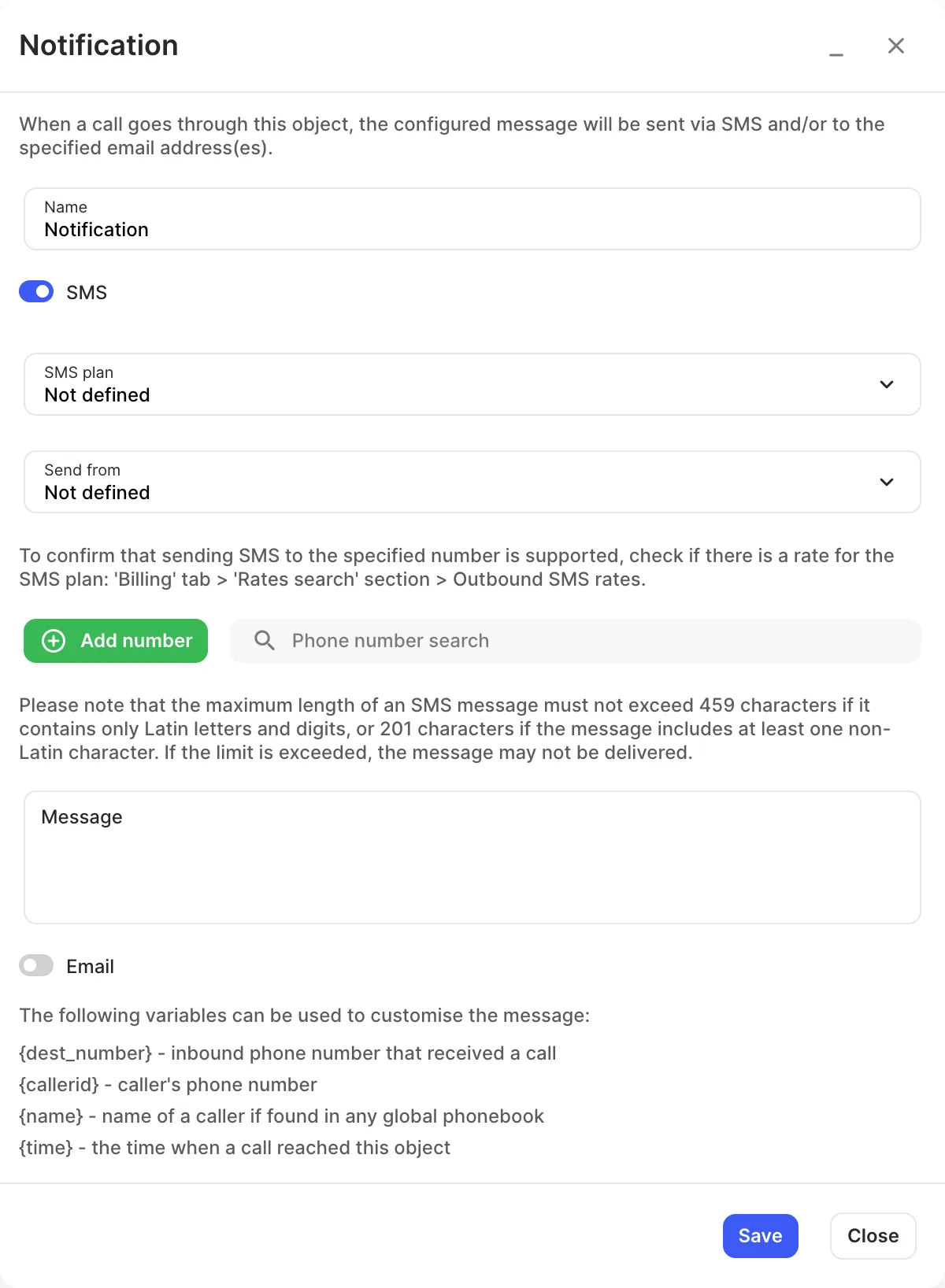
Settings
Section titled “Settings”| Setting | What it does |
|---|---|
| Name | Label on the canvas. |
| SMS / Email | Turn on one or both ways of sending the notification. |
| SMS plan | The plan used to send SMS. Check the destination has a rate in Billing › Rates search › Outbound SMS rates. |
| Send from | The SMS-enabled number or alphanumeric sender ID the SMS comes from. Some accounts also have No-Reply. |
| Phone number | Who receives the SMS. Click Add number to add each one. |
| Message | The SMS text. Keep it under 459 characters (Latin letters and digits only) or 201 characters if it has any other characters, or it may not be delivered. |
| Who receives the email, with its Subject and Message. |
Variables for the message:
| Variable | Value |
|---|---|
{dest_number} |
Your inbound number that received the call. |
{callerid} |
The caller’s phone number. |
{name} |
The caller’s name, if they’re in a global phonebook. |
{time} |
When the call reached this object. |