Queue wallboard
Last updated View as Markdown (opens in a new tab)
Show live queue statistics on a web page, such as a screen on the office wall.
Queue wallboard shows the live status of up to 6 queues on a password-protected web page. It shows how many callers are waiting, which users are on calls, the longest and average waiting time, and answered and missed calls. It’s designed for a screen your team can see.
Set it up
Section titled “Set it up”- Drag Queue wallboard from the Monitoring group onto the canvas and click the gear icon.
- Enter a Name and set or note the Password.
- Under Specify the ‘Queue’ and ‘Queue callback’ objects to monitor, click Add and choose up to 6.
- Set the colour warnings, time format, time zone and reset time.
- Click Save and Apply configuration.
- Open the settings again to copy the wallboard URL, then open it on your screen and enter the password.
The wallboard doesn’t need to be connected to anything on the canvas.
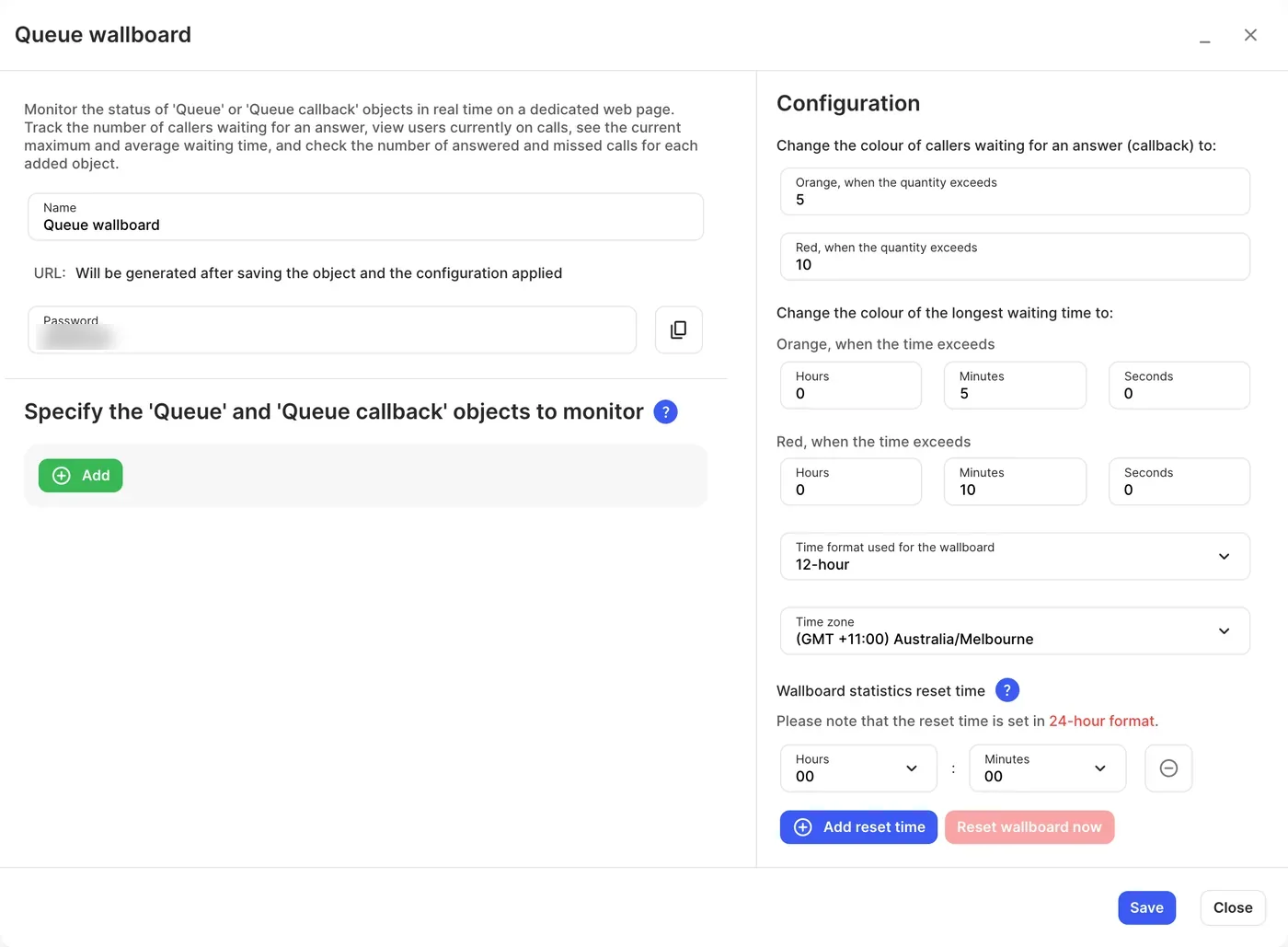
Settings
Section titled “Settings”| Setting | What it does |
|---|---|
| Name | Label on the canvas. |
| URL | The wallboard’s web address. Appears once the object is saved and the configuration applied. |
| Password | Needed to open the wallboard. You can change it and copy it with the button next to it. |
| Objects to monitor | Up to 6 queues or queue callbacks. Each gets its own colour; click the circle to change it. |
| Change the colour of callers waiting… | Turns the waiting count orange, then red, above the numbers you set. |
| Change the colour of the longest waiting time… | Turns the longest wait orange, then red, above the times you set. |
| Time format used for the wallboard | 12-hour or 24-hour. |
| Time zone | Time zone for the wallboard clock and resets. |
| Wallboard statistics reset time | When the counts reset to zero (24-hour time). Statistics must reset at least once a day. Reset wallboard now resets immediately. |