Inbound number (DID)
Last updated View as Markdown (opens in a new tab)
Bring calls to your phone numbers into the call flow and send them to the next object.
Inbound number is where calls to your phone numbers enter the PBX. Every call flow that receives outside calls starts with one. You can put one number or several numbers in the same object; they all follow the same path.
Before you start
Section titled “Before you start”You need at least one phone number that isn’t already used in another Inbound number object. To get a new one, go to Services › Phone numbers. To bring a number you already have, go to Services › Number porting.
Add it to your call flow
Section titled “Add it to your call flow”- On the PBX tab, drag Inbound number from the Receive calls group onto the canvas.
- Click the gear icon to open its settings.
- Enter a Name. The name is also shown as the caller ID name when a number from this object is used to make calls.
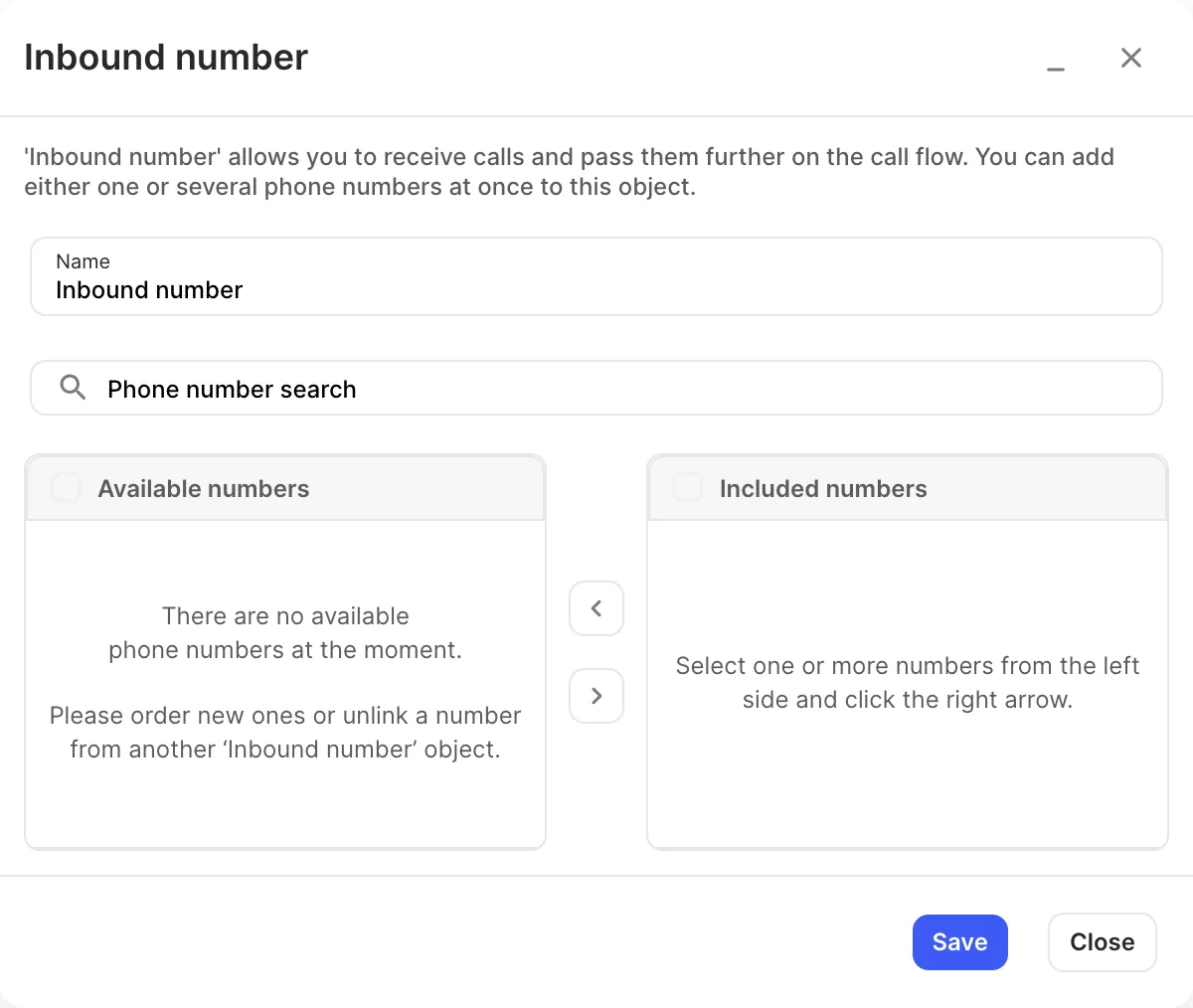
- Under Available numbers, select one or more numbers and click the right arrow to move them to Included numbers.
- Click Save.
- Connect the object to where calls should go next, for example a User, Queue or Time conditions.
- Click Apply configuration.
Settings
Section titled “Settings”| Setting | What it does |
|---|---|
| Name | Label on the canvas. Also used as the caller ID name for these numbers. |
| Available numbers | Your phone numbers that aren’t used in any other Inbound number object. |
| Included numbers | Numbers routed through this object. Select numbers on the left and click the right arrow to add them. |
| Available numbers from SIP trunks / Included numbers from SIP trunks | Shown only when a SIP trunk has numbers added under its Inbound rules. Works the same way as the lists above. |
- If Available numbers says there are no available phone numbers, order a new number or remove a number from another Inbound number object first.
- Use separate Inbound number objects when numbers need different handling, for example a sales number and a support number.
- To filter calls by time of day, connect the Inbound number to Time conditions first.