How the PBX works
Build your call flow by placing objects on the canvas, connecting them, and applying the configuration.
The PBX tab is where you decide what happens to every call. You build a call flow by dragging objects onto a canvas and connecting them: for example, a phone number that rings your team, then goes to voicemail if nobody answers.
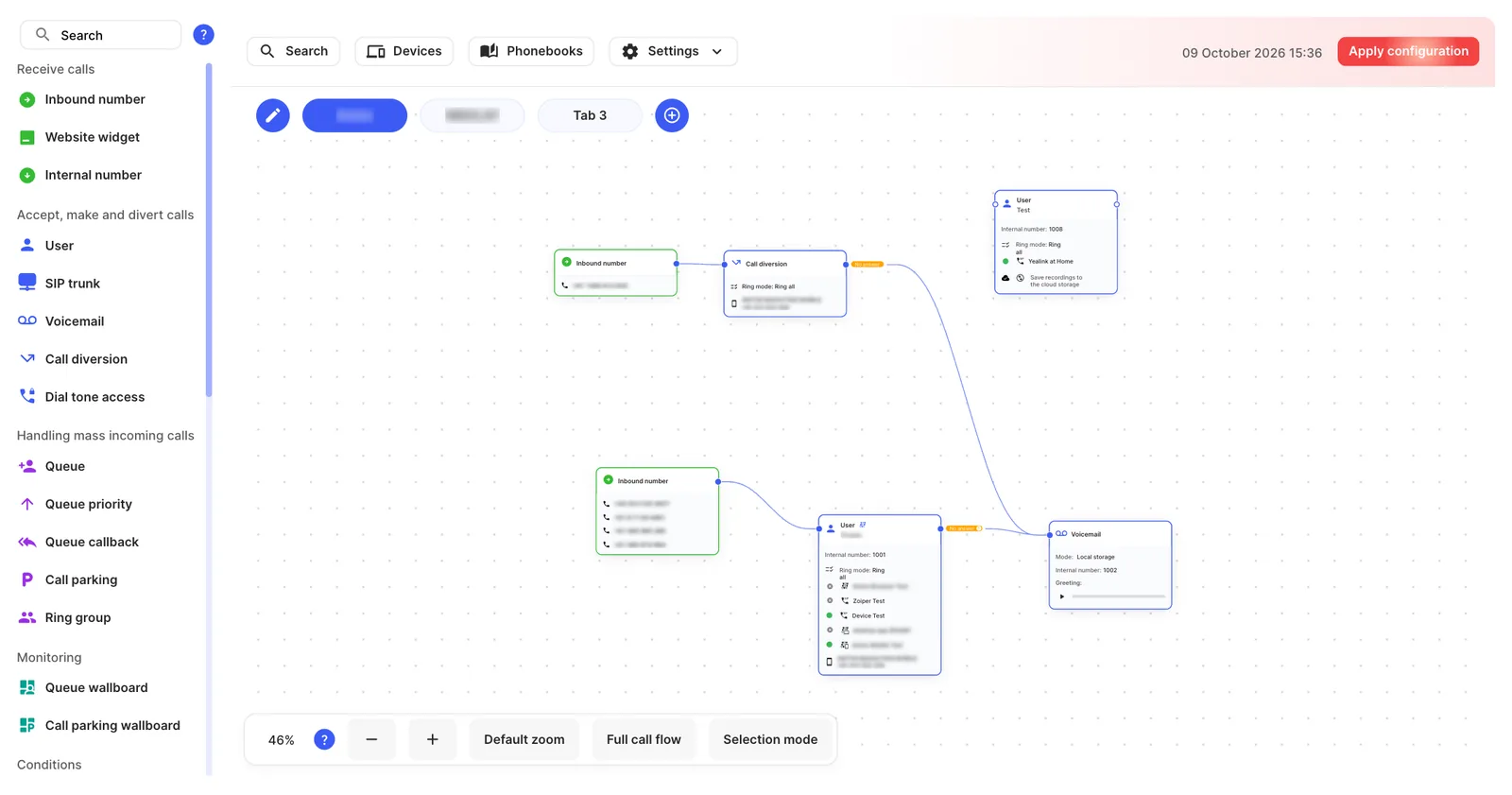
The parts of the PBX tab
Section titled “The parts of the PBX tab”| Area | What it does |
|---|---|
| Object palette (left) | Every object you can add, grouped by what it does. Use Search at the top of the palette to find one quickly. |
| Canvas (centre) | Your call flow. Drag objects here and connect them. |
| Tabs (above the canvas) | Split a large call flow into several canvases, for example one per office or department. Click the + button to add a tab and the pencil button to change their order. |
| Search | Find an object on the canvas by name, number or setting. |
| Devices | All phones and apps that can make and receive calls. See Devices. |
| Phonebooks | Shared and personal contact lists for the Webphone and desk phones. See Phonebooks. |
| Settings | PBX-wide settings: General, Call flow, Dial plans, Music on hold, Pickup groups and Global blocklist. |
| Apply configuration | Makes your changes live. Nothing you change on the canvas affects real calls until you apply it. Every object must be fully configured before you can apply. |
| Zoom controls (bottom) | Zoom in and out, Default zoom, Full call flow (fit everything on screen) and Selection mode (select several objects at once). |
Object groups
Section titled “Object groups”The palette groups objects by what they do. Each object has its own page in this knowledge base.
| Group | Objects |
|---|---|
| Receive calls | Inbound number, Website widget, Internal number |
| Accept, make and divert calls | User, SIP trunk, Voicemail, Call diversion, Dial tone access |
| Handling mass incoming calls | Queue, Queue priority, Queue callback, Call parking, Ring group |
| Monitoring | Queue wallboard, Call parking wallboard |
| Conditions | Voice menu, Time conditions, GEO routing, Contact match, Call flow control |
| Audio | Announcement, Call recording, Stop call recording |
| Identifiers | Caller ID prefix, DTMF prefix |
| Protection | Blocklist, PIN code |
| Advanced | API request, Webhook |
| Different | Fax to email, Notification, Conference, Set caller ID |
Add and configure an object
Section titled “Add and configure an object”- Drag the object from the palette onto the canvas. A new object has a red outline and says You need to configure this component until you set it up.
- Click the gear icon on the object to open its settings.
- Fill in the settings and click Save.
- Click Apply configuration in the top-right corner.
To delete an object, click its delete icon and confirm.
Connect objects
Section titled “Connect objects”Each object has a connection point on its left (where calls come in) and one or more on its right (where calls go next). Drag from a connection point on the right of one object to the left of another to connect them.
Many objects have more than one way out. Each connecting line gets a coloured label, such as:
| Label | When the call takes this path |
|---|---|
| No answer | Nobody answered in time (Ring group, Call diversion, SIP trunk). For a User, it also covers rejected calls and Do Not Disturb, but only for calls that reach the user directly. |
| Maximum waiting time exceeded | The caller waited in a Queue for longer than the limit. |
| All users offline or on DND mode | Every user in a Queue is offline, turned off or on Do Not Disturb. |
| Matches / Doesn’t match | The call did or didn’t meet the conditions in Time conditions, GEO routing or Contact match. |
| Correct / Incorrect | The caller entered the right or wrong PIN code. |
| Active / Passive | The current state of a Call flow control object. |
| 1–9, 0, *, #, Timeout, Invalid | The key the caller pressed in a Voice menu, or what happened if they didn’t press a valid key. |
If a path isn’t connected, the call usually ends at that point. Connect every path you expect callers to take.
Undo, export and import
Section titled “Undo, export and import”Open Settings › Call flow to:
- Export a call flow to a file, as a backup or to copy it to another account.
- Import a call flow from a file.
- Roll back to the last applied configuration to discard changes you haven’t applied yet.
Export and import cover every tab, not only the one you’re viewing. See Call flow settings.