Connect Teams users in the PBX
Add your Microsoft Teams accounts to a User or to a SIP trunk so they can make and receive calls.
After setting up direct routing, connect each Teams account in the PBX. This decides how calls reach Teams, and gives the account a call plan for outgoing calls. Without this step, Teams users can’t make calls.
Before you start
Section titled “Before you start”- Your Teams accounts are listed in Services › Microsoft Teams › Microsoft Teams accounts.
- Choose one option for each Teams account. An account can only be used in one place: once it’s in a User or a SIP trunk, it’s no longer offered elsewhere.
| Option | Choose it when |
|---|---|
| A User with a Microsoft Teams device | You want the PBX call flow (queues, ring groups, voice menus, voicemail, recording) to handle calls, and Teams to ring like any other phone. |
| A SIP trunk in Microsoft Teams gateway mode | You want Microsoft Teams’ own phone system to handle calls. |
Option 1: a User with a Microsoft Teams device
Section titled “Option 1: a User with a Microsoft Teams device”You need an unassigned user licence for each person, ordered in Services › PBX licences. The user’s call plan comes from that licence.
- Go to the PBX tab. Drag User from the Accept, make and divert calls group onto the canvas, or open an existing user. Click the gear icon.
- Enter the Name, choose the Licence subaccount and set the Default caller ID.
- Under Device configuration, click Add and choose Microsoft Teams.
- In Select MS Teams account, choose the person’s Microsoft Teams account and click Add. If you see “There are no Microsoft Teams accounts available”, add the account in Services › Microsoft Teams first, or check it isn’t already used in another User or SIP trunk.
- Click Save.
- Connect an Inbound number, queue or ring group to the user so calls reach them.
- Click Apply configuration.
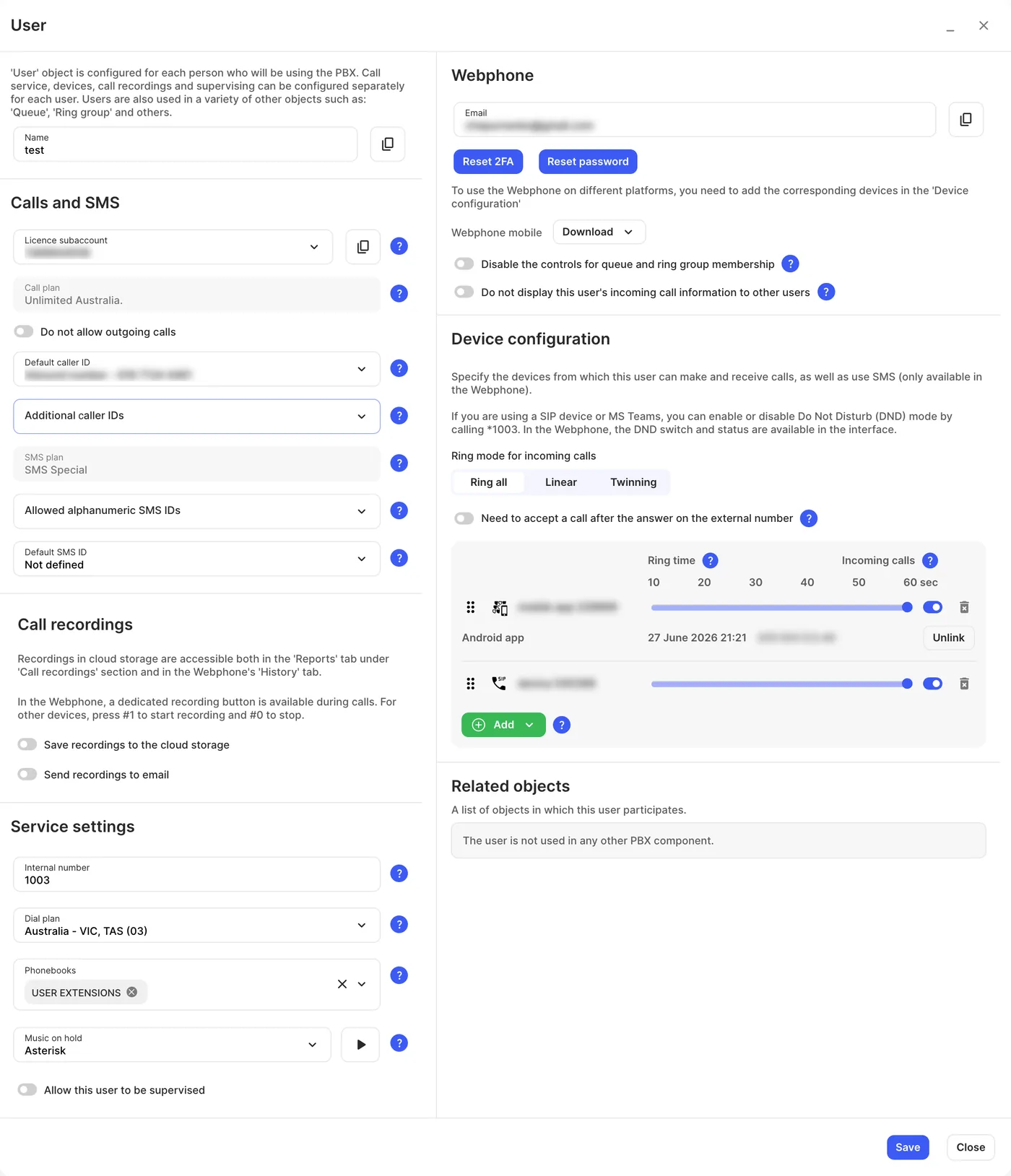
Things to know:
-
Each user can have one Microsoft Teams device. It can ring together with their Webphone, desk phone or mobile; set the order with Ring mode for incoming calls.
-
A Microsoft Teams device doesn’t use one of your PBX device licences. The Teams account itself is what you order in Services › Microsoft Teams.
-
A user with a Microsoft Teams device turned on for incoming calls always counts as online, so queues and ring groups will always try to ring them.
-
To turn Do Not Disturb on or off from Teams, dial * followed by the user’s internal number, for example *1003.
-
Blind transfers to a Call parking slot may not work as expected from Teams.
See User for every setting.
Option 2: a SIP trunk in Microsoft Teams gateway mode
Section titled “Option 2: a SIP trunk in Microsoft Teams gateway mode”You need an unassigned trunk licence and enough channels, ordered in Services › SIP trunking. Each channel carries one call at a time.
- Go to the PBX tab. Drag SIP trunk from the Accept, make and divert calls group onto the canvas and click the gear icon.
- Enter a Name and set the Number of channels.
- For Mode, choose Microsoft Teams gateway.
- Choose a SIP trunk call plan. Without one, outgoing calls from Teams won’t work.
- Choose the Caller ID for outgoing calls, and set Ring time, seconds.
- Click Add Microsoft Teams account and choose each Teams account this trunk serves.
- Click Save, connect an Inbound number or another object to the trunk, and click Apply configuration.
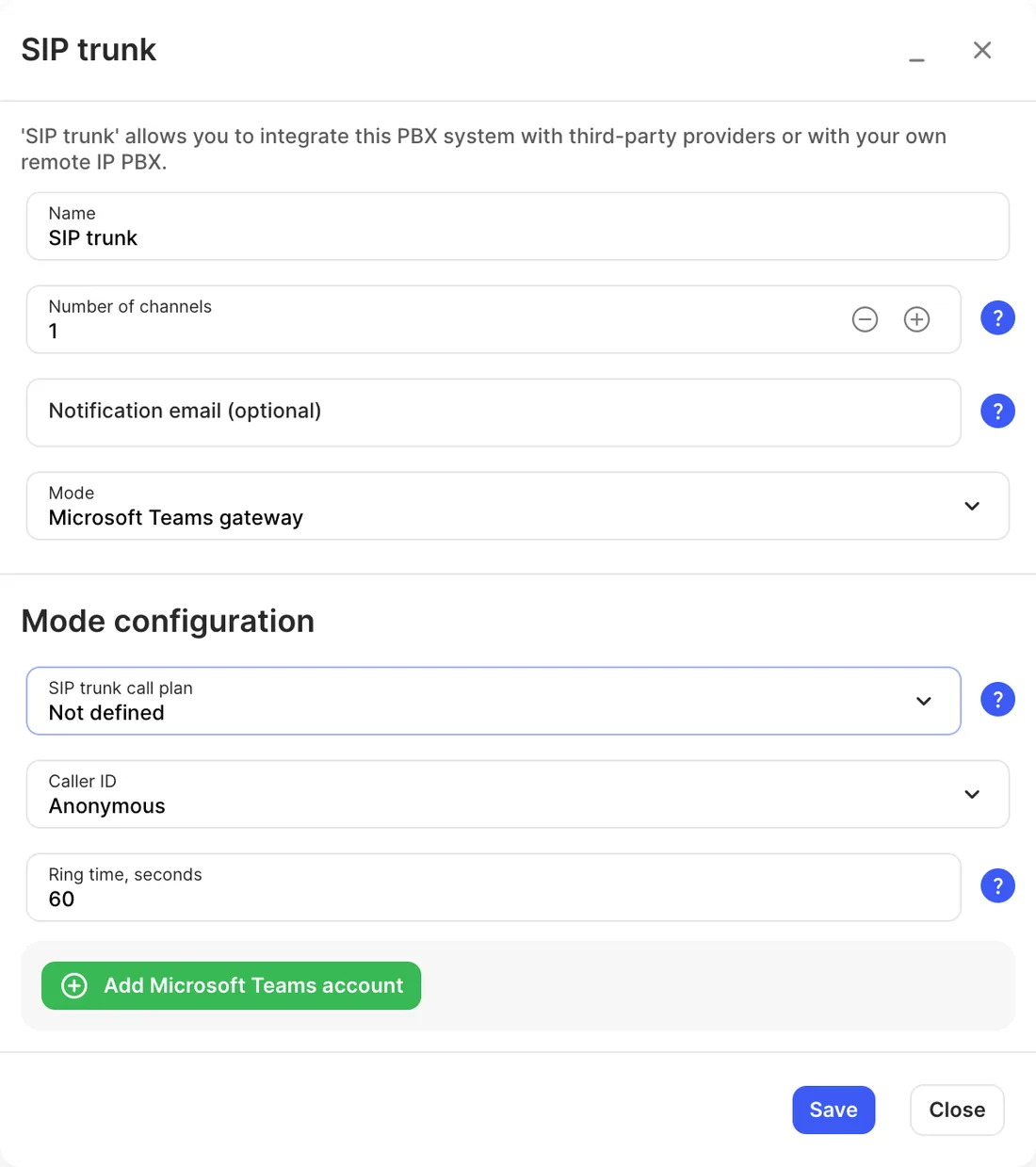
In this mode, the SIP trunk has no outgoing paths on the canvas: calls go to Teams, and Teams decides what happens next.
See SIP trunk for every setting.
Check it works
Section titled “Check it works”- Check that you clicked Apply configuration.
- Call the number connected to the user or trunk from a mobile. Teams should ring.
- Call a mobile from the Teams dial pad. The mobile should show the caller ID you chose.
If Teams doesn’t ring, see Troubleshoot Microsoft Teams.
Next steps
Section titled “Next steps”- Send missed calls to Voicemail with the user’s No answer path, and turn off Teams voicemail.
- Share calls across a team with a Queue or Ring group.