SMS history
List every SMS sent and received in a period, and export the list.
SMS history lists every SMS sent and received on your account for the period you choose. Use it to check whether a message went out, who sent it, and how many parts it used.
Find messages
Section titled “Find messages”- Go to Reports › SMS history.
- Choose the dates in the date range picker. To include only certain hours, drag the Time range: slider.
- Click Filter to narrow the list, then click Apply. You can filter by User (subaccount), Direction, Phonebook contact, Sender and Receiver.
- Choose Total SMS, Inbound or Outbound.
You can choose dates within the last six months. For older messages, contact the support team.
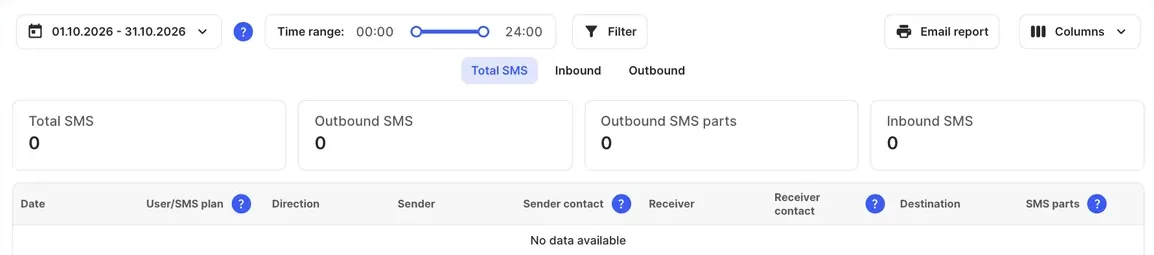
The boxes above the list show Total SMS, Outbound SMS, Outbound SMS parts and Inbound SMS.
Columns
Section titled “Columns”| Column | What it shows |
|---|---|
| Date | When the message was sent or received. |
| User/SMS plan | The user and the SMS plan used to send an outbound SMS. Blank for inbound SMS. |
| Direction | Inbound or outbound. |
| Sender | The number or sender ID the message came from. |
| Sender contact | The sender’s name, if the number is saved in a Global phonebook in the PBX. |
| Receiver | The number the message went to. |
| Receiver contact | The receiver’s name, if the number is saved in a Global phonebook in the PBX. |
| Destination | The type and location of the receiving number. |
| SMS parts | How many parts the message was split into. Each part costs the same as one SMS. |
A message in Latin letters and digits fits 160 characters in one part. With any other character, one part holds 70 characters. Longer messages are split into parts of 153 characters (Latin) or 67 characters (non-Latin).
Use Columns to hide columns you don’t need.
Export the list
Section titled “Export the list”Click Email report to get the list, with your filters applied, as a CSV file by email. Choose the recipients under Administrators or Email, then click Send. You can send one request every ten minutes.