Connect a FRITZ!Box with a SIP trunk
Register a FRITZ!Box to the PBX with a SIP trunk so its phones can make and receive calls.
This guide connects a FRITZ!Box router to your PBX with a SIP trunk, so phones plugged into or paired with the FRITZ!Box can make and receive calls on your number.
Before you start
Section titled “Before you start”- Order a trunk licence and channels: go to Services › SIP trunking, set the number of Channels (one per simultaneous call), click Add licence, tick Agree to service terms and conditions and click Submit order.
- Have the FRITZ!Box admin password.
1. Create the SIP trunk in the PBX
Section titled “1. Create the SIP trunk in the PBX”- Go to the PBX tab. Drag SIP trunk from the Accept, make and divert calls group onto the canvas and click the gear icon.
- Enter a Name and set the Number of channels.
- For Mode, choose SIP registration.
- Choose a SIP trunk call plan and a Caller ID for outgoing calls.
- Click Save.
- Connect an Inbound number with your phone number to the SIP trunk.
- Click Apply configuration.
Open the trunk’s settings again and note the SIP credentials: Domain, Username and Password. Also note the Transport protocol: TCP, or TLS if TLS encryption is turned on in Settings › General. See SIP trunk for every setting.
2. Add the number in the FRITZ!Box
Section titled “2. Add the number in the FRITZ!Box”-
Open the FRITZ!Box web interface and go to Telephony › Telephone Numbers. Add a new internet telephone number.
-
For the telephony provider, choose the SIP Trunk option if you see it. Otherwise, use the standard internet telephony option.
-
Fill in the number and account details:
FRITZ!Box field Enter Telephone Number for Registration Your phone number with the area code. Internal Telephone Number in the FRITZ!Box Your phone number without the area code. User name The Username. Password The Password. Registrar The Domain, including the port. 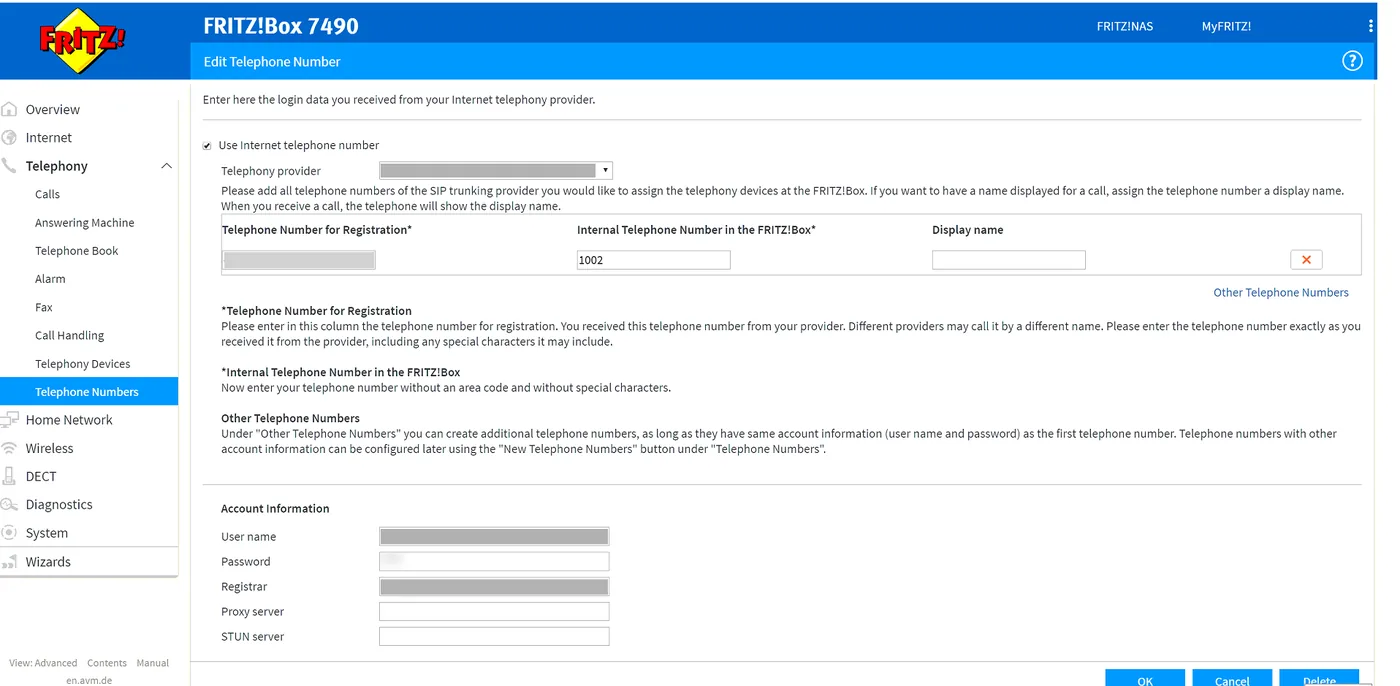
-
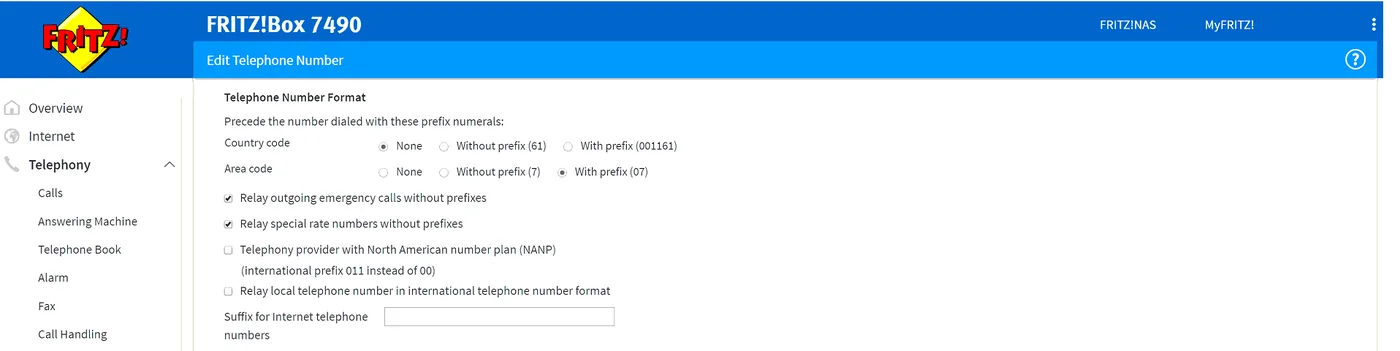
Under Telephone Number Format, set Country code to None, and set Area code to With prefix (0X), where X is your area code. For example, With prefix (07) for a Queensland number.
-
Leave the other settings as they are and click OK.
If your FRITZ!Box has a transport setting for the number, set it to match the trunk’s Transport protocol in the PBX (TCP, or TLS).
Check it works
Section titled “Check it works”- In the PBX, the SIP trunk’s Status shows Online.
- Call your number from a mobile. The phone on the FRITZ!Box should ring.
- Call a mobile from that phone. The mobile should show your caller ID.
If the trunk stays offline, check the user name, password and registrar: after failed sign-in attempts, the PBX blocks the IP address for 5 minutes. You can check this with Check IP address for blocking in the trunk’s settings.
Next steps
Section titled “Next steps”- Device offline if the FRITZ!Box won’t register.