SIP trunk
Connect a third-party PBX, provider, voice AI platform or Microsoft Teams to your call flow.
SIP trunk connects your PBX to another phone system: your own on-premises or hosted PBX, another provider, a voice AI platform, or Microsoft Teams. Calls can flow both ways.
Before you start
Section titled “Before you start”You need an unassigned trunk licence and enough channels, ordered in Services › SIP trunking. Each channel carries one call at a time in either direction, so 5 channels allow 5 simultaneous calls. If all your trunk licences are already used by other SIP trunk objects, order another one first.
Add it to your call flow
Section titled “Add it to your call flow”- Drag SIP trunk from the Accept, make and divert calls group onto the canvas and click the gear icon.
- Enter a Name, set the Number of channels and choose the Mode.
- Fill in the Mode configuration for the mode you chose (see below).
- Click Save.
- To send calls to the trunk, connect an Inbound number or another object to it.
- Click Apply configuration.
Common settings
Section titled “Common settings”| Setting | What it does |
|---|---|
| Name | Label on the canvas. |
| Number of channels | How many calls can use the trunk at the same time. |
| Notification email (optional) | Get an email when the channel limit is reached. |
| Mode | SIP registration, IP authentication or Microsoft Teams gateway. |
SIP registration
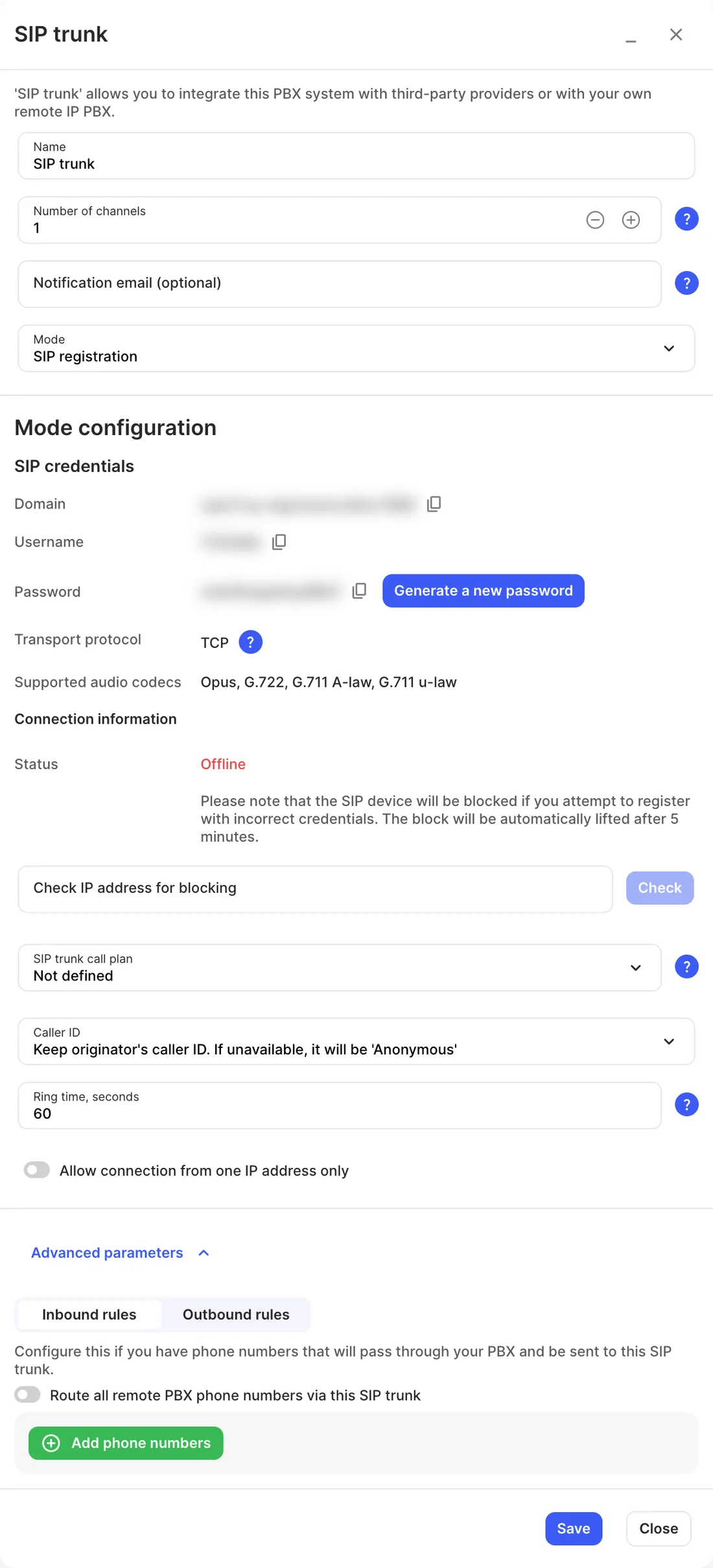
Section titled “SIP registration”Use this when your other PBX signs in to this PBX with a username and password. Your PBX can then call users here and dial out, and users here can call extensions on your PBX.
| Setting | What it does |
|---|---|
| SIP credentials | The Domain, Username and Password to enter in your other PBX. Use Generate a new password to change the password; you’ll need to update your PBX afterwards. |
| Transport protocol | The protocol your PBX must use to connect: TCP, or TLS if TLS encryption is turned on in Settings › General. With TLS, Media encryption shows SRTP. |
| Supported audio codecs | Opus, G.722, G.711 A-law and G.711 u-law. |
| Status | Whether your PBX is connected (Online or Offline). |
| Check IP address for blocking | A device that tries to register with wrong credentials is blocked, and the block lifts after 5 minutes. Enter an IP address to check whether it’s blocked. |
| SIP trunk call plan | Rates for outgoing calls through the trunk. Without a call plan, outgoing calls won’t work. |
| Caller ID | The number shown for outgoing calls. Keep originator’s caller ID passes through the number your PBX sends; if there’s none, the call is anonymous. |
| Ring time, seconds | How long to try the trunk before the call takes the No answer path. |
| Allow connection from one IP address only | Locks the trunk to your PBX’s public IP address, for extra security. |
| Inbound rules | Under Advanced parameters. For phone numbers hosted on the other PBX that pass through this PBX: turn on Route all remote PBX phone numbers via this SIP trunk, or click Add phone numbers to add them one by one. |
| Outbound rules | Under Advanced parameters. Click Add internal numbers to add internal numbers hosted on the other PBX, so users here can call them. |
IP authentication
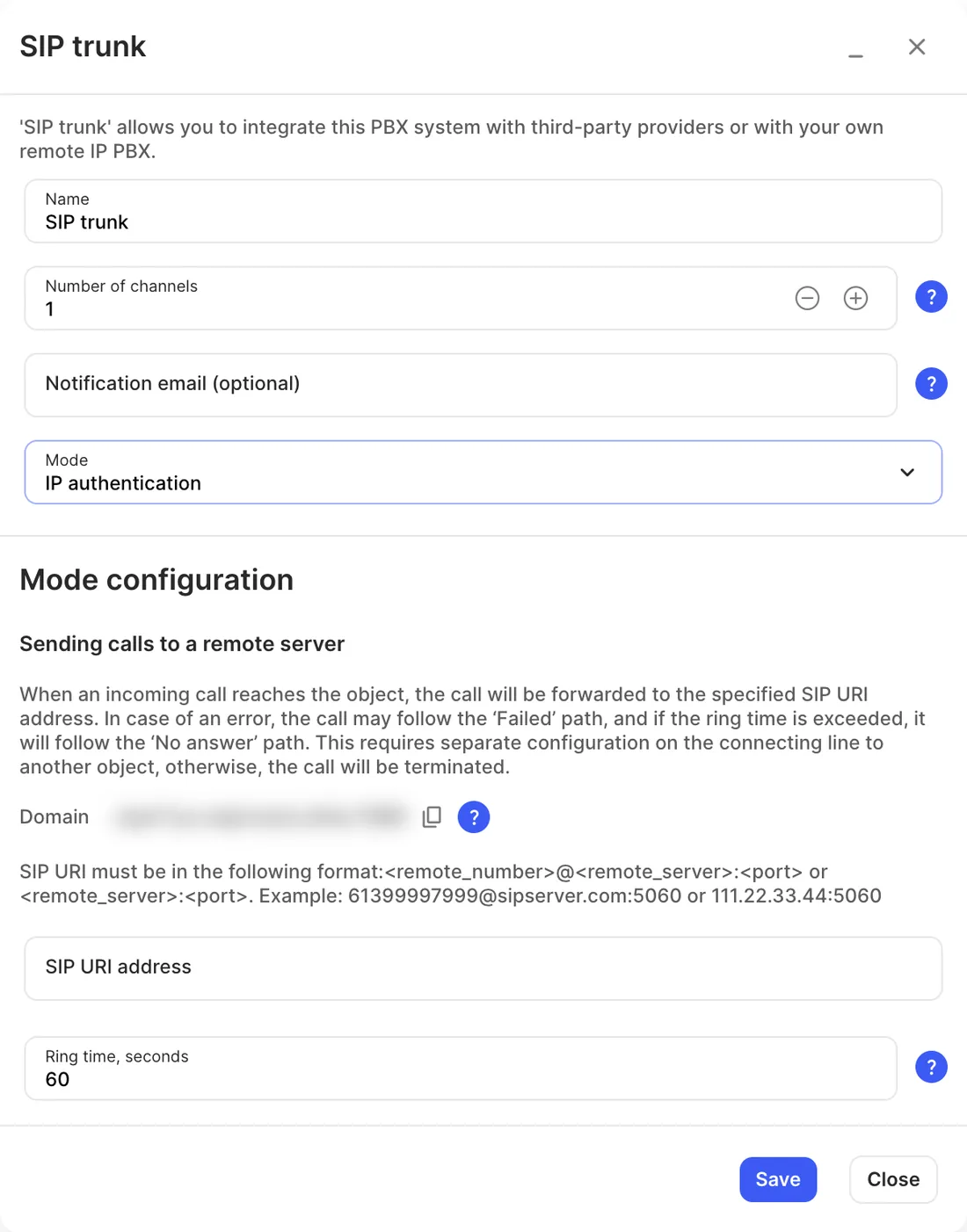
Section titled “IP authentication”Use this to send calls to a remote server that recognises this PBX by its IP address. When a call reaches the object, it’s forwarded to the SIP URI address you enter.
| Setting | What it does |
|---|---|
| Domain | This PBX’s address, to allow on the remote server. It resolves to several IP addresses that can change, so the remote server must accept calls from all of them. |
| SIP URI address | Where calls are sent. Format: <remote_number>@<remote_server>:<port> or <remote_server>:<port>, for example 61399997999@sipserver.com:5060 or 111.22.33.44:5060. |
| Ring time, seconds | How long to wait for an answer before the call takes the No answer path. |
Microsoft Teams gateway
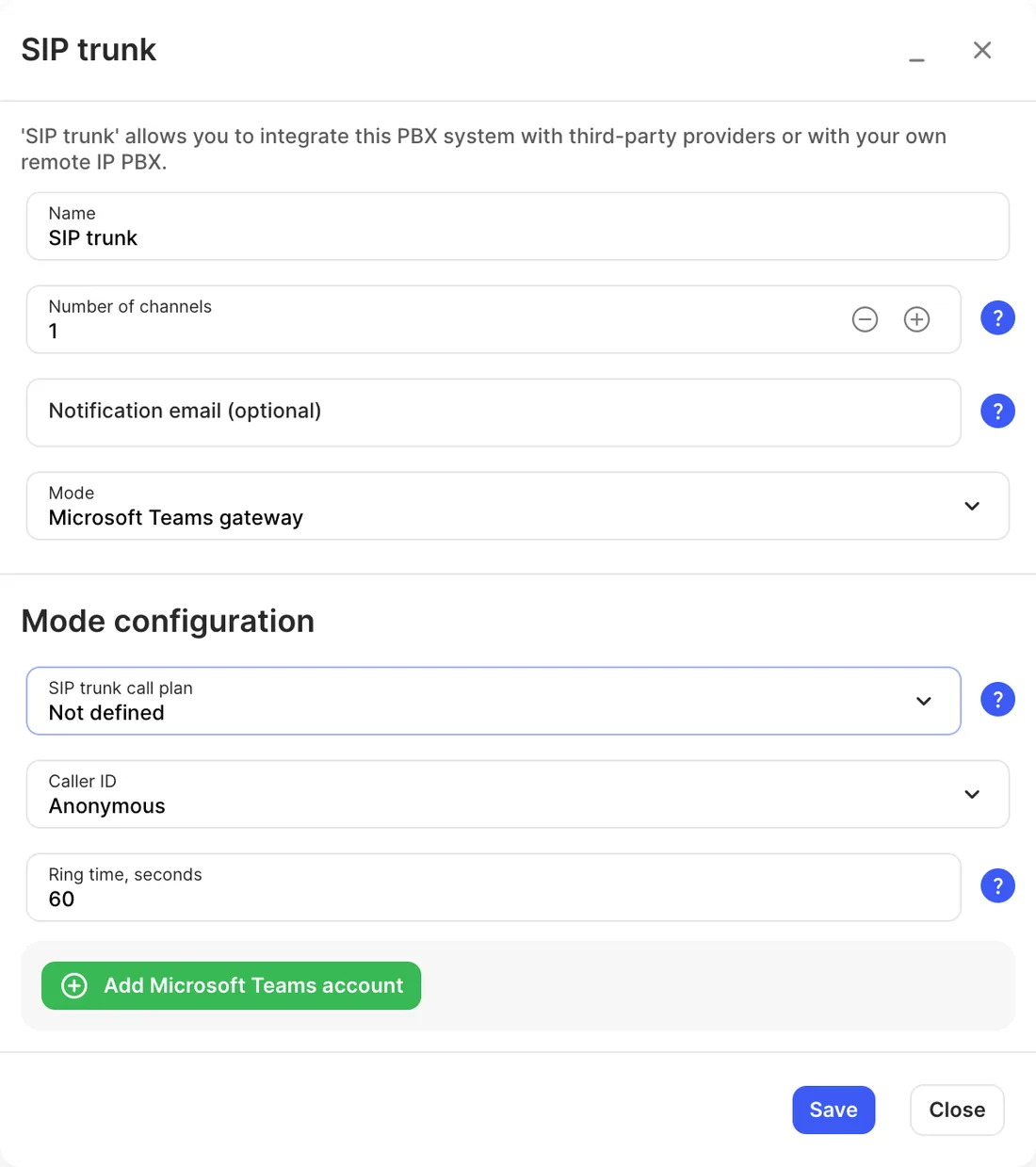
Section titled “Microsoft Teams gateway”Use this to connect Microsoft Teams with direct routing. Set up the integration in Services › Microsoft Teams first.
| Setting | What it does |
|---|---|
| SIP trunk call plan | Rates for outgoing calls from Teams. |
| Caller ID | The number shown for outgoing calls, or Anonymous. |
| Ring time, seconds | How long to ring Teams before giving up. |
| Add Microsoft Teams account | The Teams accounts this trunk connects to. |
Call paths
Section titled “Call paths”| Path | When it’s used |
|---|---|
| Failed | The call couldn’t be delivered to the remote server. |
| No answer | The ring time ran out. |
| Remote PBX phone numbers routing | Only when Route all remote PBX phone numbers via this SIP trunk is on. |
In Microsoft Teams gateway mode the object has no outgoing paths: Teams handles the call. In the other modes, if Failed or No answer isn’t connected, the call ends.