Webphone mobile app
Install the Webphone app on an iPhone or Android phone, sign in, and find your way around it.
The Webphone mobile app puts your work number on your iPhone or Android phone. You make and receive calls with your business caller ID, and see your contacts, call history, voicemail and queues.
Before you start
Section titled “Before you start”- Your phone needs Android 12 or later, or iOS 17.0 or later.
- Your PBX administrator must add a Webphone mobile device and your email to your user, then apply the configuration. See Set up the Webphone.
- Have your Webphone email and password ready. If you’ve never signed in to the Webphone, set your password first: see Sign in to the Webphone for the first time.
1. Install the app
Section titled “1. Install the app”The app is called Webphone in the App Store and Google Play. The easiest way to get the right one is the download link from your provider. Either:
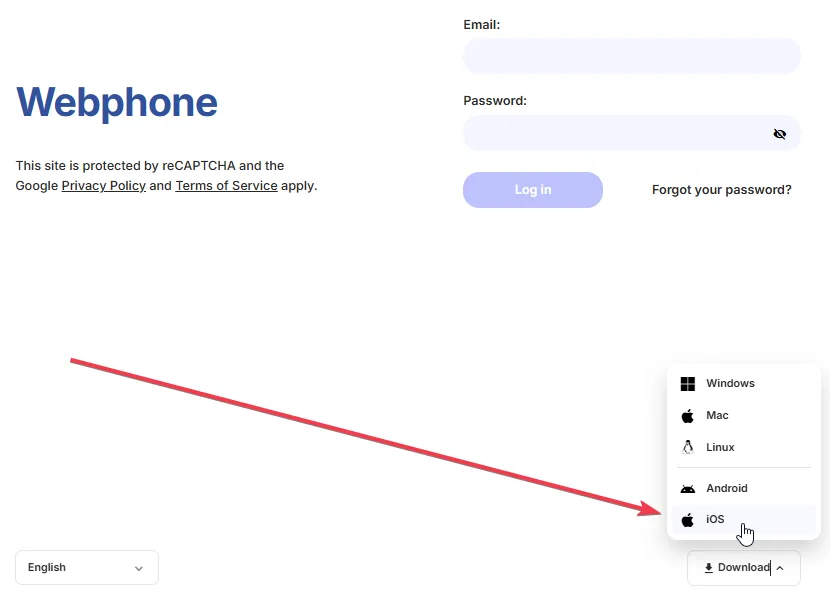
- From the Webphone on your computer: click Download and choose iOS or Android, if your provider offers them there. Scan the QR code with your phone’s camera, or click Open App Store or Open Google Play.
- From your administrator: in the PBX, the user’s settings have a Download button next to Webphone mobile. It shows the same QR code, with Copy URL to send the link by email or chat.
You can also search for Webphone in the App Store or Google Play. Several apps have similar names, so check the publisher matches the link from your provider.
2. Sign in
Section titled “2. Sign in”Open the app and sign in with your Webphone email and password, then enter the 2FA code from your authenticator app. If you haven’t set up two-factor authentication yet, the app walks you through it. Allow the app to use the microphone and send notifications, so calls can ring.
Find your way around
Section titled “Find your way around”| Tab | What you do there |
|---|---|
| Dialpad | Type a number and tap the green button to call. Under Your caller ID displays as:, tap Change to pick another caller ID. Your internal number is shown too. |
| SMS | Send and reply to text messages. |
| Contacts | Your PBX phonebooks, plus your phone’s own contacts if you allow it. |
| History | Your recent calls. Use Filters or Search to find one. |
| Services | Call controls (queues, ring groups and call flow controls), Call parking and Voicemail. |
To open Settings, tap your avatar in the top-right corner of the Dialpad screen.
Do Not Disturb and settings
Section titled “Do Not Disturb and settings”In Settings, tap DND enabled to stop calls reaching you, and Available to take calls again. Do Not Disturb affects all your devices and external numbers, not only the app. In Settings you can also:
- change your avatar with Upload new avatar;
- tap Change password;
- read the Terms and conditions;
- tap Log out.
What’s different from the desktop version
Section titled “What’s different from the desktop version”The mobile app doesn’t have every feature of the browser and desktop versions.
The PBX always shows a Webphone mobile device as online, because it can’t tell when your phone is switched off or has no internet. If you don’t want calls on your phone but still want them elsewhere, turn off the phone’s Incoming calls switch under Settings › Device management in the browser or desktop Webphone, or ask your administrator to turn the device off.
Check it works
Section titled “Check it works”- Ask a colleague to call your internal number, or call your business number from another phone. The app should ring.
- Make a call from Dialpad. The person you call should see your business caller ID.
If calls don’t ring, check that notifications are allowed for the app in your phone’s settings and that Available is selected in Settings.