Two-factor authentication (2FA)
Set up 2FA for the customer portal, and reset it when you or another administrator loses access.
Two-factor authentication (2FA, also called multi-factor authentication or MFA) protects your account if someone learns your password. To sign in to the customer portal you need your email, your password and a code from an authenticator app on your phone. 2FA is mandatory for portal administrators.
Before you start
Section titled “Before you start”- Install an authenticator app on your phone. The portal suggests Google Authenticator, from the App Store or Google Play; any authenticator app works.
- If you can’t use a phone, many password managers and browser extensions can generate 2FA codes too.
Set up 2FA
Section titled “Set up 2FA”- Sign in to the customer portal. If you haven’t set up 2FA, the portal opens the Two-factor authentication setup window. Once your provider enforces 2FA for your account, you can’t close this window until 2FA is set up.
- If the window doesn’t open, click your name in the top-right corner and choose Enable 2FA.
- In your authenticator app, add a new account. Scan the QR code shown in the portal, or type in the secret key.
- Enter the 6-digit code your app shows into the portal and click Enable. The portal confirms Two-factor authentication has been activated.
Check it works
Section titled “Check it works”- Sign out and sign in again. After your password, the portal shows Two-factor authentication and asks for a 6-digit code.
- Enter the current code from your authenticator app. To skip this step on a trusted computer, tick Remember this browser for 30 days.
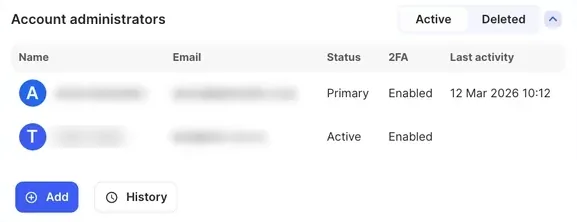
- Go to Billing › Account details. In the Account administrators table, the 2FA column shows Enabled for you.
Reset 2FA for another administrator
Section titled “Reset 2FA for another administrator”If another administrator on your account loses their phone or can’t get codes, you can reset their 2FA yourself. You need to be signed in to do this, so a locked-out administrator needs another administrator on the account to reset it.
- Sign in to the customer portal.
- Go to Billing › Account details.
- In the Account administrators table, click the administrator who is locked out.
- Click Reset 2FA below the table, then click Reset to confirm.
The next time the administrator signs in, they set up 2FA again on their new device.
Reset 2FA only appears when the selected administrator’s 2FA column shows Enabled. If you can’t see it, also check that you have permission to manage administrators. See Administrators and access.
Reset your own 2FA
Section titled “Reset your own 2FA”If you’ve lost your phone, changed phones or deleted your authenticator app:
- Another administrator can reset it for you. Ask them to follow the steps above.
- If you’re the only administrator, contact the support team. They confirm your identity first (see below), then reset your 2FA so you can set it up on your new phone.
If you don’t have a new phone yet, the support team can still help you make necessary changes to your account in the meantime. They can’t change your payment method for you.
When you contact support
Section titled “When you contact support”The support team checks your identity whenever a conversation affects your private information or security. These checks are part of the Australian Communications and Media Authority (ACMA) Telecommunications Service Provider (Customer Identity Authentication) Determination.
Everyday requests.
When you phone or chat with the support team, they ask for three of these details linked to your account:
- First and last name
- Portal account number
- Service address
- Contact phone number
- Administrator email address
- Current balance
- Last invoice amount
High-risk requests.
ACMA classes some requests as high-risk. For these, the support team emails a code to you, and you read the code back to them before they go ahead.
- Any request that could make you lose access to your service
- Your personal information
- A change of ownership or account administrator
- Buying a new service or product
- Moving from prepaid to postpaid
- Blocking or allowing extra service coverage, such as calls to overseas destinations
If you’ve given someone else authority on your account, that doesn’t change. The code is still sent to you when they contact the support team. See Advocates and authorised representatives.
If you think your account has been misused
Section titled “If you think your account has been misused”Report it straight away to the support team and to your bank or card provider. Then follow After a security incident.