Yealink common issues
Fix the most common Yealink phone problems, from calls that won't dial out to echo, dropouts and one-way audio.
Start with the problem that matches yours. First, work out whether it affects one phone or everyone: problems for everyone usually come from the network or internet connection.
Outbound calls don’t work
Section titled “Outbound calls don’t work”Likely causes: the user has no call plan, the device is offline, or the router struggles with SIP traffic over UDP.
- In the PBX, open the person’s User and check it shows a Call plan. The call plan comes from the user’s licence; to change it, go to Services › PBX licences.
- Check the device shows Online in PBX › Devices. If it’s offline, see Device offline.
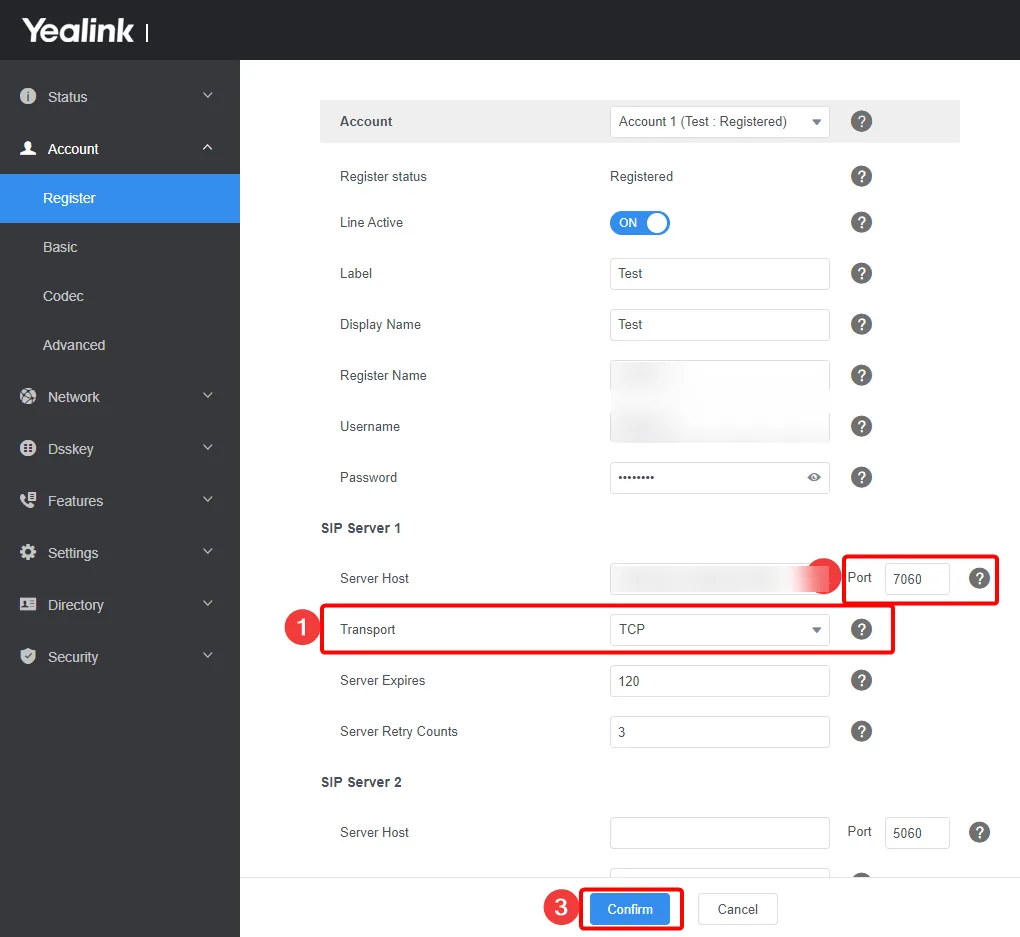
- Sign in to the phone’s web interface and go to Account › Register. Under SIP Server 1, set Transport to TCP, check the Port matches the part of the device’s Domain after the colon, and click Confirm.
See also Can’t make outbound calls.
Crackling or echo on calls
Section titled “Crackling or echo on calls”If everyone has the problem, restart your router and see Echo on calls. If it’s one person:
- Check the handset’s curly cord isn’t damaged and is plugged in firmly. Try a different cord.
- Restart the phone and make a test call.
- If they use a headset, test with the handset instead. If the handset sounds fine, the headset is the problem.
- On a cordless phone, stay in range of the base station.
- Try another connection, such as a mobile hotspot, to see whether the problem follows the network.
Dropouts or words missing
Section titled “Dropouts or words missing”Dropouts usually mean packet loss: some of the call’s audio doesn’t reach the other end, often because of the network.
- Check the network cables and ports for damage or loose connections.
- Restart your router and any network switches, and make sure their firmware is up to date.
- Try another connection, such as a mobile hotspot. If calls are fine there, contact your internet provider.
See Poor call quality.
One-way audio
Section titled “One-way audio”One person can’t hear the other. Note who can’t hear whom.
- Rule out the equipment: try another handset, headset or phone.
- Restart your router.
- If your firewall or router settings changed recently, ask your IT provider. A firewall that blocks the audio (RTP) or SIP ports is a common cause.
- Check whether other users have the same problem, and try another network such as a mobile hotspot.
See One-way or no audio and Network requirements.
Q.850 cause on the screen
Section titled “Q.850 cause on the screen”If a call fails, the phone may show technical text such as Q.850 cause=. This tells you why the call failed, for example the number you dialled is disconnected. To hide it:
- Auto-provisioned phones: add
sip.call_fail_use_reason.enable = 0to Advanced CFG configuration in the device’s Yealink settings, save and apply. - Other phones: open a support ticket and the support team can help you change this setting on the phone.
Reset the phone
Section titled “Reset the phone”If nothing else helps, reset the phone to factory settings and set it up again.
Advanced: trace the network path
Section titled “Advanced: trace the network path”The support team may ask your IT provider to run an MTR trace. It shows packet loss and delay at each step between your network and the SIP server.
- In PBX › Devices, copy the device’s Domain, without the colon and port.
- Run the trace:
- Linux: in a terminal, run
mtr <domain>. - Windows: install WinMTR and enter the domain in Host.
- Linux: in a terminal, run
- Leave it running for a while, ideally while the problem happens.
If the trace shows packet loss, send it to your internet provider. Share it with the support team too.
When to contact support
Section titled “When to contact support”If the problem continues after these steps, open a support ticket. Say which phones are affected, when it happens, and what you’ve tried.