Reset Webphone two-factor authentication
Clear a user's Webphone 2FA in the PBX so they can set up their authenticator app again.
If a user loses or replaces their phone, they can’t get the code to sign in to the Webphone. A PBX administrator can reset their two-factor authentication (2FA). The user then sets up their authenticator app again the next time they sign in.
Before you start
Section titled “Before you start”You need access to the PBX tab in the customer portal. Users can’t reset their own Webphone 2FA.
- Go to the PBX tab.
- Find the user on the canvas and click the gear icon to open their settings.
- Under Webphone, click Reset 2FA.
- Close the settings window.
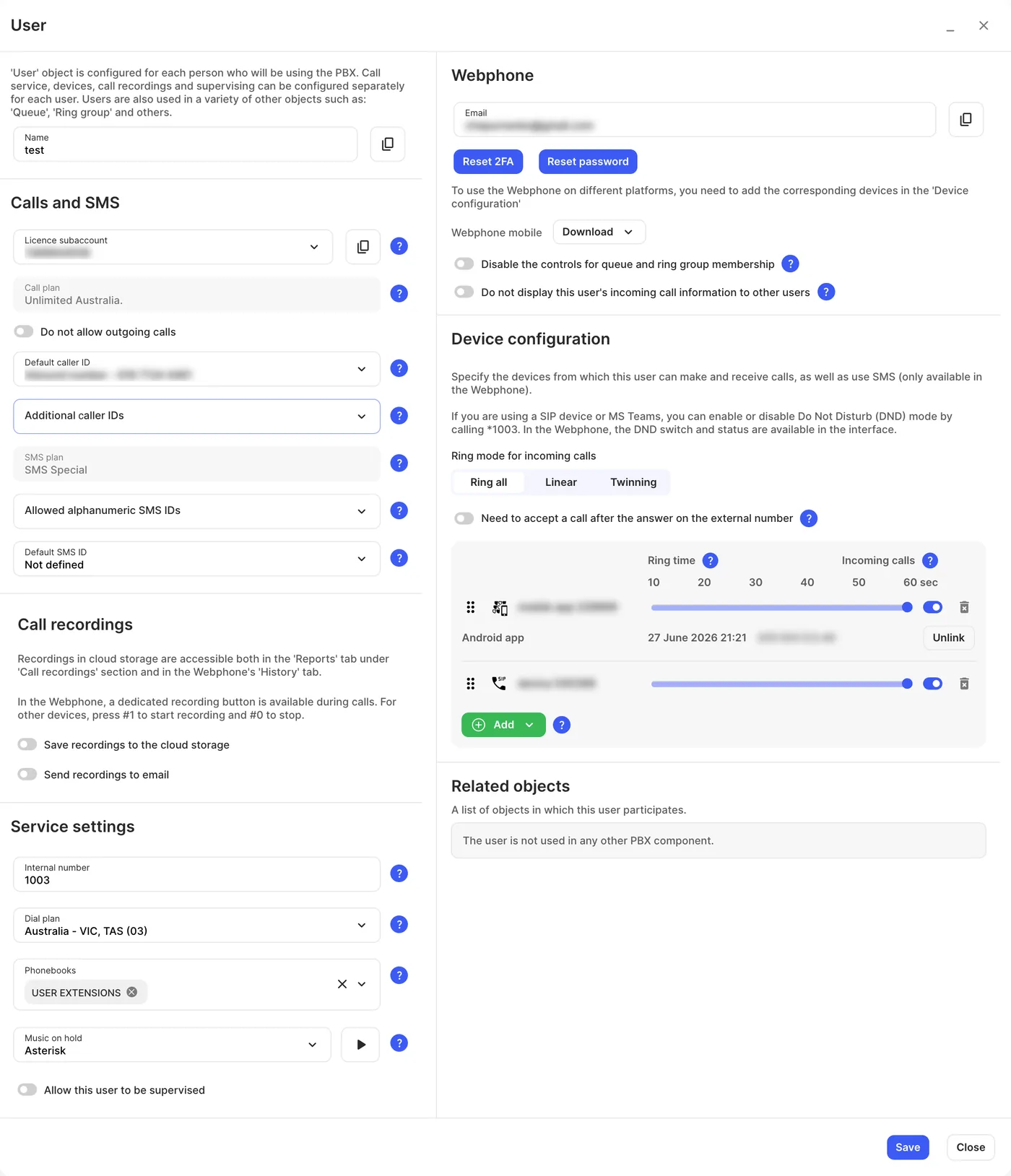
The reset happens as soon as you click the button, and 2FA reset successfully appears. You don’t need to click Apply configuration.
Reset 2FA only appears when the user has already set up 2FA.
Check it works
Section titled “Check it works”Ask the user to sign in to the Webphone. After their email and password, they should see the 2FA setup screen with a new QR code. They then follow step 3 of Sign in to the Webphone for the first time.
Next steps
Section titled “Next steps”- If the user has also forgotten their password, click Reset password in the same section to email them a link to set a new one, or ask them to use Forgot your password? on the sign-in page.
- For 2FA on the customer portal itself, see Two-factor authentication.